
Reboot. Rainbow. Reboot. Rainbow. I lost an entire Saturday morning to this exact loop in February.
I’d finally gotten my desk RGB looking right, a deep cyan across the keyboard, mouse, ARGB strip behind the monitor, even the case fans. Killed the PC for the night. Booted up Sunday. Everything back to that default rainbow wave nobody asked for. I assumed I’d just forgotten to save a profile. Saved one. Rebooted. Rainbow.
This is one of those bugs that almost nobody writes about properly because it spans like four different software stacks and the fix depends on which one’s actually causing the reset. I’ve been digging through this for the last few months across iCUE, OpenRGB, ASUS Aura, and now Windows 11’s built-in Dynamic Lighting controller, and I think I finally have the full picture. So here’s the actual fix, plus the reasons why it happens, plus the workarounds for the cases where the “fix” doesn’t fully fix it.
Why your RGB resets to rainbow in the first place
Most RGB devices store their lighting state in volatile memory on the controller chip. Not flash. Not EEPROM. Just regular volatile RAM that wipes the second the device loses power. When your motherboard cuts USB power on shutdown (which, depending on your BIOS settings, almost always happens), the controller forgets everything and falls back to its hardware default. For about 90% of mass-produced RGB peripherals, that hardware default is rainbow wave.
So the rainbow isn’t a bug. It’s the fallback firmware running on naked hardware before any software gets a chance to override it.
The “software override” part is what fails after restart. There are basically four reasons it breaks:
- Your control software doesn’t auto-launch on boot. Classic. OpenRGB famously does not register itself for startup by default. You have to do it manually.
- It auto-launches but doesn’t auto-apply your saved profile. Common with iCUE, Aura, and OpenRGB out of the box. The app loads, sits in the tray, but waits for you to click something.
- USB power gets cut hard between shutdown and boot. ErP Ready / Deep S5 BIOS settings, fast startup, hybrid sleep. Devices fully power-cycle and lose their last state.
- Two RGB apps are fighting. Aura, iCUE, G HUB, OpenRGB, and Dynamic Lighting all want to drive your devices. Whichever one wins the boot race controls the LEDs. If the loser launches second and doesn’t have a profile, you get rainbow until the winner’s profile is reapplied (or never).
I’m going to walk through the OpenRGB fix in detail because it’s the one that works for the most people across the most hardware. Then I’ll cover the vendor-software gotchas, the BIOS toggles, and what to do when none of it works.
The OpenRGB autostart fix (the actual one that works)
I learned this from a Chris Mizo video and a thread on the OpenRGB GitLab (issue #717 if you want the exact discussion). The trick is that OpenRGB’s GUI launcher is not the thing you want running at startup. You want OpenRGB launching headless with the server enabled and your profile auto-applied.
Here’s the process I followed. Took about ten minutes once I knew what I was doing.
Step 1: Kill any vendor lighting services first
This is the step everyone skips and then wonders why OpenRGB can’t see their devices. If LightingService (Asus), iCUE, G HUB, Mystic Light Service, or OMEN Light Studio are running, they’ve already grabbed your hardware and OpenRGB will either fail to detect it or fight with the vendor app forever.
Open Task Manager (Ctrl+Shift+Esc), go to the Services tab, find anything with “Lighting”, “RGB”, “Aura”, “Mystic”, “iCUE”, or “OMEN” in the name, right-click, Stop. Do the same for the Startup tab so they don’t come back next boot.
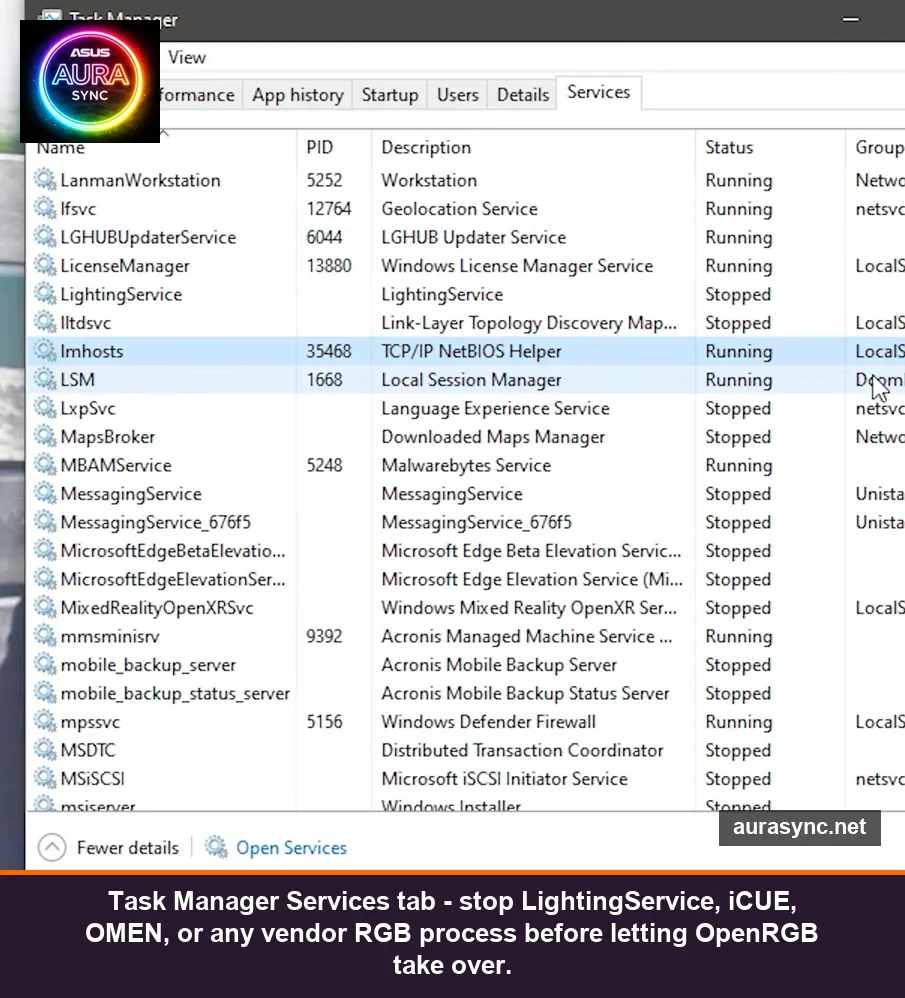
Heads up: if you’re an ASUS user, do not stop the actual Armoury Crate service unless you’re ready to commit to OpenRGB-only. ASUS keeps re-enabling it through Windows Update if Armoury Crate is still installed. You either uninstall Armoury Crate properly through the official cleanup tool, or you fight this service forever.
Step 2: Set your profile in OpenRGB and save it
Open OpenRGB (run it as administrator at least once so it can detect SMBus and i2c devices, this matters for RAM and motherboard headers). Configure your colors and effects how you want them. Then go to the bottom of the window and hit “Save Profile”. Name it something simple like primary. The file ends up in %appdata%\OpenRGB as primary.orp.
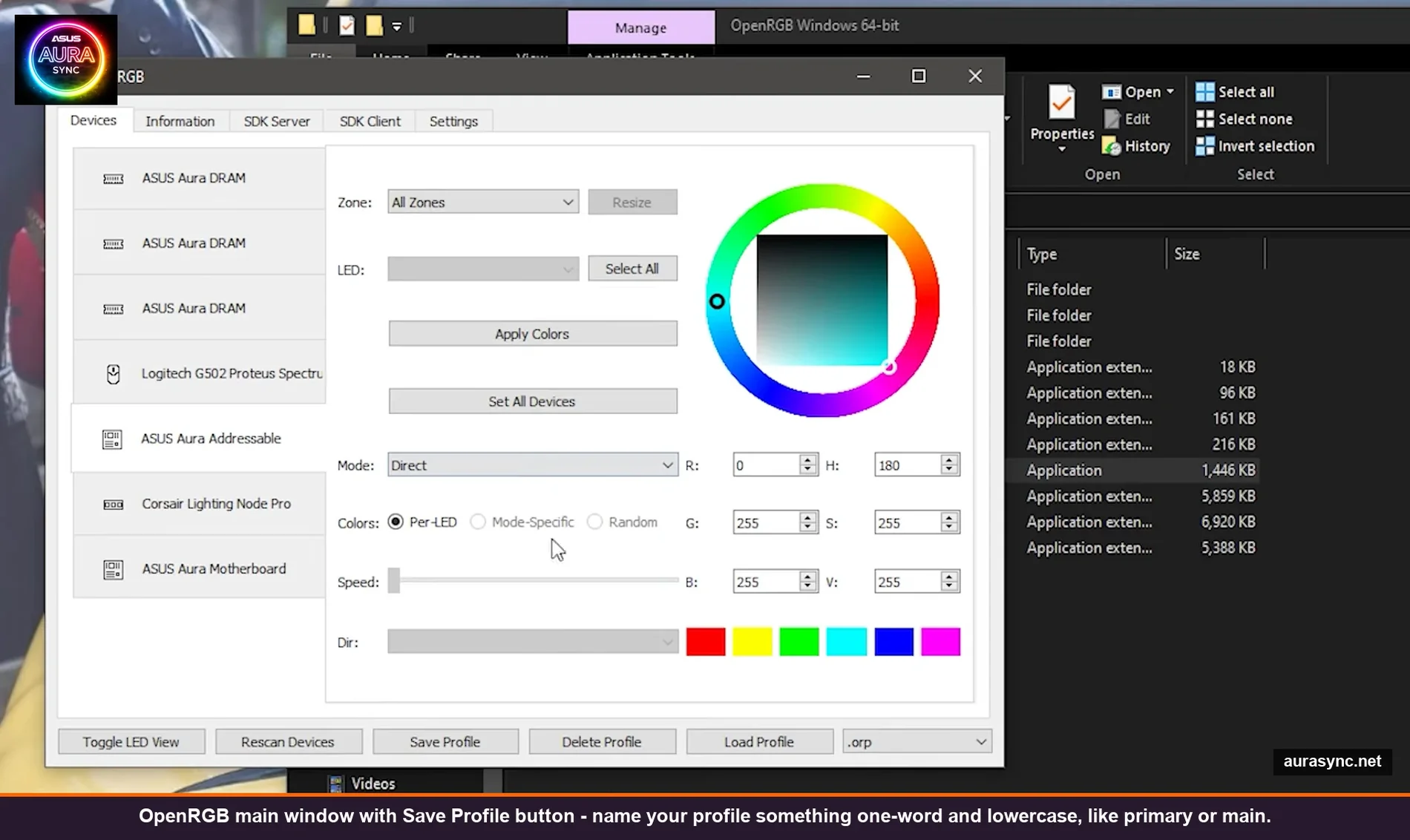
I named mine main the first time, then realized the autostart command line syntax doesn’t love spaces. Just use a one-word lowercase name. Save you a debugging session.
Step 3: Make a desktop shortcut, then move it to Startup
Right-click the OpenRGB.exe (in your install folder, usually C:\OpenRGB Windows 64-bit\) and pick “Create shortcut”. You can drop the shortcut on your desktop temporarily. Then open File Explorer and paste this into the address bar:
%appdata%\Microsoft\Windows\Start Menu\Programs\StartupThat’s the per-user Startup folder. Drag your OpenRGB shortcut into it.
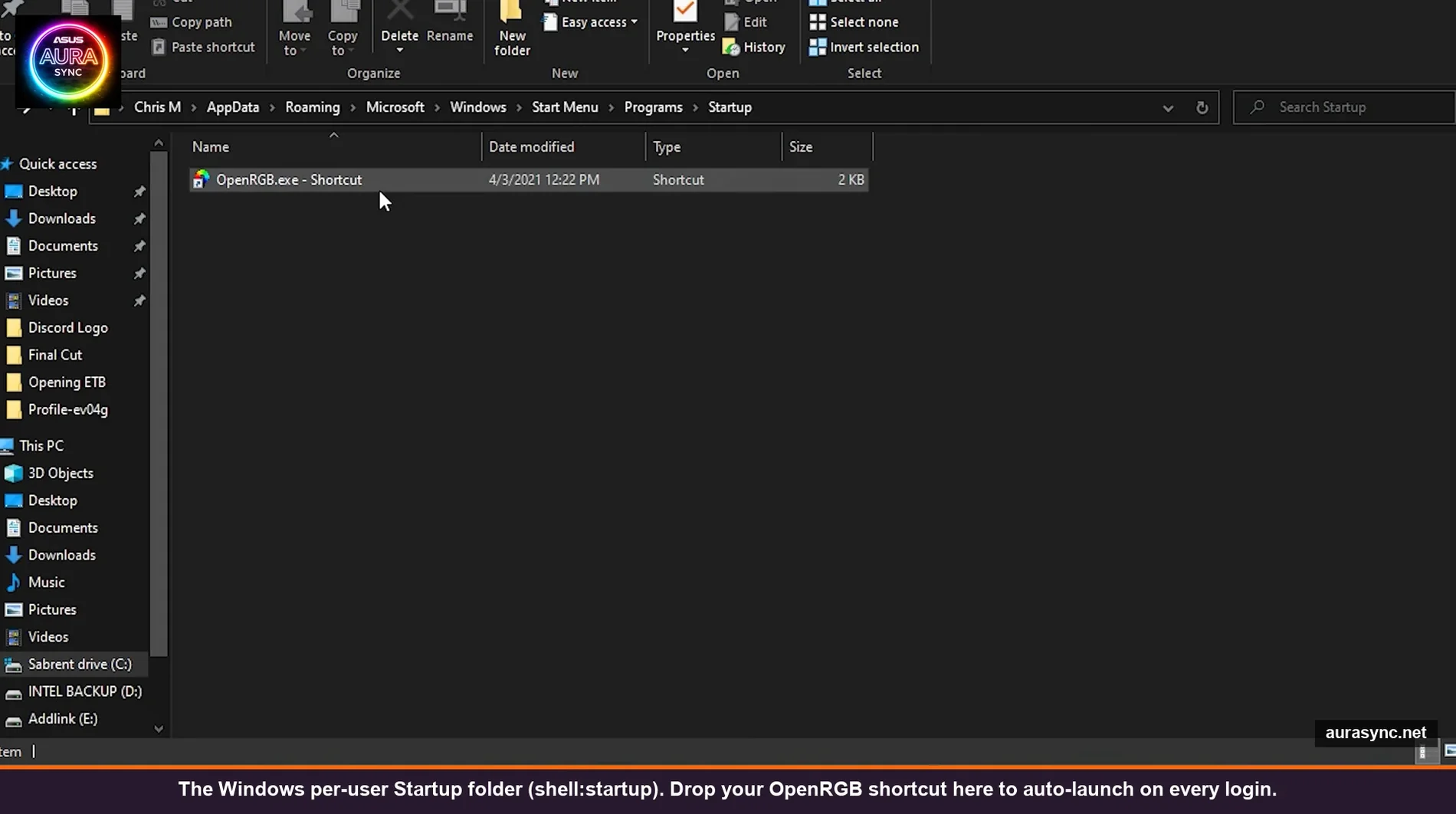
Pro tip: if you want OpenRGB to launch for ALL users (rare, but if this is a shared machine), use shell:common startup instead. For a personal PC the per-user folder is fine and means OpenRGB only fires up after you’ve logged in, which is what you want anyway because the SMBus driver isn’t ready before login on most systems.
Step 4: Edit the shortcut Target with the autostart flags
This is the actual magic step. Right-click the shortcut you just dropped in Startup, hit Properties. In the “Target” box you’ll see the path to OpenRGB.exe. After the closing quote, add a space and these arguments:
--gui --startminimized --server --profile primarySo the full Target line ends up looking like:
"C:\OpenRGB Windows 64-bit\OpenRGB.exe" --gui --startminimized --server --profile primary
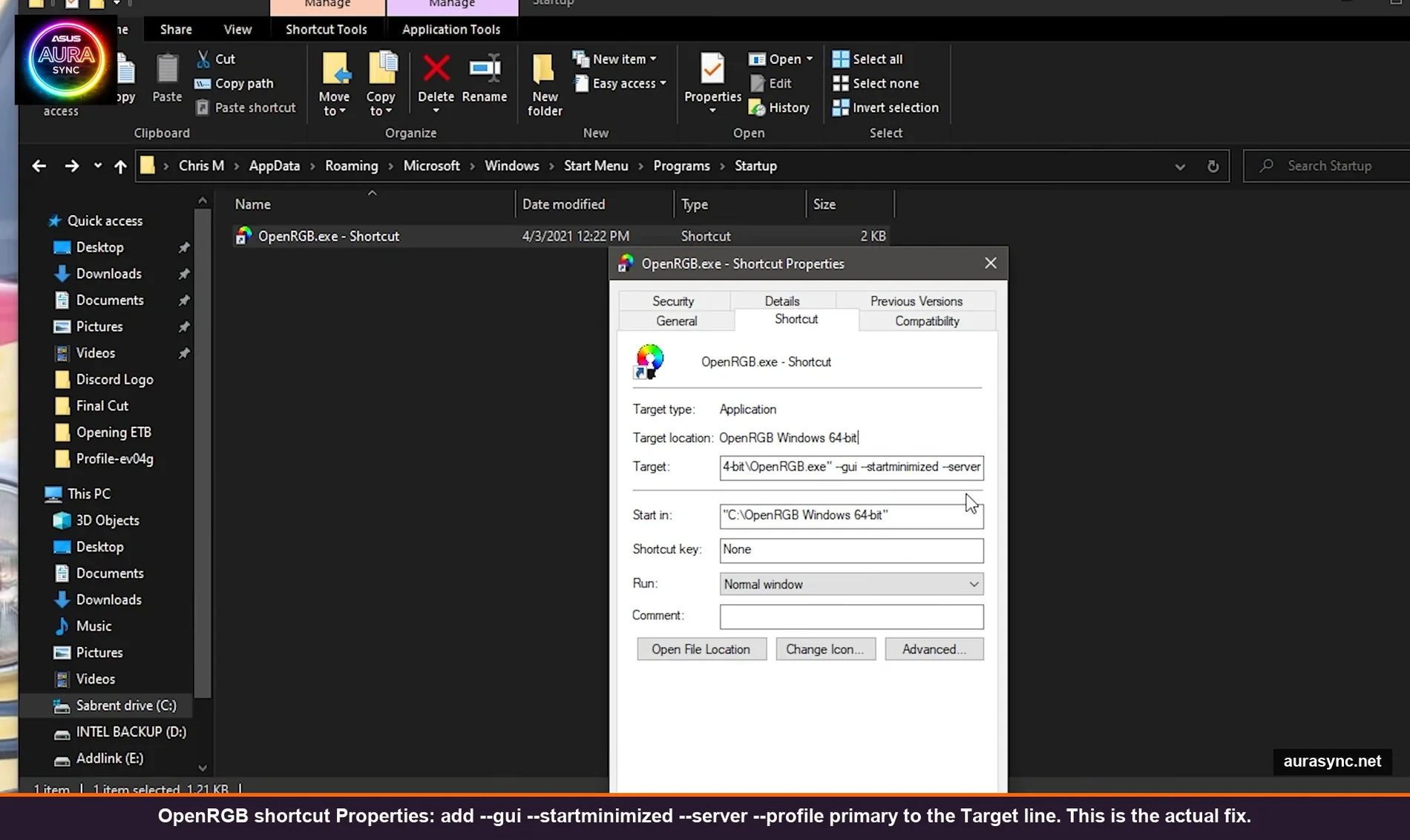
What each flag does:
--gui: opens the GUI but allows minimization to tray (without this, the next flag does nothing)--startminimized: skips the window appearing on screen at boot (you don’t want OpenRGB popping open every time you log in)--server: starts the SDK server so other apps (Discord plugin, Razer chroma bridge, screen-ambient stuff) can talk to OpenRGB--profile primary: auto-applies the profile you saved in step 2 the moment OpenRGB launches
That last flag is the one that actually fixes the rainbow problem. Without it, OpenRGB will launch on boot, sit minimized, and do absolutely nothing to your lights until you click “Load Profile” manually. With it, your saved colors apply within about two seconds of login.
Step 5: Reboot and verify
Cold reboot, not just sign-out. The whole point is to confirm the lights survive a full power cycle. Watch your peripherals come back. They’ll probably be rainbow for the first 3-5 seconds while Windows boots and the OpenRGB shortcut hasn’t fired yet, then they snap to your profile.
If they don’t snap to your profile, OpenRGB probably needs admin rights to drive your particular hardware (mostly a problem for SMBus motherboard RGB and DRAM). Right-click the shortcut, Properties, Compatibility tab, “Run as administrator”. Reboot again. Should work.
If you’re using vendor software (iCUE, Aura, G HUB)
Same fundamental problem, different fix per vendor. The core issue is always the same: profile not auto-applied on launch.
iCUE. Open iCUE → Settings → Software → check “Run iCUE at startup” (it’s usually on but verify). Then go to Lighting Effects → click your saved profile → set as default. iCUE has a separate setting buried under Devices that controls whether it pushes hardware lighting on boot vs. just software lighting. If yours is set to software-only, the lights revert the moment iCUE briefly drops the connection.
Asus Aura / Armoury Crate. The single most-reported version of this bug, ironically. ROG forum thread that’s been running since 2019 (forum link) has like 200 replies and ASUS has never properly fixed it. Workaround: disable Fast Startup in Windows (covered below), and in Aura Creator save your effect as a .lif file then set it as the default profile. If it still resets, try the workaround where you tick “Use last setting after restart” inside the Aura/Armoury settings, NOT inside the effect editor. Easy to miss.
G HUB. Less common because Logitech mice usually have onboard memory, but if it’s resetting, the fix is in G HUB → Settings → “Sync at startup” plus checking that the profile is bound to a per-application or default profile. The mouse often has 5 onboard slots, the keyboard usually 0-1.
Windows 11 Dynamic Lighting. If you’ve moved everything over to Microsoft’s built-in controller, the rainbow-after-restart problem mostly goes away because Dynamic Lighting reapplies on every boot automatically. There’s a different bug with Dynamic Lighting where ASUS LightingService re-grabs the hardware after a Windows update, but that’s a one-time fix (uninstall LightingService).
The BIOS settings that are quietly breaking everything
If you’ve done all the software fixes and STILL get rainbow on every reboot, your BIOS is cutting USB power. There are typically three settings that cause this. They have different names per motherboard vendor, which is part of why nobody can give a clean answer on Reddit.
ErP Ready / ErP S4+S5 / Deep S5. Found in the Power section. When ErP is enabled, the board kills all standby power including USB. This is what stops your keyboard from glowing while the PC’s off, but it also full-cycles your RGB controllers between sessions. If you don’t care about the keyboard glowing while the system’s off, set ErP to Disabled or just S5 (not S4+S5).
Onboard RGB / Aura RGB Controller. ASUS, Gigabyte and MSI boards all have a setting that controls whether the onboard ARGB headers stay powered in S5. Default is usually off. If you want post-shutdown lighting to persist, turn it on. If you only care about post-boot lighting, leave it off but the BIOS-level “boot logo color” might still override your software for the first second or two.
Fast Boot (BIOS) and Fast Startup (Windows). Two different things, both bad for RGB. Fast Startup in Windows is technically a hybrid hibernate. It saves system state and restores it on boot, which often means your RGB software thinks it’s resuming and doesn’t bother re-applying the profile. Disable both:
- Windows: Control Panel → Power Options → “Choose what the power buttons do” → uncheck “Turn on fast startup”
- BIOS: Boot section → Fast Boot → Disabled
Just turning off Windows Fast Startup fixed about half the rainbow-on-restart cases I read on r/ASUS. It’s not a coincidence.
What to do when nothing works
If you’ve done all of the above and your RGB still resets on every cold boot, there’s a small chance you have a controller that genuinely cannot persist state through power loss and your software cannot reach it fast enough. The honest answer here is “use cheaper RGB or accept the 3-second rainbow during boot.” Not what anyone wants to hear.
The slightly less honest answer: a lot of people in the OpenRGB community have started using a “lighting trigger” via Task Scheduler instead of the Startup folder. The advantage is you can set it to fire on multiple events (login, screen-unlock, resume-from-sleep), which catches the cases where Windows Fast Startup or sleep/wake breaks the profile. There’s a decent walkthrough on the OpenRGB GitLab (FAQ here) but it’s beyond the scope of this guide.
The other thing worth checking: are you sure your RGB device actually saves to onboard memory at all? Some cheap ARGB strips and fans don’t have a controller chip with persistent memory. They literally cannot remember anything between power cycles, no matter what software you throw at it. You’ll always need a software-driven controller running at boot for those.
The verdict, basically
The “RGB resets to rainbow” thing is fixable for 95% of setups. It’s just that the fix has like five layers and most YouTube guides cover one and call it done. The full fix is:
- Stop fighting vendor software, pick one (or move to Dynamic Lighting if your devices support it)
- Save your profile in that one app
- Make sure that app auto-launches at login (Startup folder, Task Scheduler, or vendor’s built-in setting)
- Make sure that app auto-applies the profile, not just opens to the tray
- Disable Windows Fast Startup, and disable BIOS ErP if your hardware loses state through it
Took me a couple of months of poking at this before I had a setup that survived ten reboots in a row. It’s been stable since. If you’re in the rainbow loop right now, I’d start with the OpenRGB autostart fix above (steps 1 through 5), then disable Fast Startup, then look at BIOS as a last resort.
FAQ
Does this fix work for ARGB case fans and strips connected to the motherboard?
Yes, but only if your software (OpenRGB, Aura, etc.) has SMBus or i2c access. That requires running as admin and on some boards requires a kernel driver (OpenRGB ships an InpOut32 helper for this). Once it has access, motherboard ARGB headers behave the same as USB peripherals, the rainbow on boot is the BIOS default, and your software applying the profile after login overrides it.
Why does my RGB work fine after a restart but reset to rainbow after a full shutdown?
This is the BIOS power thing. Restart preserves USB power; shutdown cuts it. ErP / Deep S5 / equivalent power-saving setting in your BIOS is killing standby power between shutdowns. Disable it (or pick the S5-only variant, not S4+S5), or accept that you’ll see a brief rainbow at boot until your software fires.
Can I use OpenRGB and Aura at the same time?
Technically yes via the OpenRGB SDK server, but in practice it’s a flaky mess. Whichever one launched last will probably win, and even then you’ll get conflicts the first time you change a setting in the loser. Pick one. If you want OpenRGB’s per-LED control with Aura’s polish, you basically can’t have both, OpenRGB wins on flexibility, Aura wins on integration. Most people end up on one or the other.
Does Windows 11 Dynamic Lighting solve this entirely?
For supported devices (and only those), it more or less does, the OS itself takes responsibility for reapplying lighting on every boot, and the only failure mode is when a third-party app like OMEN Light Studio outranks Dynamic Lighting in the priority list. Full breakdown of how the priority list works in the Dynamic Lighting hands-on. The catch is the supported device list is small, so for most enthusiast builds you’re still better off with OpenRGB or vendor software for now.
Is there a way to make my keyboard glow during the BIOS / boot screen?
Only if your keyboard supports onboard memory profiles (most Razer, some Logitech G, most Corsair, basically zero generic membrane RGB boards). Configure the onboard profile in the vendor software, save it to the keyboard’s slot 1, then unplug the USB cable for a second to confirm it persists. That profile will display from the moment USB powers up at POST, before any OS or driver loads.
Related Guides
- RGB sync troubleshooting playbook — the broader 5-category framework this fits into.
- OpenRGB with auto-start — the cleanest auto-restore solution.
- How to sync RGB across vendors — the cross-vendor persistence flow.
- OpenRGB vs SignalRGB — tools that handle reboot persistence properly.