
I pulled three RGB fans out of the case, taped them to my desk, and finally sat down to push every single mode in Polychrome Sync until the spreadsheet I’d been keeping was actually full. Not a quick “yep it lights up” once-over. I wanted to know which modes are gimmicks, which actually do what they claim, and whether the Razer Chroma integration is real or just marketing.
Short version: it’s a B550 Steel Legend, Polychrome Sync v2.0.0.114, four headers wired up, and I burned an evening on the 15-mode walkthrough plus the Razer side. If you came here wondering whether ASRock’s RGB story is good enough to skip OpenRGB or SignalRGB, keep reading. The answer’s more interesting than I expected.
The hardware: nothing fancy, but I left the fans outside the case on purpose
I’m running an ASRock B550 Steel Legend. It’s got four RGB headers split right down the middle. Two are 5V addressable (the ARGB ones, where each LED is its own pixel) and two are 12V non-addressable (the older “whole strip is one colour” type). The board manual spells out the limits, mine caps at 3 amps total or 2 metres maximum on those headers, which is genuinely useful info if you’re about to chain a giant strip behind your case.
For the demo I left everything outside the case. Three RGB fans on a SATA-powered splitter (PWM connector for fan speed, single RGB lead going into one 5V header). One 12V LED strip into the bottom 12V header. A GEM LED light bar into the second 5V header. The other 12V port stayed empty. I’ve got another strip but the connector cable wasn’t in the bin where it should’ve been. Classic.
⚠️ Heads up: a “splitter” is not a “daisy-chain hub.” The splitter just clones the same RGB signal three ways, so all three fans behave as one giant chain. If you want a wave that actually sweeps fan-to-fan, you need a daisy-chain fan kit with its own controller. I didn’t have one and you can absolutely see the limitation in the Wave-effect screenshots later.
Inside Polychrome Sync v2.0.0.114: the layout’s actually clear
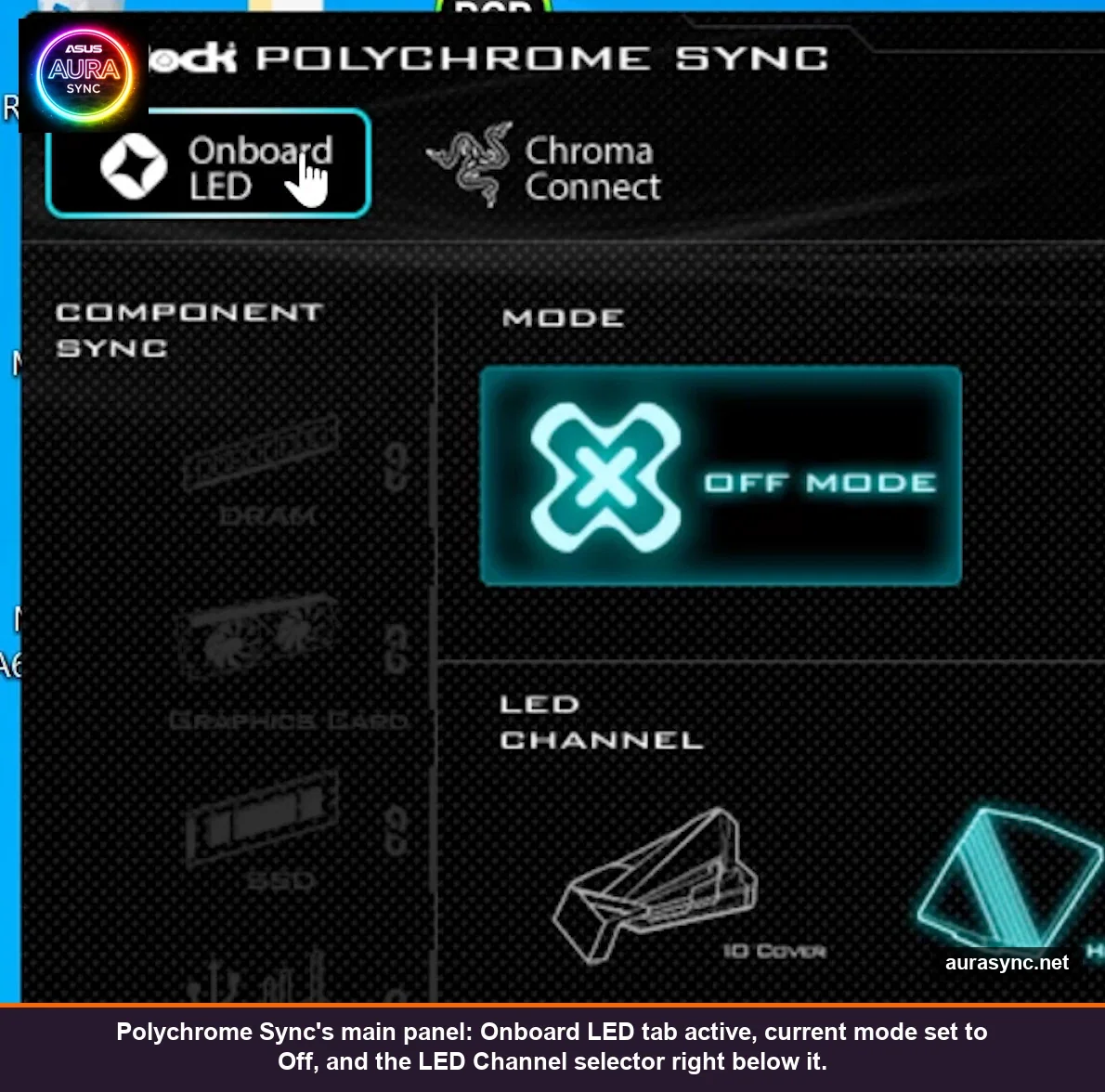
I’d braced for a Synapse-tier mess and got something genuinely simple. The top row shows your devices. In my case it’s just “Onboard LED” because I don’t own any of ASRock’s partner-supported RAM kits or AIOs. Click in, you see the four headers represented along with the I/O cover and PCH heatsink as their own zones.
Two zones were greyed out on mine. PCB cover and the audio area. That’s because this particular Steel Legend doesn’t actually have RGB hardware in those spots. The Polychrome software still shows them, just dimmed, which is honestly the correct UX choice. Better than hiding them and making me wonder if I’d missed an update.
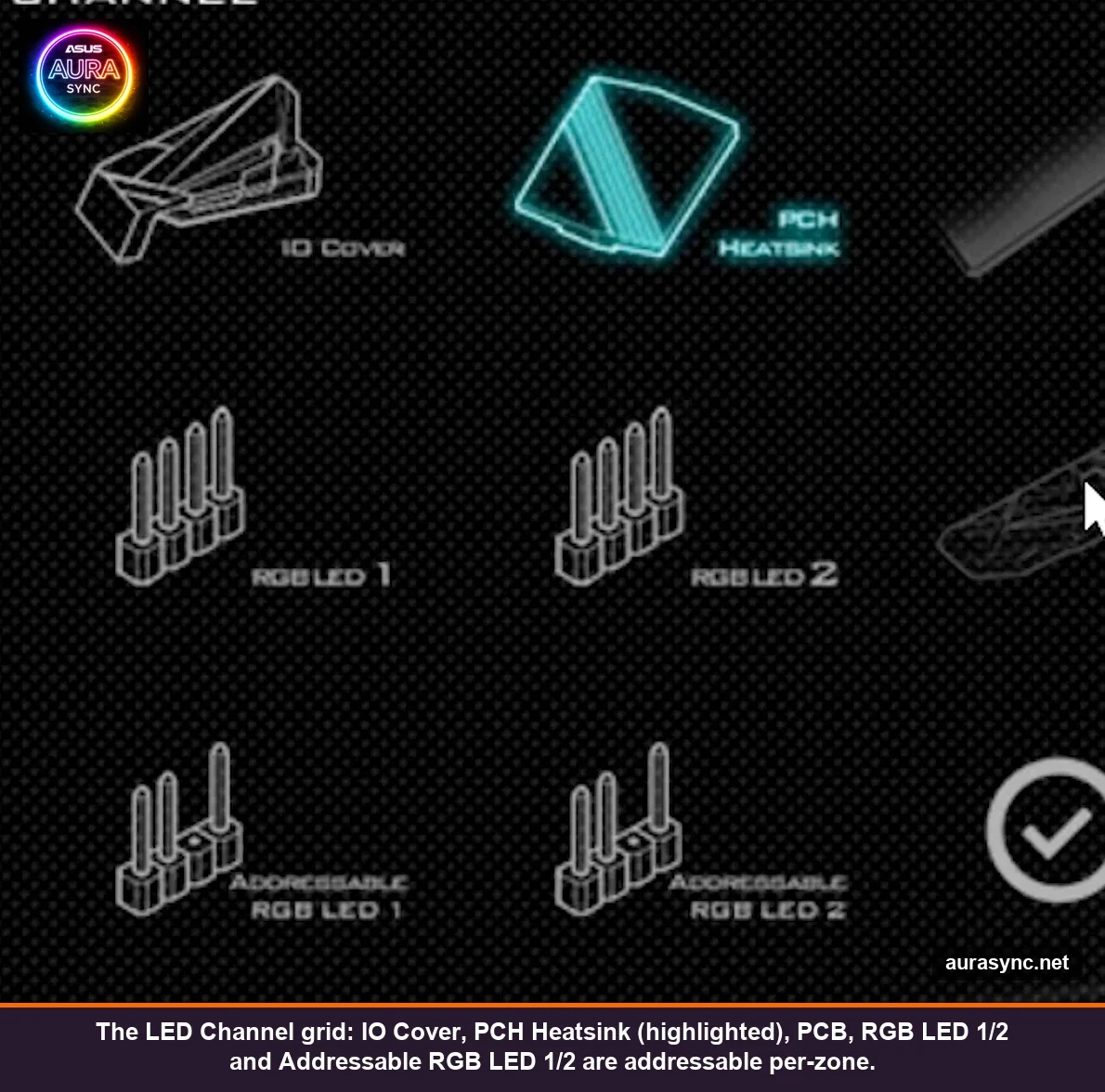
The “Select All Channels” toggle is what you’ll use most. I left it on for basically the entire demo so any mode I picked got pushed to every channel at once. If you want different effects per zone, untick it and hit each channel individually. Component Sync over on the side is for when you do have those partner-brand devices, you’d link them and pick a mode they all support. I had nothing to test that with so it stayed empty.
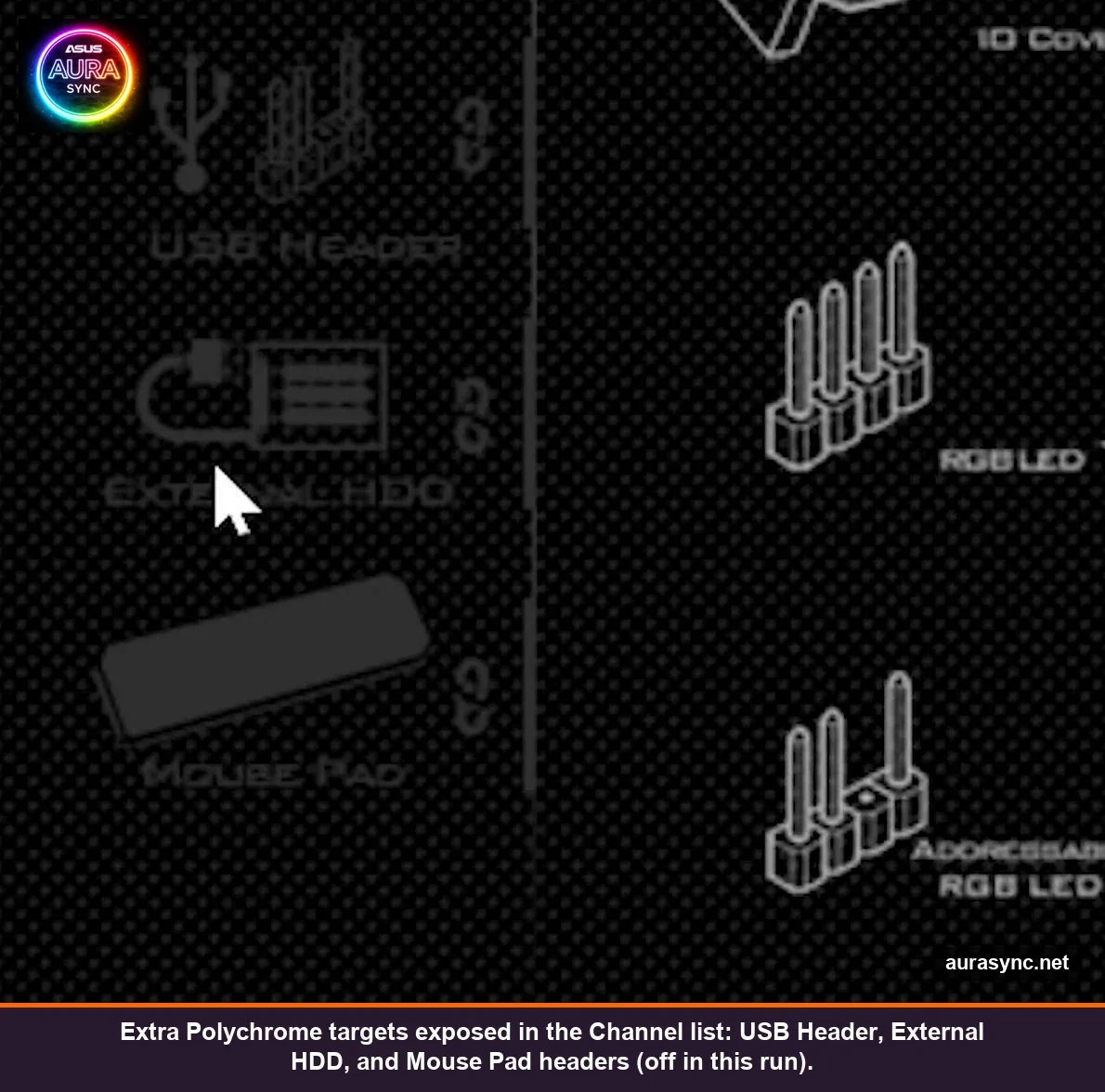
Scroll the LED Channel list and you’ll find some less-advertised targets too. USB Header, External HDD, Mouse Pad. None of mine were wired up to those, but it’s a reminder that Polychrome’s reach goes a bit beyond just the fan headers if you’ve got accessories that hook into the right pins.
All 15 modes: the gimmicks, the workhorses, and the one I didn’t expect to like
Polychrome ships with fifteen modes. I went through them in order. Static (single colour, picker on the right with the standard wheel-plus-square plus RGB sliders, no hex input which is annoying). Breathing (slow fade, speed slider at the bottom). Strobe (chuck a colour in, blast). Cycling (no colour picker, sequences hues for you, speed adjustable). Random (exactly what it says).
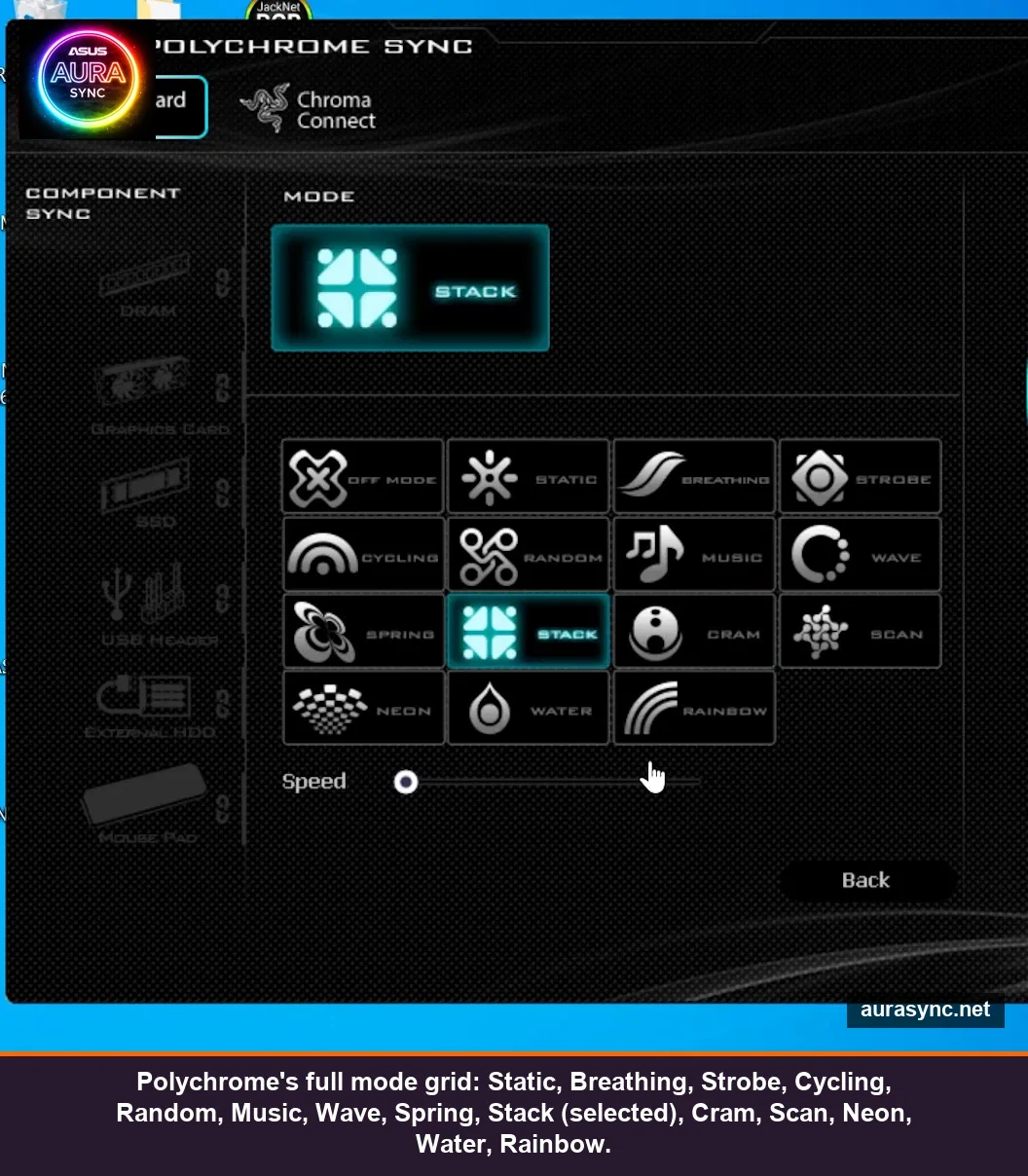
Then Music, which I genuinely did not expect to work. I threw on a YouTube trailer and the lights pulsed to it. It’s reading whatever’s coming out of your default audio device, which means the YouTube volume slider directly controls the intensity. Slide it down, lights dim. Slide it up, they pop. It’s not analysing frequency bands like SignalRGB does, but for casual listening it’s perfectly fine and I caught myself leaving it on after the test.
Wave, Spring, Stack, Cram, Scan, Neon, Water, Rainbow round out the rest. Wave and Stack both look identical on three fans wired to a splitter (because, again, splitter equals one chain), but on the addressable strip the Wave actually sweeps properly. Spring is just a softer Wave. Cram is a denser Stack. Honestly some of these feel like marketing checkboxes more than meaningfully different effects, but it’s nice to have options without paying for an Aura Creator licence.
(Quick tangent: if your colours look wrong, like red showing as green or your purples coming out flat blue, hit the “RGB swap” toggle on the addressable channel. I’ve only ever needed it on the GEM bar because its protocol doesn’t quite match what ASRock expects. The fans behaved fine without it.)
LED count per channel: the setting that everyone misses
This is the one nobody warns you about. Each addressable channel has an “LED count” setting that defaults to 12. My case strip has 24 LEDs. So when I set Static white the first time, half the strip stayed dark. Took me a minute to figure out why. Bumped the count up to 24 and the whole strip came alive. The other ARGB channel needed 24 too, but a few less than that actually lit because the strip is shorter.
The 12V non-addressable channels don’t get this option because, well, you can’t address individual LEDs on those. The whole strip is one giant pixel by design. Same for the I/O cover and PCH heatsink, those are fixed zones controlled as one unit. Don’t waste time hunting for an LED count there.
Razer Chroma Connect: where the actual customisation hides
Here’s the thing nobody really mentions in the marketing. The cool customisation isn’t in Polychrome Sync. It’s in Razer Synapse, specifically Chroma Studio, after you flip Chroma Connect on for ASRock. That toggle exposes your motherboard to Synapse as a controllable Chroma device, and now you’ve got Razer’s full effects engine pointed at your B550.
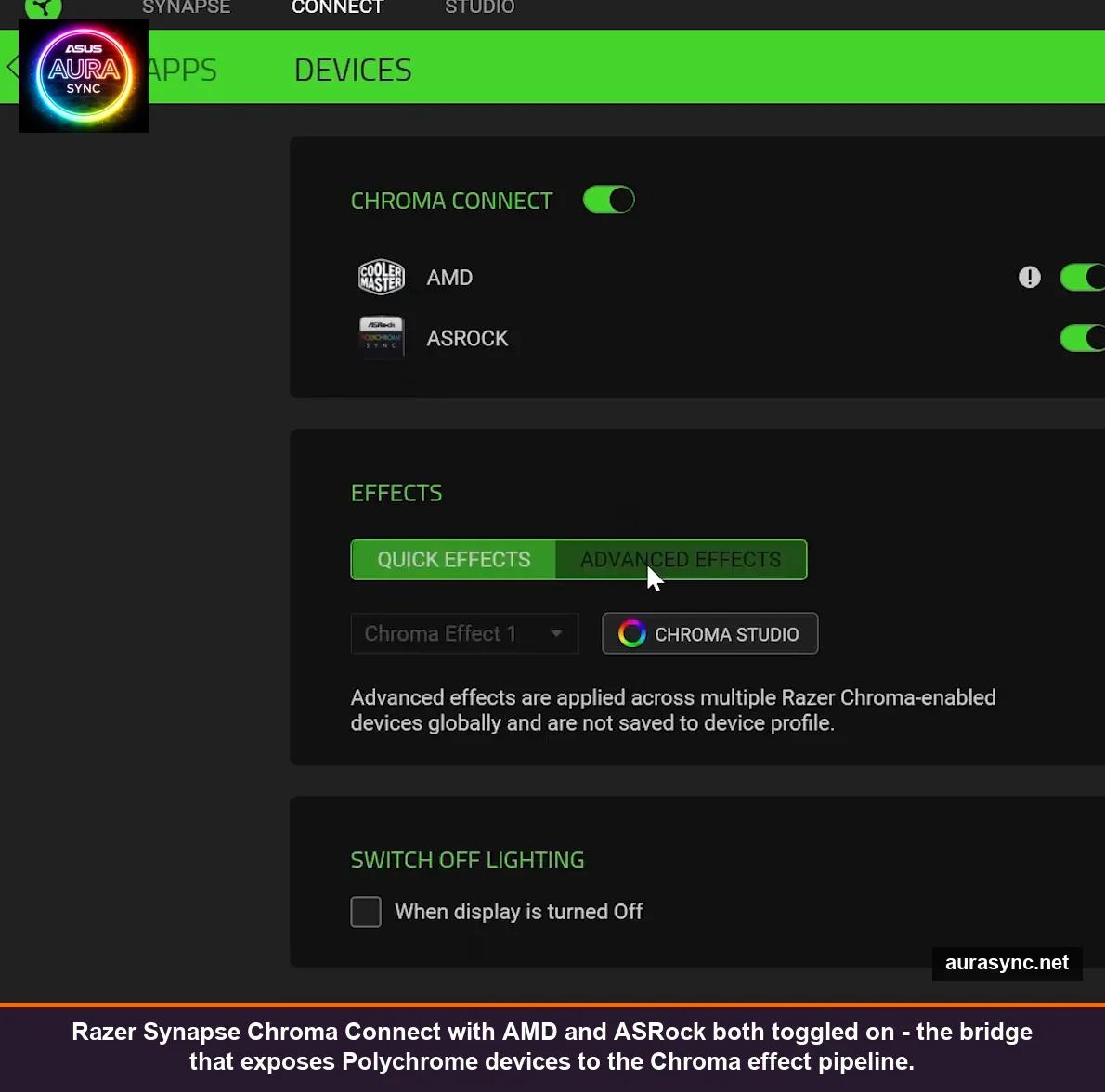
I had Chroma Connect spot both my AMD chipset and the ASRock controller. The AMD entry shows up as “Unreachable” in Studio for some modes (no idea why, didn’t dig into it for this writeup), but the ASRock controller works flawlessly. From there you get Spectrum Cycling, Static, Breathing, Wave, Wheel, Audio Meter, Ambient Awareness, Fire, Starlight, plus more. It’s significantly more effects than Polychrome alone gives you.
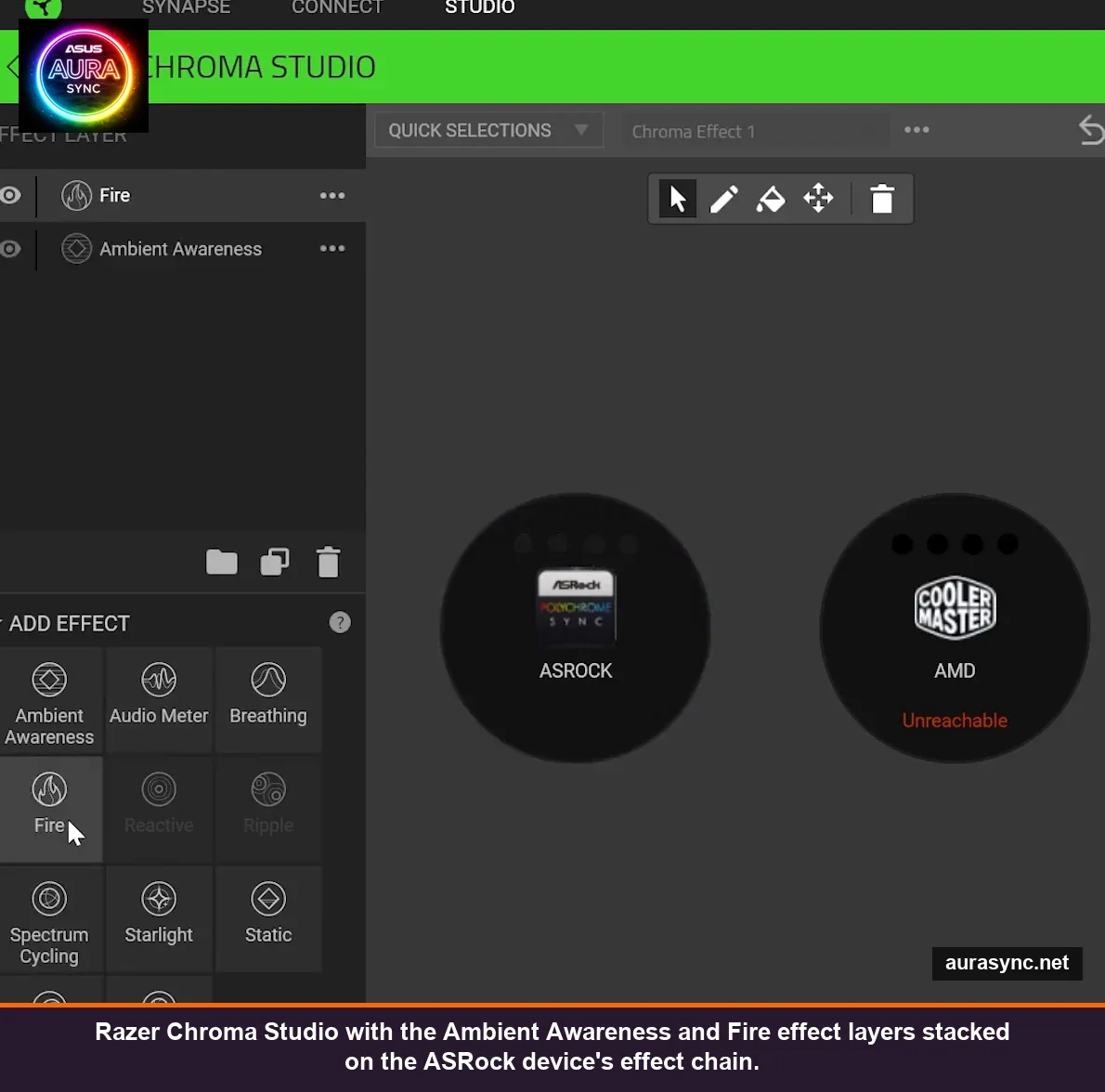
I stacked Ambient Awareness with Fire on the ASRock device’s effect chain. Ambient Awareness is the one that mirrors your screen edge colours onto the lighting, so my taskbar accent bled through to the fans in real time. Fire layered on top added flicker. It looked silly and great. Worth the ten minutes of setup just for that combo.
Chroma in games: I tried Fortnite, it works but barely
Razer’s “supported games” list on their website is the canonical reference, but I figured I’d test the most popular one. Fortnite. Loaded up, RGB toggled in the settings, ran a match. Walking into the storm changed the lighting tint. Getting hit gave me a flash. That’s about it. The effects are there, they just aren’t very dramatic in this game.
I haven’t tried the others on Razer’s list (World War Z, Killsquad, Medieval Dynasty, etc.) but the takeaway is: the integration is real, the games-list is fairly long, and you don’t pay anything extra to get it. So… it’s a free upgrade, even if Fortnite specifically isn’t the showcase.
The third-party detour: JackNet and SignalRGB
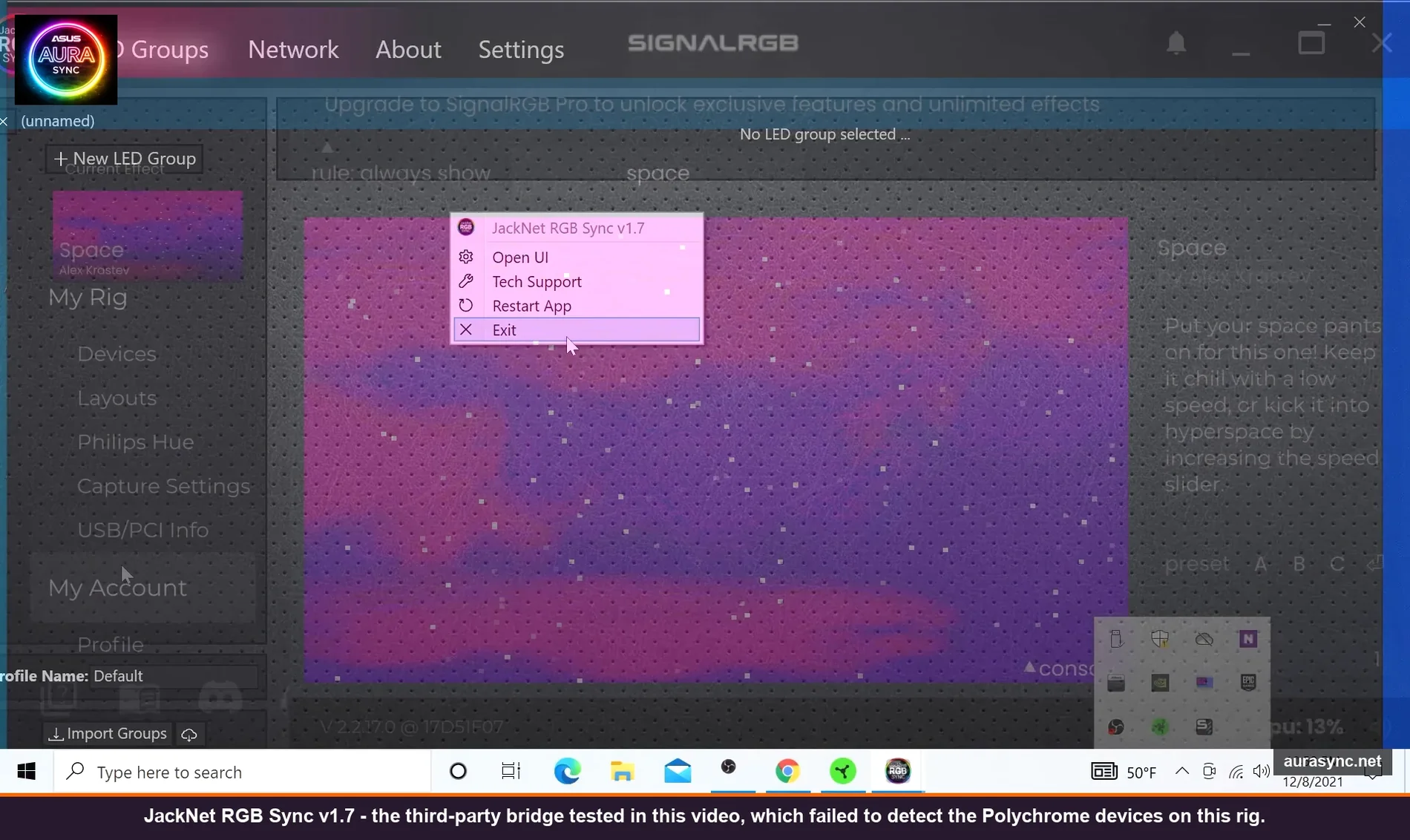
While I was set up I figured I’d test the alternatives. JackNet RGB Sync v1.7 launched fine but couldn’t detect the ASRock board at all. Just nothing in the device list. Not sure if that’s a recent regression or a permanent gap, but it didn’t work for me on this board so I moved on.
SignalRGB (v2.2.17.0 in my test) did detect the board straight away. I didn’t go deep with it because that’s a separate writeup, but it ran out of the box and the community effects library is way bigger than what Polychrome ships with. Honestly the My Effects / Customize / My Rig layout in SignalRGB is more polished than anything ASRock has, but you’re trading “stable, focused, ASRock-supported” for “more features, third-party, occasional updates break things.” Pick your poison.
What about UEFI RGB control?
Some ASRock boards expose a tiny RGB section in UEFI itself, so your lighting persists before Windows even loads. Mine doesn’t. The Steel Legend skipped that feature for some reason. If yours has it, the user manual will say so. I personally wouldn’t use it, dropping into UEFI to change a colour is more friction than just opening Polychrome, but I know some people care about the pre-OS lighting being correct.
Verdict: who Polychrome Sync is actually for
Polychrome Sync is for ASRock owners who want their RGB to “just work” across the board’s headers, with optional Razer Chroma if they’re already in that ecosystem. That’s the sweet spot. It’s stable, the modes are functional, music mode genuinely works, the LED count setting fixes the most common newcomer headache, and Chroma Connect quietly buys you a much bigger effects library if you’ve got Synapse installed anyway.
It’s not for people who want individual-LED timeline animations, custom lighting profiles per game, or to sync devices from five different brands under one app. That’s Aura Creator territory (different ecosystem, ASUS), or iCUE if you’re all-in on Corsair, or SignalRGB if you want a brand-agnostic option with a community of effect creators behind it.
I’d give Polychrome Sync a solid “works as advertised” rating. Not flashy. Not bad. Exactly what most ASRock owners actually need.
FAQ
Does Polychrome Sync work with non-ASRock RGB devices?
Only the partner-brand components on ASRock’s supported list (specific RAM kits, AIOs, PSUs, etc.). Generic RGB strips and fans plugged into the motherboard headers will work fine because the motherboard controls them directly through the headers. The “supported components” list is on ASRock’s Polychrome page and it’s worth a look before you buy a kit and assume.
Why don’t my three fans show a proper Wave effect?
You’ve probably wired them with a splitter rather than a daisy-chain fan kit. A splitter clones the same signal to all fans simultaneously, so the wave can’t sweep across them. Get a daisy-chain set (one cable in, fans linked in series with their own pass-through controller) if you want true per-fan addressable effects. This isn’t a Polychrome bug, it’s how the cabling works.
Can I use Polychrome Sync alongside Razer Synapse?
Yes, that’s exactly how the Razer Chroma integration is designed. Toggle Chroma Connect on inside Polychrome, then your motherboard appears as a controllable device in Razer Synapse and Chroma Studio. You can keep using Polychrome for basic modes and switch to Synapse when you want the more complex effect layering.
What’s the maximum LED strip length on the ASRock RGB headers?
On the B550 Steel Legend it’s 3 amps total or 2 metres maximum per header. Other boards vary, so check your specific manual or the PDF on ASRock’s site. The number is always printed in the header section, usually with a bold warning right next to it.
Is “Polychrome Sync” the same as “Polychrome RGB”?
Yes. “Polychrome Sync” is the cross-device sync feature inside the Polychrome RGB software. They’re the same product. ASRock just refers to the synchronisation function as “Sync.” If you see both names in different docs, don’t worry, you’re not missing a separate download.
Tested April 2026 on an ASRock B550 Steel Legend, Polychrome Sync v2.0.0.114, Razer Synapse with Chroma Connect, and SignalRGB v2.2.17.0 for comparison.
Related Guides
- Best RGB software for Windows — where Polychrome ranks against the alternatives.
- OpenRGB cross-vendor setup — the universal alternative if Polychrome is missing devices.
- RGB sync troubleshooting playbook — for Polychrome detection failures.
- How to sync RGB across ASUS, Corsair, Razer — Polychrome in a cross-vendor flow.