
I’ve spent more hours than I want to admit debugging RGB across other people’s PCs. Friends, family, the guy at work who built his first PC and asked me “why does my motherboard go rainbow but my fans stay off.” Most of the fixes are the same five or six things, regardless of vendor. The cycle is: install vendor app, plug device into wrong header, fight with Windows Dynamic Lighting, give up, ask Reddit, get told to reinstall everything. Doesn’t have to be that hard.
So this is the troubleshooting playbook I run through whenever something RGB stops behaving. Specifically the actual root causes behind the most common “my RGB doesn’t work” symptoms across ASUS Aura Sync, MSI Mystic Light, Corsair iCUE, Razer Synapse, and the cross-vendor tools (SignalRGB and OpenRGB). I’m running this on a mixed-vendor build (ASUS Crosshair X870E motherboard, Corsair Vengeance RGB Pro RAM, Razer Cobra mouse, Lian Li UNI fans) so most of the cross-vendor weirdness I’m describing I’ve personally tripped over.
If you’re trying to set up a single vendor’s app cleanly from scratch, those are separate guides: Aura Sync setup, Corsair iCUE 5, Razer Synapse 4 profiles, and MSI Mystic Light. This one is for after they’re installed and something’s still wrong.
The 5 categories every RGB problem falls into
Before debugging anything, classify the symptom. The fix path is completely different depending on which category you’re in:
- Hardware-level dead – device doesn’t show up in any RGB app, including OpenRGB or SignalRGB. Usually wiring, header type mismatch, or a BIOS toggle blocking it.
- App-level invisible – device shows up in one app (vendor’s) but not another. Almost always exclusive-mode locking by the vendor app.
- Dynamic Lighting fight – effect changes apply, then revert after a few seconds, or the lighting flips between two modes constantly. Always Windows 11 Dynamic Lighting taking over.
- Reset on reboot – your custom effect works fine until you reboot, then it’s back to rainbow. Either Mystic Light’s “Third Party RGB” toggle, or vendor app start order, or saved-profile-doesn’t-actually-save.
- Half the strip works – first N LEDs do what you want, the rest stay rainbow or stay off. LED count cap, header power budget, or Gen 1 vs Gen 2 ARGB mismatch.
Pick which category you’re in before changing anything. Half the bad advice on Reddit is treating a Category 3 problem (Dynamic Lighting) like a Category 1 problem (reinstall everything).
Category 1: Device doesn’t show up in any RGB app
If OpenRGB doesn’t see the device either, the problem is below the software layer. Run through these in order:
Check the physical connection (yes, really)
Power off, unplug, open the case. ARGB connectors are pin-fragile and a single bent or pushed-back pin in the header silences the whole device. The arrow on the connector should align with the +5V or +12V mark on the motherboard silkscreen. The 3-pin connector with the gap in the middle is ARGB (5V); the 4-pin with no gap is RGB (12V). If you’ve swapped them, the LEDs may be silently dead – the wrong voltage will permanently kill 5V LEDs in seconds.
BIOS toggles that block RGB at the hardware level
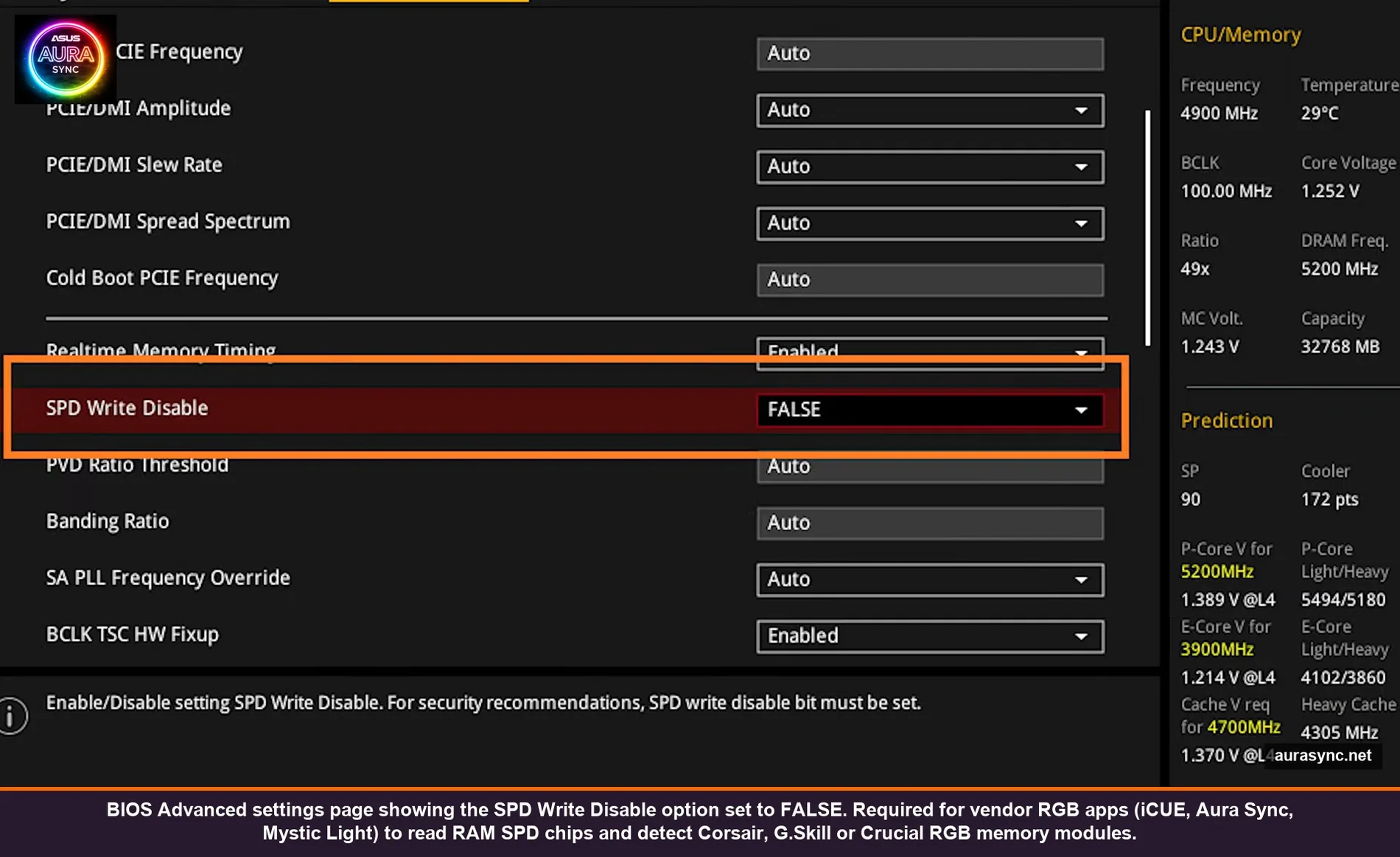
Vendors hide a few RGB-related BIOS toggles that aren’t obvious. The most common gotchas:
- SPD Write Disable: TRUE – blocks RAM RGB on Corsair, G.Skill, and several other vendors that need SMBus access. Set to FALSE. Found in Advanced → AMD CBS / Memory Configuration on AMD boards, Advanced → Memory Configuration on Intel boards.
- RGB header power: Disabled – some MSI and ASUS boards have a global RGB power toggle. Should be Enabled (default). On B550 Gaming Plus there’s even a physical switch on the PCB itself.
- ErP S5 / ErP Ready: Enabled – if you want NO RGB when the PC is off, this is correct. If you want RGB on standby (like a slow Starry Night while shut down), set to Disabled. People sometimes flip this without realizing it kills standby RGB power.
- USB3 / USB2 / Aura controller power source – on some boards (Aorus, ROG Strix) the onboard RGB controller draws power from a specific USB header internally. If a recent BIOS update reset that to Auto, you may need to manually pick the right one.
Header LED count cap
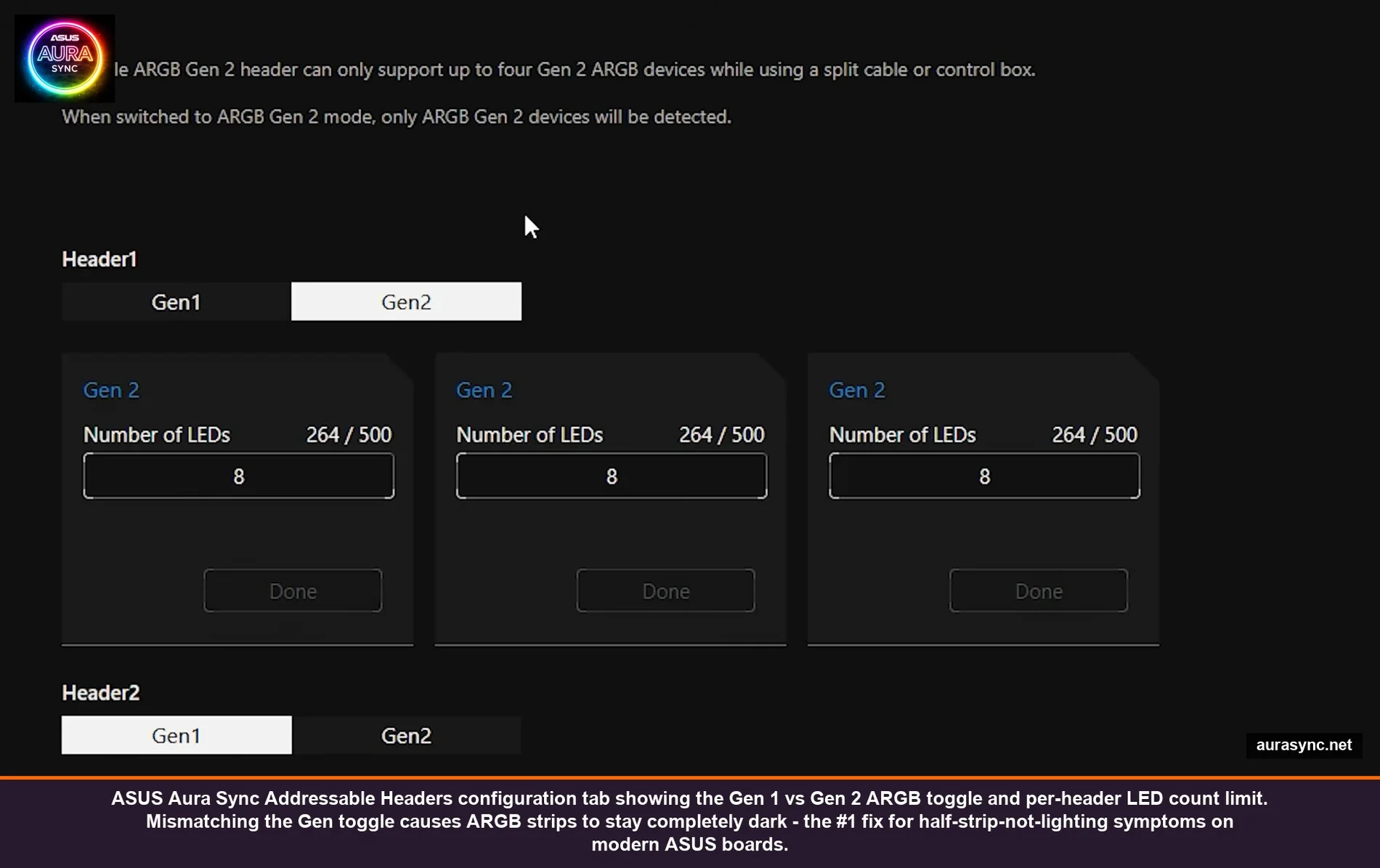
Each ARGB header has a maximum LED count it can drive. Exceed it and the LEDs past the cap just don’t light up. Caps vary by board – mine (X870E Hero) is 500 LEDs total per header, B550 boards are typically 240, older boards can be as low as 120. Check your motherboard manual under “RGB Headers Spec.” If you’re chaining a 200-LED strip onto a 240-LED capped header along with a fan that has 16 LEDs, you’re fine. Add another 50-LED strip on the same chain and the math fails silently.
Powered hub vs SATA repeater
If you’re using a $5 SATA-powered RGB hub from Amazon, it’s a dumb signal repeater and not an independent controller. It has its own power budget (usually 3-5A on the SATA line) and if you exceed it, devices halfway down the chain brown out. Symptoms: first 3-4 fans light up correctly, the 5th and 6th flicker or stay off. Fix: split across two separate hubs, or upgrade to a real powered controller (Lian Li L-Connect, NZXT RGB & Fan Controller, Corsair Lighting Node Pro).
Category 2: Device shows up in vendor app but not in cross-vendor tool
This is the most common problem when you start mixing in OpenRGB or SignalRGB on top of an existing vendor-app setup.
Vendor app exclusive-mode lock
iCUE, Synapse, Mystic Light, Aura Sync, Logitech G Hub, NZXT CAM, and many others grab “exclusive control” of their devices when running. Even if the device technically supports SMBus or HID-level access, the vendor app blocks the second app from seeing it.
The fix depends on what you’re trying to accomplish:
- If you want one cross-vendor app to handle everything: fully close the vendor app (right-click in system tray → Exit, not just minimize). Then launch SignalRGB or OpenRGB. They should pick the device up. Some vendor apps need to be uninstalled entirely (iCUE in particular sometimes leaves a service running even after Exit – check Task Manager for “iCUE Nahimic Service” and similar).
- If you want both apps running side-by-side: some pairs play nicely (iCUE for RAM only + SignalRGB for everything else, with iCUE’s “Software Lighting Control” set to disabled for non-RAM devices). Most pairs don’t.
OpenRGB specifically: enable I2C/SMBus during install
OpenRGB has an installer toggle for “Enable I2C/SMBus Support” that’s off by default on some installer versions. If you skipped it, RAM and motherboard headers won’t show up at all. Reinstall and check the box. After install, you may also need to manually run OpenRGB’s “Install Inpout32 driver” from the menu (Tools → Install Inpout32) for direct hardware access.
SignalRGB specifically: device requires plugin
SignalRGB’s free tier supports a wide range of devices but some need a separate plugin install from the SignalRGB Marketplace. If your device is listed as supported but doesn’t show up: SignalRGB → Devices → Add Device → check the marketplace for a plugin. Lian Li L-Connect, Cooler Master Mystic Mini, and a few others ship as separate plugins.
Category 3: Effect applies, then reverts after a few seconds
This is 90% of the “my RGB doesn’t work” complaints on the ASUS, MSI, and Corsair forums in 2024-2026. The cause is almost always Windows 11 Dynamic Lighting fighting your vendor app for control of the same device.
Windows 11 added Dynamic Lighting as an OS-level RGB controller. The intent was good – one unified API so apps can drive lighting without vendor SDKs. The execution introduced a constant fight when both Windows and a vendor app think they should own the device.
The fix
Settings → Personalization → Dynamic Lighting. You have three options here, and the right one depends on your setup:
- If you want vendor apps to win: at the top of the page, toggle “Use Dynamic Lighting on my devices” to OFF. Done. The vendor app (Aura Sync, iCUE, Synapse, Mystic Light) takes full control and Windows stays out.
- If you want Windows to win (for the system-wide effects, audio reactivity, accent color sync): leave Dynamic Lighting on, scroll to “Compatible apps in the foreground always control lighting,” and toggle that ON. This lets the vendor app temporarily override when it’s the active window, but Windows owns the lighting at idle.
- If you want the vendor app to be the primary but Windows as fallback: leave Dynamic Lighting on. Under “Background app priority,” drag your vendor app (Aura Sync, iCUE, etc.) to the top of the list. Windows then defers to the highest-priority installed app.
For 95% of single-vendor setups, just turn Dynamic Lighting off entirely. The Windows feature is still relatively limited and the vendor apps have more effect options anyway.
⚠️ Heads up: Even after disabling Dynamic Lighting, the Dynamic Lighting Background Controller process keeps running in the background. If it’s still causing fights, open Services.msc, find “Microsoft Dynamic Lighting” or similar, set Startup Type to Disabled, then reboot. This is more aggressive but cleaner if you’ve decided you’re never using Dynamic Lighting.
Category 4: Lighting resets to rainbow after every reboot
Different problem from Category 3. This one is about persistence, not active control fights. The lighting works fine while Windows is running, but after a reboot it’s back to default rainbow / Color Cycle / whatever the firmware shows.
Most common cause: Mystic Light or another vendor’s “Third Party RGB” overwrite toggle
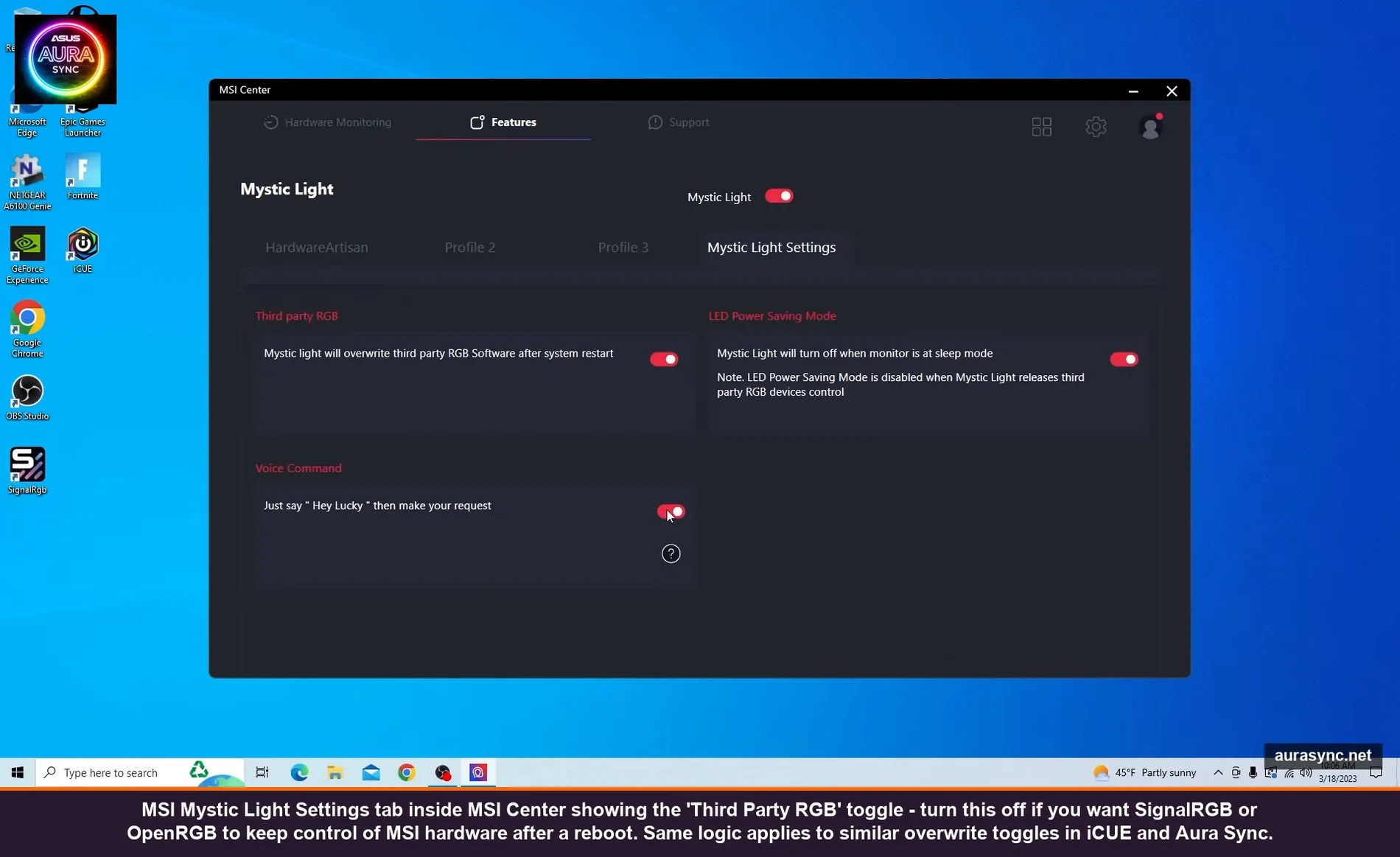
MSI Mystic Light has a setting called “Mystic Light will overwrite third party RGB software after system restart.” When that’s ON (default), Mystic Light grabs control of all RGB hardware on every boot, regardless of what other software was running before reboot. So if you set up an effect in SignalRGB, reboot, Mystic Light yanks control back and applies its own default.
Fix: open MSI Center → Mystic Light → Mystic Light Settings (the tab at the top) → toggle off “Third Party RGB.” Now Mystic Light won’t grab control on boot if another app is already running.
The equivalent toggle on other vendors:
- iCUE: Settings → Software (gear icon) → uncheck “Onboard Lighting” if you want SignalRGB / OpenRGB to drive Corsair devices instead.
- Aura Sync / Armoury Crate: no equivalent toggle, but switching the device to “Static” with brightness 100 effectively releases dynamic control to the OS / other apps.
- Razer Synapse: per-device “Switch to Dynamic Lighting” button under each device’s Lighting tab.
Vendor app launch order
Some vendor apps grab device control on launch and won’t release until exit. If two vendor apps both auto-launch on Windows boot and grab the same device, whichever loads second wins for half the devices and the other wins for the rest. To fix: Task Manager → Startup tab → disable the vendor app you don’t want grabbing control. Or in the vendor app’s settings, find “Launch on Windows startup” and turn it off.
Profile saved but not actually saved
iCUE specifically has a quirk: when you customize an effect (say, Color Cycle with specific speed), the customization is saved to your active profile but you can’t recall it after switching effects unless you click the “Save Effect” / bookmark icon. So your custom effect technically existed, but on reboot it loaded the default Color Cycle, not your customized one. Always click Save next to the effect after customizing.
Hardware Lighting (Device Memory) Mode
Some Corsair, ASUS, and Razer devices support a “hardware lighting” mode where the effect is stored on the device itself and runs without the vendor app. Useful for keyboards and mice that you want to keep their lighting even when the vendor app isn’t running. iCUE: Settings → device → Onboard Lighting → enable. Synapse: per-device Lighting tab → toggle the persistence option. If hardware lighting and software lighting are both set, the software lighting overrides while the app is running, then falls back to hardware lighting on app close or reboot.
Category 5: Half the strip works, half doesn’t
LED count mismatch in the vendor app
This is the #1 cause for “first 30 LEDs work, the rest stay off” on ASUS boards specifically. The Aura Sync Addressable Headers tab has an LED count field that you have to manually set to match the actual number of LEDs on your strip. If your strip is 60 LEDs and the count is set to 30, only the first 30 light up.
How to count: physical density × strip length. A 30-LED-per-meter strip that’s 50cm long = 15 LEDs. A 60-LED-per-meter strip at 1m = 60 LEDs. Manufacturer spec should be on the product page. If you bought no-name on Amazon, count the visible dots on the strip with the lights off.
For Mystic Light: per-zone LED count is auto-detected for Gen 2 ARGB but not for Gen 1. Gen 1 strips connected to a JRAINBOW header default to 60 LEDs and you may need to override.
Gen 1 vs Gen 2 ARGB mismatch
Modern ASUS boards (Z790, X670, X870 series) and Gigabyte’s newer boards support both Gen 1 and Gen 2 ARGB on the same physical 3-pin header. The difference: Gen 2 supports per-device addressing on a daisy chain (each device on the chain individually controllable), Gen 1 treats the chain as one continuous strip.
If you have a Gen 1 strip plugged in but the header is set to Gen 2 in the vendor app, the strip simply won’t light up. Open Aura Sync → Addressable Headers tab → flip the toggle to Gen 1 for that header. Same logic for Gigabyte’s RGB Fusion.
Power budget on the header
ARGB headers are typically rated for 3A at 5V. If your strip is power-hungry (long, dense LEDs running near-white at full brightness), you may saturate the header’s power budget and the second half of the strip browns out. Symptoms: first half of the strip is correct color, second half is dim or yellowish.
Fix: lower the brightness in the vendor app to about 50-70%. White at full brightness pulls the most power. Run a colored effect instead of pure white.
Category-spanning fixes that work surprisingly often
If you’re not sure which category, try these in order before going deep:
- Reboot. Boring, but RGB controllers occasionally hang and a fresh boot resets every state machine. Solves about 30% of acute issues.
- Power-cycle the PSU. Shut down, flip the PSU switch off, wait 30 seconds, flip back on. This drains residual power from RGB controllers and forces them to re-handshake on boot. Helps when ARGB strips are stuck in a partial-init state.
- Reseat the RGB connectors. Power off, unplug PSU, open case, pull each ARGB connector and re-seat firmly. Bent pins are real and the connectors loosen over time, especially after a case move.
- Update the vendor app, then reboot. Vendor RGB apps get monthly-ish updates with bug fixes for specific motherboard revisions and device firmware combos. The update without reboot doesn’t always take effect.
- Update device firmware. The vendor app shows pending firmware updates with a small dot or notification. Run them. Some RGB devices ship with broken firmware that gets fixed in the first 1-2 updates.
- Uninstall and clean reinstall the vendor app. Use the dedicated uninstall tool when one exists (ASUS Armoury Crate Uninstall Tool, Razer Synapse uninstaller, iCUE Cleanup Utility). Don’t just use Add/Remove Programs – those leave services and registry entries behind that cause the same problem to come back.
Per-vendor specific fix recipes
ASUS Aura Sync / Armoury Crate
The “device missing from sidebar” problem is almost always a missing Aura Service or the chipset driver. Settings → Update Center → Check for Updates. If still missing, uninstall via Armoury Crate Uninstall Tool, reboot, reinstall fresh from rog.asus.com. Don’t trust Add/Remove Programs – it leaves orphaned services that cause the same problem on reinstall.
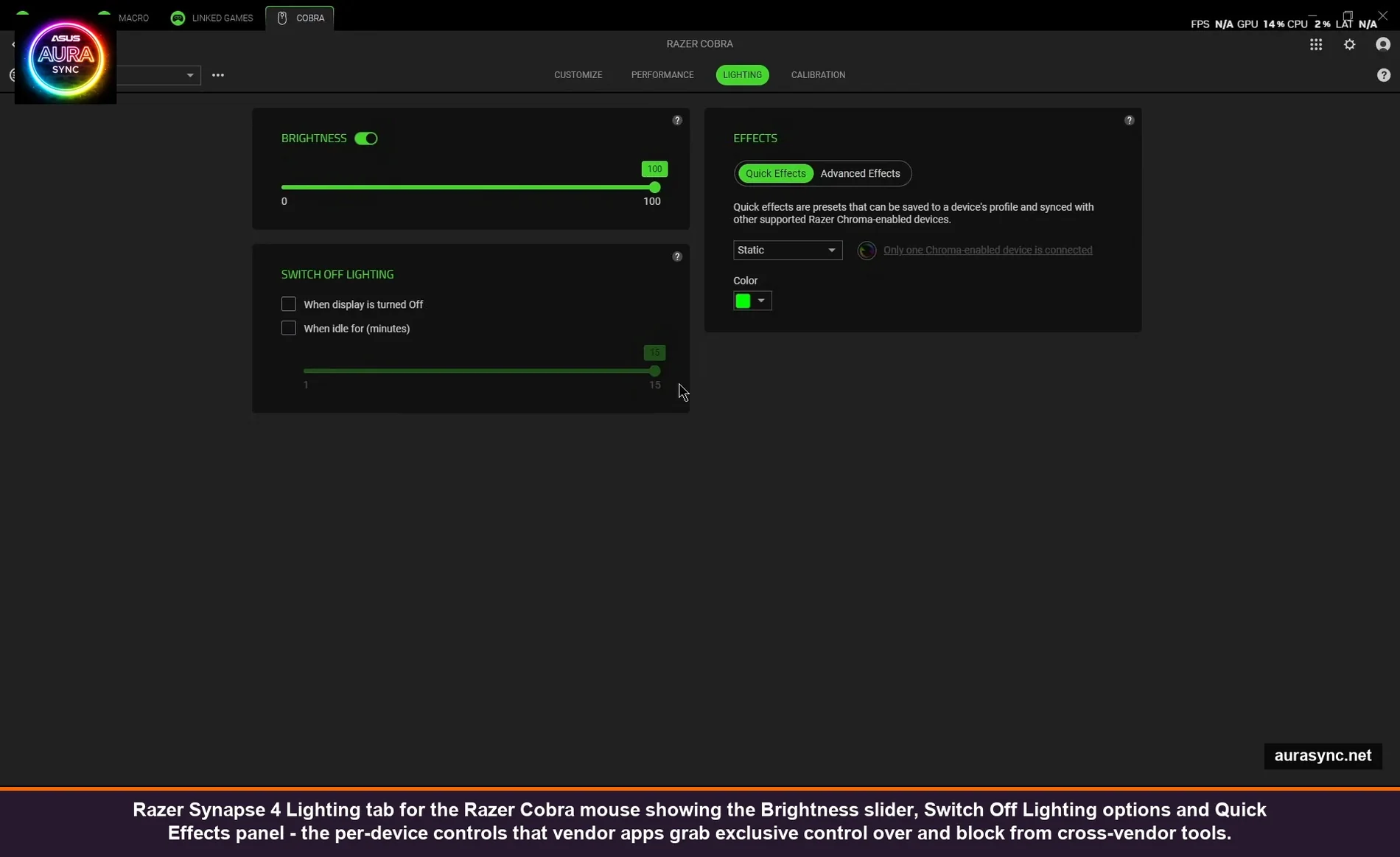
For per-device peripherals (mouse, keyboard, headset): each device has its own Aura Sync toggle on its Lighting tab. By default they don’t sync with the motherboard. Toggle on per device.
Corsair iCUE
“My Vengeance RGB Pro RAM doesn’t show up”: SPD Write Disable in BIOS is set to TRUE. Set to FALSE, save, reboot. iCUE should detect the RAM within 30 seconds of Windows booting.
“My fans don’t show up”: iCUE uses Lighting Node Pro, Commander Core, or iCUE Link as the controller. The device tile only appears if the controller is detected first. Start iCUE → Settings → check that the Lighting Node Pro / Commander Core is listed under controllers. If not, USB connection or firmware. If yes, the fans should populate as sub-devices on that controller.
“iCUE uses 30% CPU and a fan ramps loud”: almost always a stuck device update or the Murals tab playing video at full quality. Check Settings → Updates and the Murals tab.
Razer Synapse 4
“Profile won’t auto-switch when game launches”: the Linked Game .exe binding is wrong. Task Manager → Details → find the running game’s actual .exe path → re-add to Linked Games using that exact path. Some launchers spawn a stub then the real game, and the stub’s .exe doesn’t match what Synapse detected.
“Synapse forgot all my profiles”: cloud sync should restore them. Sign out of Razer ID, sign back in, wait 30 seconds. If still gone, the local cache at %LOCALAPPDATA%\Razer\Synapse4\Cache has .json files you can manually restore.
MSI Mystic Light
“RGB resets to defaults on reboot”: Mystic Light Settings → toggle off “Third Party RGB will overwrite after restart.” Or, if you want Mystic Light as the primary, leave it on but make sure no other RGB app is auto-launching at boot.
“Effect doesn’t apply at all”: you forgot to click Apply at the bottom right. Mystic Light doesn’t auto-save like newer vendor apps do.
“Half my fans aren’t lighting”: SATA-powered hub power budget. Split the load across two hubs.
When to give up on vendor apps and switch to cross-vendor
If you have devices from 3+ vendors (e.g. ASUS motherboard + Corsair RAM + Razer mouse + Lian Li fans), the vendor app approach hits a wall fast. You end up with 4 background services, 4 startup apps, and constant control fights that no priority setting fully resolves.
That’s where SignalRGB and OpenRGB come in. Both can drive devices across all major vendors from one app. The tradeoff:
- SignalRGB: prettier UI, more polished effects (Aurora, audio visualizer), better game integrations, but the deeper effects require the Pro tier ($30/year or one-time license). Free tier is usable for most setups.
- OpenRGB: completely free, open-source, ugly Windows-95-style interface, supports almost everything, no fancy effects but unmatched device coverage.
- MSI Mystic Light not working fix guide — the MSI-specific troubleshooting deep dive.
- ASRock Polychrome Sync hands-on — the ASRock-side troubleshooting reference.
I covered the comparison in detail in OpenRGB vs SignalRGB and the pricing breakdown in SignalRGB free vs pro. Short version: try OpenRGB first because it’s free, and if you want better effects later, add SignalRGB on top.
To switch over: install the cross-vendor app, fully exit all vendor apps (Task Manager-level kill, including services), launch the cross-vendor app, verify it sees everything. Then either disable vendor app autostart or uninstall vendor apps entirely.
FAQ
Will Windows 11 Dynamic Lighting eventually replace vendor apps?
Probably not in the next 2-3 years. Microsoft’s API doesn’t expose deep effect customization (no per-LED control, no layered effects, limited animation options). It’s a basic compatibility layer, not a full replacement. Most enthusiasts will keep using vendor or cross-vendor apps for the foreseeable future.
Is RGB controller hardware actually getting standardized?
Slowly. The Adafruit NeoPixel / WS2812 protocol on 5V ARGB headers is now nearly universal across vendors, which is why OpenRGB can support so many devices with one codebase. The proprietary stuff (Corsair iCUE protocol, Razer Chroma protocol, NZXT proprietary fans) is still vendor-specific.
Why does my CPU spike when I open the RGB app?
Visual rendering of the device preview, mainly. iCUE’s preview is the worst offender. The actual lighting control work is lightweight, the in-app rendering of “what your devices look like right now” is what costs CPU. Closing the app drops CPU back to 0.5-1% for the background service.
Can I run RGB hardware without any controller app at all?
Sort of. If you set the device to “hardware lighting” mode (where supported) and saved the effect to onboard memory, the device will display that effect indefinitely without any software. Useful for keyboards, mice, and AIOs with onboard memory. Motherboard headers don’t have onboard memory – they need an active controller (the chipset’s Aura/Mystic Light service even when you can’t see a UI).
If I uninstall a vendor app, does my RGB stop working?
Depends on the device. Devices with onboard memory keep their last-set effect. Devices that need active control (most motherboard headers, dumb ARGB strips, fan controllers without their own MCU) will fall back to whatever Windows Dynamic Lighting decides to do, or default firmware behavior (usually rainbow). If you want zero RGB after uninstalling, set the effect to OFF first, then uninstall.
Why does my RGB flicker when my GPU is under load?
Voltage droop on the PSU’s RGB power line, usually. ARGB headers and many fans pull from the +5V standby rail. Under heavy GPU load, that rail can dip slightly and ARGB devices misinterpret the dip as a signal. Fixes: better-quality PSU, separate the RGB controller power from heavy load components, or run the RGB hub off SATA power instead of motherboard power.
Is there a way to debug what’s actually controlling my RGB right now?
OpenRGB has a “View → Detection Log” that shows exactly which devices it sees and which protocol it’s using. SignalRGB has similar diagnostics in Settings → Diagnostics. For Windows-side, Settings → Personalization → Dynamic Lighting → Background app priority shows the apps Windows knows about and their order. Between those three, you can usually identify the controller in the chain.
Wrapping up
Most “my RGB is broken” complaints are one of five things: dead hardware (Category 1), exclusive-mode lock (Category 2), Windows Dynamic Lighting fight (Category 3), reset-on-reboot (Category 4), or LED count / power budget (Category 5). Identify the category before changing anything. Reinstalling random software hoping to fix the wrong category is a waste of an evening.
The two single fixes that resolve the most issues across all vendors: turn off Windows 11 Dynamic Lighting (or set it to defer to your vendor app), and use the official uninstall tool when reinstalling vendor apps. Those two alone solve maybe 60% of the support threads I’ve read.
If your build is mixed-vendor and you’re tired of fighting individual vendor apps, jump to OpenRGB or SignalRGB. Vendor apps were designed for vendor-pure builds and they show their limits the moment you mix in a second brand. Good luck.