
My gaming rig was sitting at 12% CPU before I even opened a game. Task Manager open, iCUE closed. Still 12%. Opened it again the next day — back to 12%. Three Corsair.Service processes just chilling there, eating clock cycles like it’s their job.
I spent an embarrassingly long time thinking this was normal. Spoiler: it’s not. iCUE 5.38.86 can run at under 1% CPU when it’s properly configured. If it’s pulling significantly more than that, there’s a specific reason — and most of the time it’s one of a handful of fixable things.
I’ve gone through every Corsair community thread I could find on this, tested the fixes myself on a setup running a Corsair K70 RGB PRO Mini Wireless, an M65 RGB Ultra Wireless mouse, and a Lighting Node Core with six LL120 fans. Here’s what actually works.
What’s Actually Running Under the Hood
Before you fix anything, open Task Manager (Ctrl + Shift + Esc), expand the Corsair entries, and take stock of what you’re dealing with. You’ll typically see a cluster of processes:
- Corsair.Service (32-bit) — the main background service
- Corsair Service — a separate controller process
- Corsair.Service.CpuIdRemote — polls CPU hardware data for monitoring
- Corsair.Service.DisplayAdapter — handles display-related RGB
The CpuIdRemote process is often the culprit when CPU usage climbs while iCUE isn’t even visible. It’s running even when the main window is closed. That’s the background polling that keeps hardware monitoring widgets updated — and if you’ve got dashboard graphs enabled, it’s working constantly.
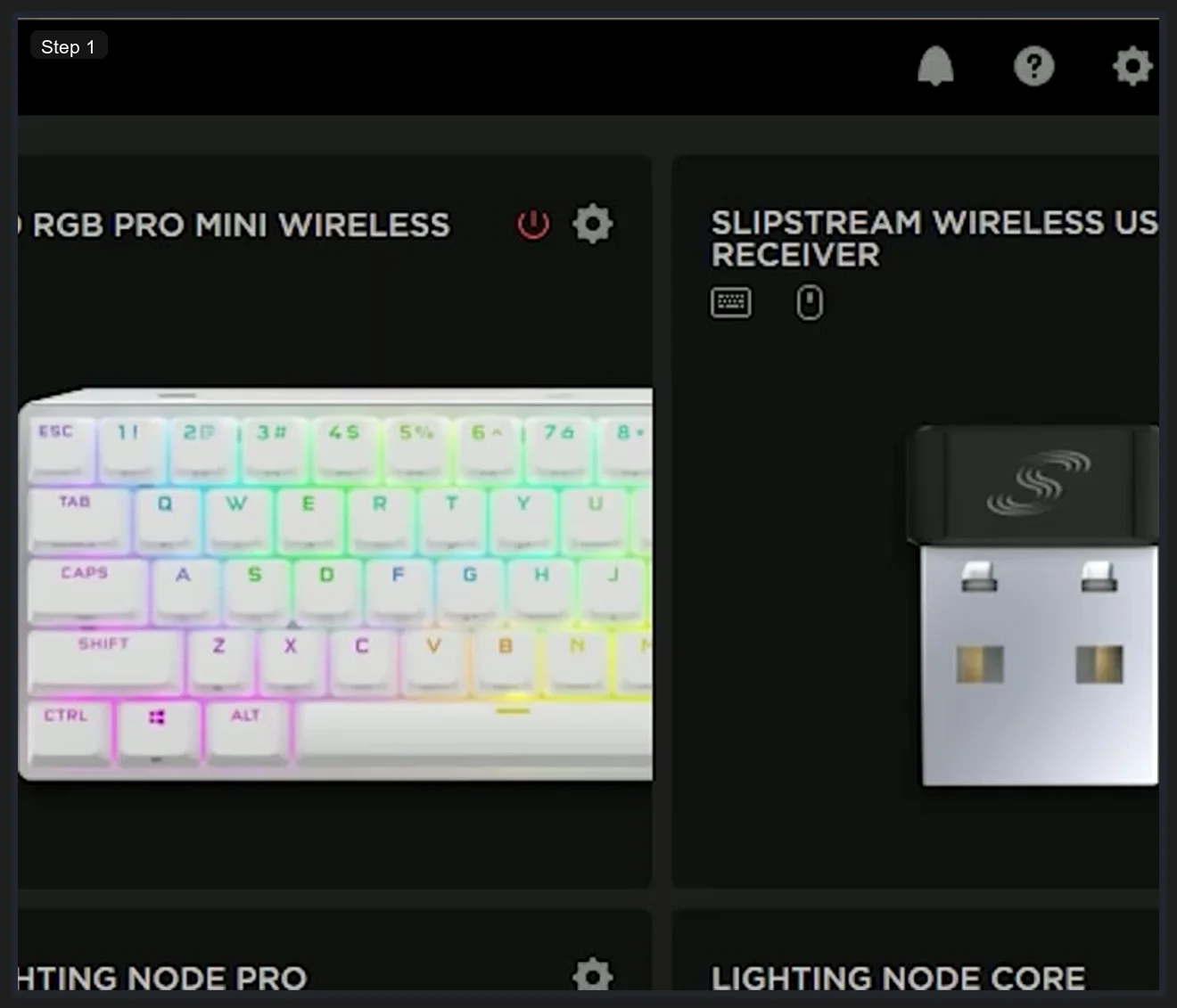
Fix 1: Switch to Hardware Lighting Mode (Biggest Impact)
This is the one that made the most difference for me. I knocked my iCUE CPU usage from around 8-10% down to under 2% with one toggle.
Software lighting mode means iCUE is constantly calculating RGB animations on your CPU and pushing them to your devices dozens of times per second. Hardware lighting mode runs the lighting profile directly on the device’s onboard memory. Once it’s set, iCUE can basically step back and leave it alone.
Here’s how to switch:
- Open iCUE 5
- Click on your device (keyboard, mouse, etc.)
- Look for Device Memory Mode in the device settings panel
- Toggle it on
Not every device supports hardware lighting — but if yours does (most Corsair keyboards and mice do), this should be your first move. The device saves its lighting profile internally and stops asking iCUE to recalculate it.
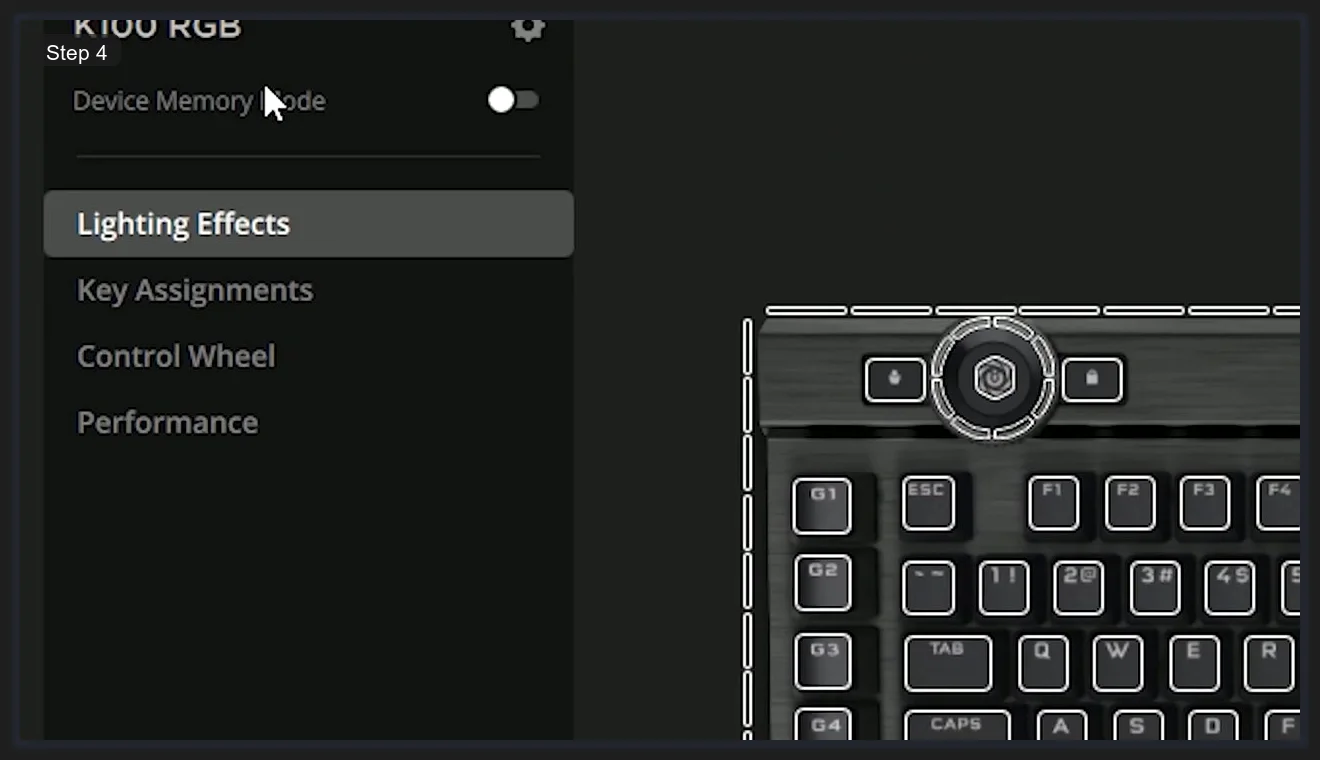
The trade-off: some complex lighting effects and Murals won’t run in hardware mode. If you’re rocking a simple static color or a built-in animation, you won’t notice the difference. If you’re running a custom Murals wallpaper sync, you’ll need to stay in software mode — but then at least you know why your CPU is elevated.
Fix 2: Delete the Dashboard Graphs
iCUE’s home screen has widget graphs showing CPU temp, fan speed, GPU load, and more. They look cool. They also cause CpuIdRemote to poll your hardware continuously in the background.
To remove them:
- On the iCUE home screen, find each monitoring widget
- Click the three-dot menu on the widget
- Select Remove
- Repeat for the Dashboard tab (there’s a separate set of widgets there)
Multiple users on the Corsair community forum have confirmed this one — particularly the thread about “high background CPU usage only when iCUE is NOT open.” The monitoring widgets are keeping the service active and polling even when the window is minimized.
Fix 3: Remove Unused Plugins
iCUE supports third-party plugins — Voicemod is bundled in as a default in some versions, and it shows up in your key assignment options whether you want it or not. Each active plugin adds overhead to the iCUE service.
To check and remove plugins:
- Click the gear icon (Settings) in iCUE
- Go to the Plugins tab
- Delete any plugin you’re not actively using
If you don’t use Voicemod for voice changer effects during gaming, there’s no reason to have that plugin loaded. Same for any other third-party integration you installed and forgot about.
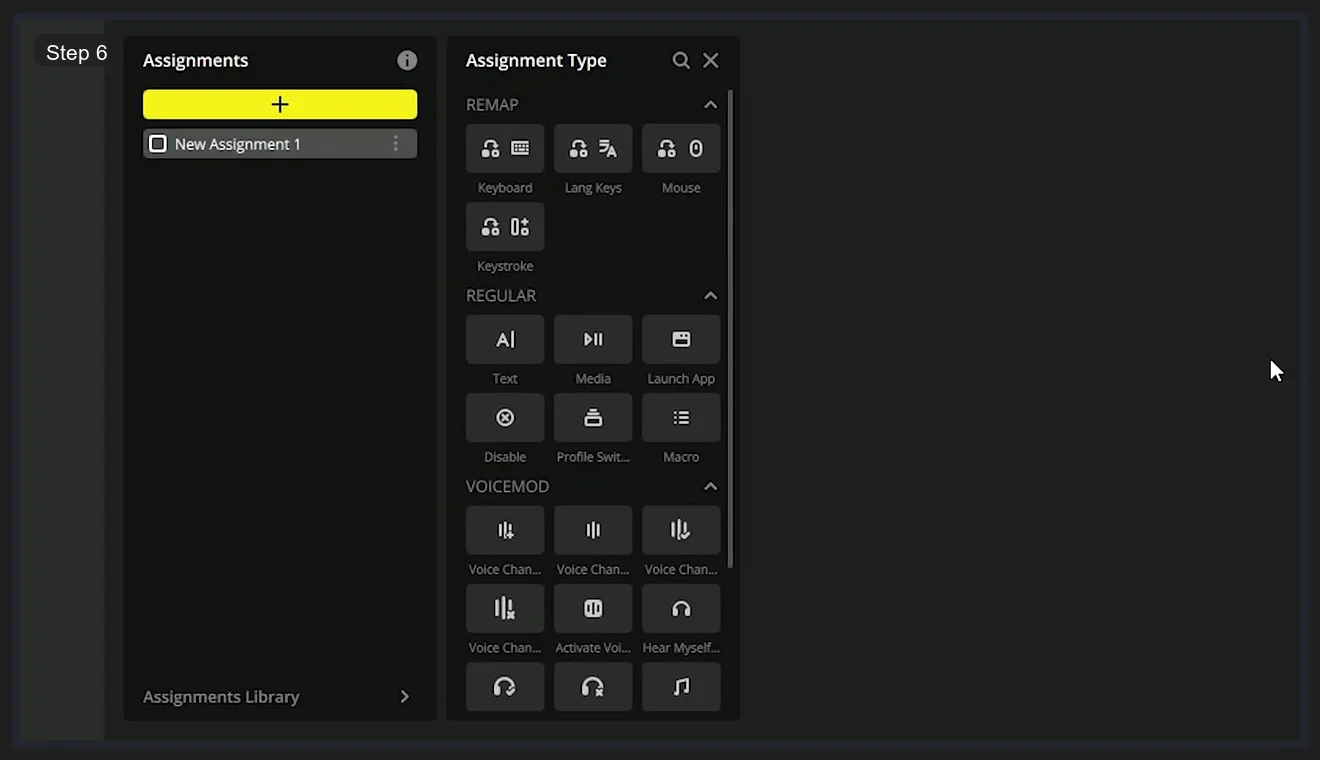
I removed Voicemod and two other plugins I’d installed out of curiosity. Modest improvement on its own, but combined with the other fixes it adds up.
Fix 4: Lower the USB Polling Rate
This one surprised me the most when I looked into it. My M65 mouse was set to 8000 Hz polling rate — meaning it was reporting its position to the system 8,000 times per second. That’s the marketing-headline number, but on most systems it adds non-trivial CPU overhead.
iCUE shows you the polling rate in Device Settings for each connected peripheral:
- Click your mouse or keyboard in iCUE
- Select Device Settings
- Find USB Wired Polling Rate
- Drop it from 8000 Hz to 500 Hz or 1000 Hz
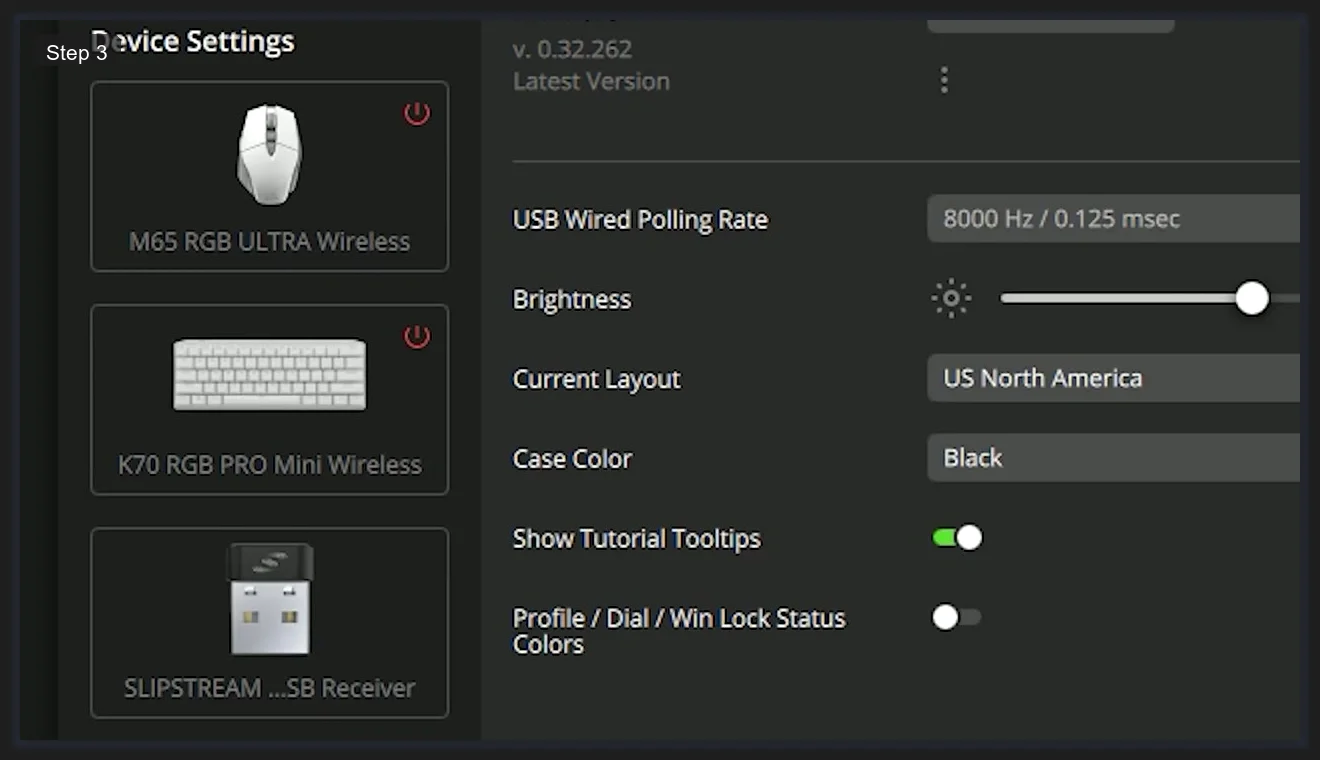
For most gaming scenarios, 1000 Hz polling is more than sufficient. Unless you’re competing at the highest level and every millisecond genuinely matters, 500–1000 Hz gives you effectively the same responsiveness with noticeably lower CPU load from the USB stack. I dropped mine to 1000 Hz. Couldn’t tell the difference in games, but Task Manager was happier.
Fix 5: Lower the LCD Frame Rate (AIO Users)
If you’ve got a Corsair H150i, H170i, or any iCUE LINK AIO with an LCD display, the LCD animation is one of the heavier CPU loads in iCUE. The default frame rate pushes the display constantly.
To fix this:
- Click your AIO in iCUE
- Open the AIO settings
- Find Set LCD Frame Rate
- Drop it to 10 or 15 FPS instead of the default
You won’t see the difference from a meter away. Your CPU will notice. This was the specific fix that multiple users on r/Corsair reported worked after nothing else did.
Fix 6: The NVIDIA Driver Issue (October 2024)
This one caught a lot of people off guard. In late 2024, NVIDIA driver version 566.03 introduced a bug that caused iCUE’s CPU usage to spike dramatically — even on systems where it had been running fine for years. The Tweaktown article that broke the news recommended rolling back to v561.09.
If your iCUE CPU spike started suddenly in late 2024 and the other fixes haven’t helped, this is likely your issue:
- Open Device Manager
- Expand Display Adapters → right-click your NVIDIA GPU
- Select Update driver → Browse my computer → Let me pick
- Roll back to a driver version prior to 566 (v561.09 is the known-good version)
Corsair confirmed the issue was a conflict between iCUE’s display adapter service and the NVIDIA driver changes. It affected not just iCUE but also some other overlay-heavy applications. Newer NVIDIA drivers released after this should have addressed it, so alternatively you can update to the latest available driver and see if the issue resolves.
Fix 7: Disable Murals Rendering (Nuclear Option)
iCUE’s Murals feature — the ambient lighting that syncs with what’s on your screen — runs through a process called QmlRenderer.exe. If you never use Murals (or if you’ve tried disabling it in-app and the CPU usage persists), you can kill the renderer directly:
- Navigate to your iCUE installation folder (typically
C:\Program Files\Corsair\Corsair iCUE 5 Software) - Find
QmlRenderer.exe - Rename it to
QmlRenderer.exe.old - Restart iCUE
This is a workaround, not an official fix. It means you can’t use Murals until you rename it back. But if Murals is why your CPU is spiking and you don’t use it, this is a clean solution. The technique was documented by a Redditor in a Corsair community thread and has been confirmed by multiple users since.
When to Just Restart the Services
Sometimes iCUE gets into a bad state after a Windows update or a driver install, and the CPU usage is genuinely a symptom of something that’ll clear itself with a proper restart sequence — not just closing the window.
The proper way to restart:
- Right-click the iCUE tray icon → Quit
- Open Task Manager → kill any remaining Corsair.Service processes
- Wait 10-15 seconds
- Reopen iCUE
If the issue only happens after fresh boots and then settles down after a few minutes, it’s likely just the initial device detection and profile push. That’s normal behavior — iCUE is doing genuine work on startup. Persistent high CPU (more than a few minutes after launch) is when you apply the fixes above.
How iCUE 5 Actually Looks When It’s Running Right
Once you’ve applied the relevant fixes, iCUE should be a background process you barely notice. The main things you’ll still use it for — setting lighting profiles, adjusting macros, configuring fan curves — don’t require it to be constantly hammering your CPU.
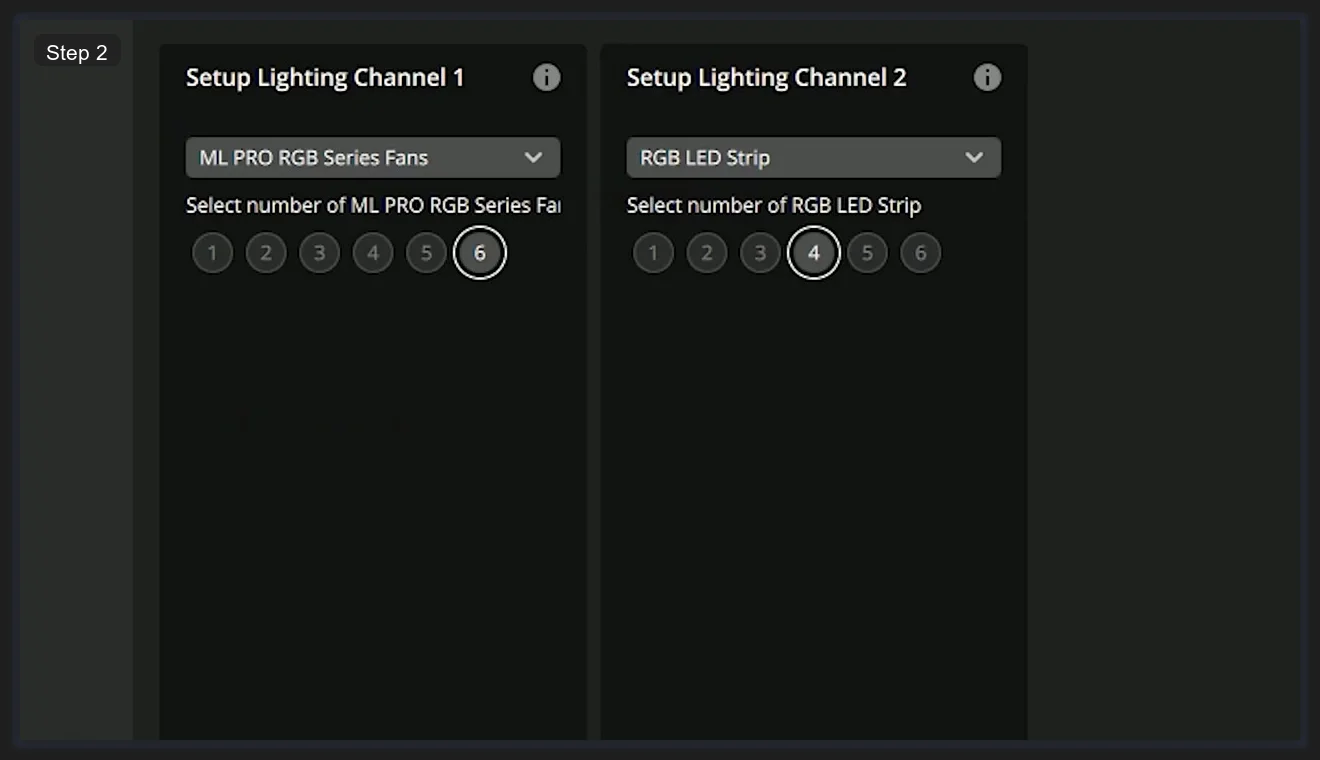
iCUE 5 did a lot of things right compared to its predecessors. The lighting channel setup is intuitive, the profile system actually works reliably, and the device detection (for non-problematic hardware) is solid. [INTERNAL LINK: best-rgb-software → /best-rgb-software/]
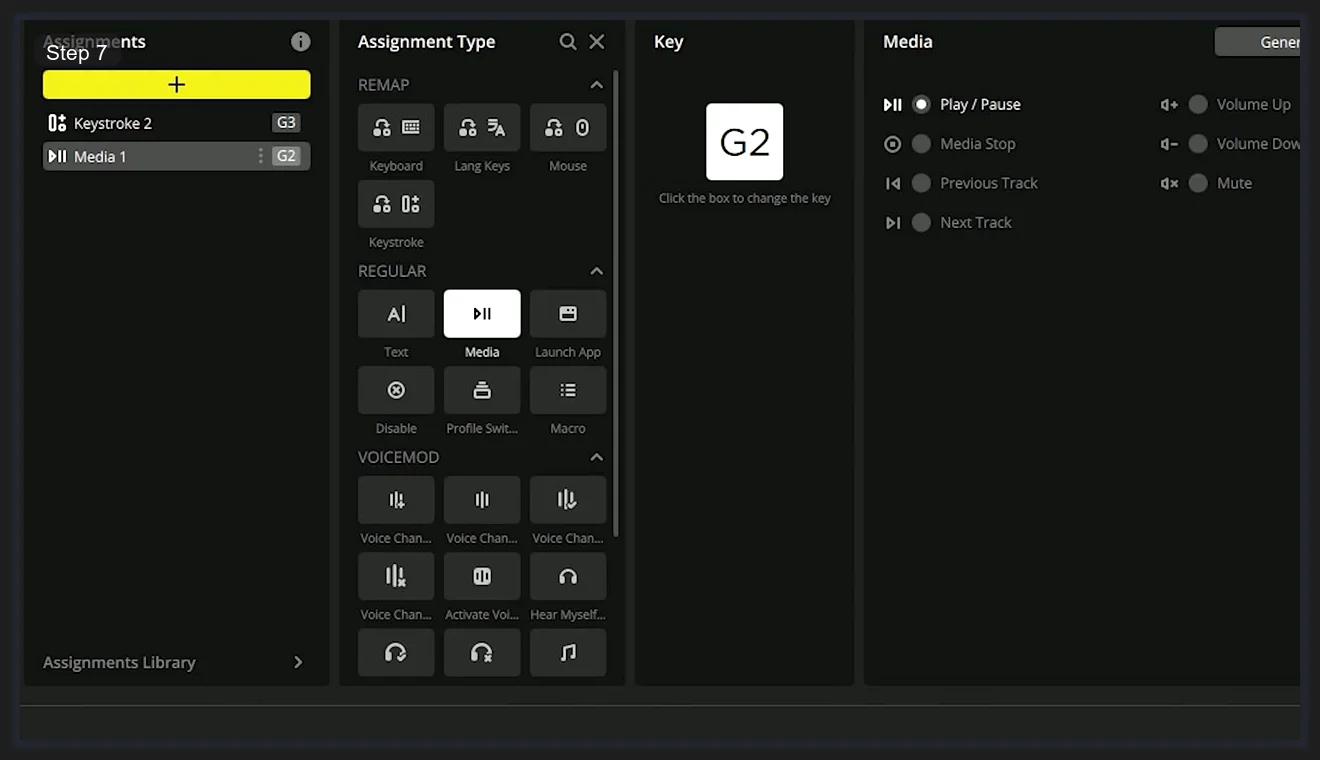
The macro and key assignment system covers a lot of ground too — media controls, app launching, full keystroke macros with timing. It’s not as feature-stripped as people expect when they first look at it.
The point is: iCUE has genuine functionality underneath the resource hog reputation. Most of the CPU issues have specific causes and specific fixes. Running it clean at under 2% in the background is realistic.
If you’re running a mixed-brand setup (Corsair keyboard + ASUS motherboard + other RGB devices), you might hit conflicts between iCUE and other RGB controllers. [INTERNAL LINK: iCUE and SignalRGB conflicts → /signalrgb-vs-openrgb/] covers how to set up software priority so they’re not fighting each other. For anything Corsair-only, though, iCUE is still the right tool — just configured properly.
Quick Checklist: iCUE High CPU Fixes
- Switch to Hardware Lighting / Device Memory Mode for supported devices
- Remove all Dashboard and Home tab monitoring widgets
- Delete unused plugins (especially Voicemod if you don’t use it)
- Lower USB polling rate from 8000 Hz to 1000 Hz
- Lower LCD frame rate in AIO settings (if applicable)
- Roll back NVIDIA driver to pre-566 version if spike started in late 2024
- Rename QmlRenderer.exe if Murals is the source
[INTERNAL LINK: iCUE not detecting devices → /icue-not-detecting-devices/]
Frequently Asked Questions
Why does iCUE use so much CPU when it’s closed?
iCUE closes its window but keeps background services running — particularly Corsair.Service and Corsair.Service.CpuIdRemote. These handle hardware monitoring, device polling, and lighting continuity. If you’ve enabled hardware monitoring widgets or software lighting mode, those services are active 24/7. Removing the dashboard graphs and switching to hardware lighting mode reduces background CPU to near-zero.
Is it safe to rename QmlRenderer.exe?
Yes, renaming it (not deleting it) disables Murals rendering without affecting the rest of iCUE’s functionality. Rename it back to the original name whenever you want Murals back. No data is lost and no settings are changed.
Does iCUE high CPU affect gaming performance?
Directly, it depends on your CPU. On older quad-core systems, 10-15% constant iCUE background usage can cause visible frame drops and stutters. On modern 8+ core CPUs it’s usually less impactful but still contributes to thermal load. Applying the fixes above reduces iCUE from “background noise you can’t ignore” to “barely visible in Task Manager.”
What’s the fastest fix for iCUE high CPU?
The Device Memory Mode toggle for Hardware Lighting is the single biggest impact fix for most users. One setting change drops software polling overhead by ~80% for the lighting system. Do that first before anything else.
Can I just uninstall iCUE to fix the CPU issue?
You can, but your Corsair devices will lose software control — no RGB customization, no macro remapping, no fan curves via software. If you genuinely don’t use those features, disabling the Corsair.Service startup entry in Task Manager (Startup tab) is a cleaner approach that keeps iCUE installed but stops it from running at all. [INTERNAL LINK: alternatives to iCUE → /best-rgb-software/]
Related Guides
- iCUE not detecting devices fix — the sibling iCUE troubleshooting guide.
- How to use Corsair iCUE — the basic walkthrough.
- Corsair iCUE 5 setup guide — the deeper from-zero setup.
- OpenRGB as the lightweight alternative — what to switch to if iCUE keeps eating CPU.
- RGB sync troubleshooting playbook — the cross-vendor context.