
I genuinely thought my GPU was dead. Three days into a new build, my Gigabyte RTX 4070 Super AORUS Master was sitting there with its RGB completely dark while my motherboard cycled through rainbow puke like nothing was wrong. RGB Fusion 2.0 couldn’t see the card at all.
Turns out, RGB Fusion didn’t need a new GPU. It needed about six different things fixed in a very specific order. I’m running a B650 AORUS Elite AX with 32GB of G.Skill Trident Z5 RGB DDR5, and I’ve now broken and fixed this software enough times to write the guide I wished existed when I started.
Here’s everything I tried, what actually worked, and the exact order you should follow so you don’t waste three days like I did.
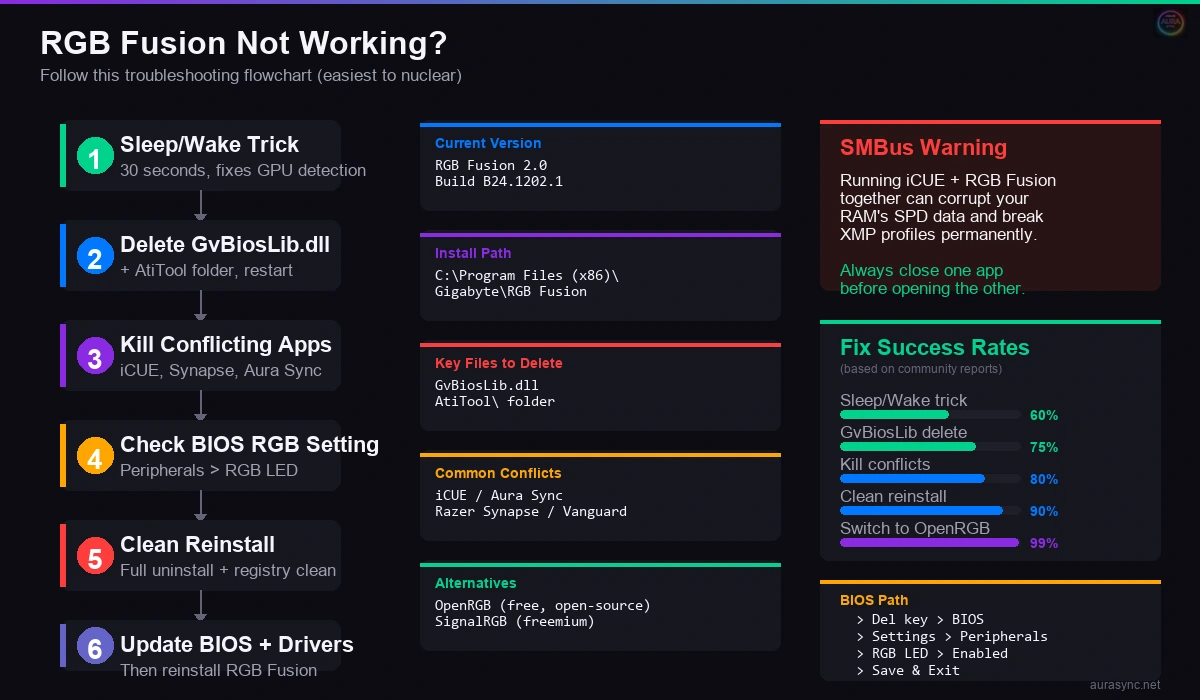
Why RGB Fusion Breaks (It’s Not Just You)
Before you start randomly uninstalling things, it helps to know what’s actually going on under the hood. RGB Fusion 2.0 (current version B24.1202.1) communicates with your components through a chain of drivers and services. Your motherboard RGB runs through one path, your GPU through another, and your RAM through the SMBus. Any one of those paths can get blocked, and RGB Fusion won’t tell you which one. It’ll just sit there showing “No Device Detected” or worse, freeze your whole system.
The most common triggers I’ve seen across r/gigabyte and Tom’s Hardware threads:
- Windows 11 24H2 broke RGB Fusion for a LOT of people. The UAC permission changes messed with how Gigabyte’s services start up. If your RGB stopped working after a Windows update, this is probably why.
- Corrupted GvBiosLib.dll file. This is the GPU detection library. When it gets corrupted (and it does, often), RGB Fusion can’t see your graphics card at all.
- Software conflicts with iCUE, Aura Sync, or Razer Synapse. These apps fight over SMBus access. Running two RGB apps that both try to control RAM is a recipe for detection failures.
- BIOS settings that got reset. Gigabyte boards have an RGB LED control option in BIOS that sometimes gets toggled off during firmware updates.
- The AtiTool folder getting corrupted. This is a leftover from AMD GPU detection code that causes conflicts even on NVIDIA systems. Yeah, really.
I’ll walk through fixes from easiest to most nuclear. Don’t jump to the clean reinstall, start at the top.
Fix 1: The Sleep/Wake Trick (30 Seconds)
I know this sounds stupid. I thought it was stupid when I read it on a Linus Tech Tips forum thread. But it works for GPU detection specifically, and it takes 30 seconds.
- Open RGB Fusion 2.0
- Notice your GPU isn’t showing up
- Put your PC to sleep (Start menu, Sleep)
- Wait about 10 seconds
- Wake it back up
- Check RGB Fusion again
The GPU should now appear in the device list. Something about the sleep/wake cycle forces Windows to re-enumerate the PCI devices, and RGB Fusion picks up the GPU on the second pass. I’ve had to do this twice on my system, both times after a driver update. It’s janky, but it works.
If your GPU still isn’t showing up, move to Fix 2.
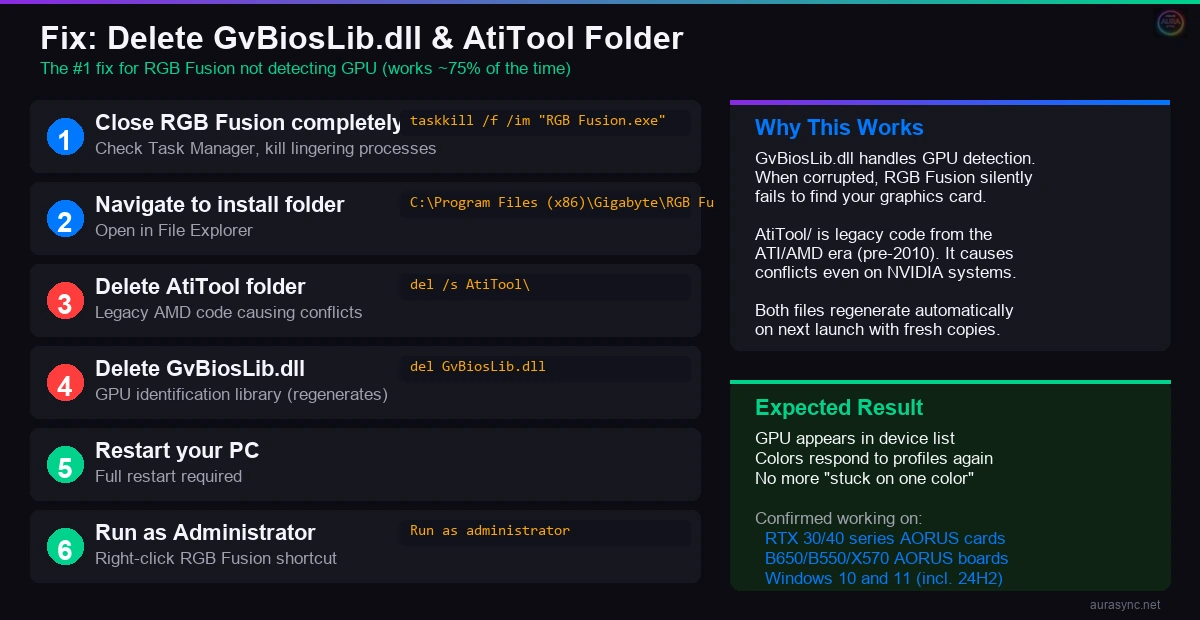
Fix 2: Delete GvBiosLib.dll and the AtiTool Folder
This is the fix that finally got my RTX 4070 Super detected. The GvBiosLib.dll file handles GPU identification, and when it gets corrupted or outdated, RGB Fusion just… gives up trying to detect your card.
- Close RGB Fusion completely (check Task Manager, kill any lingering processes)
- Navigate to
C:\Program Files (x86)\Gigabyte\RGB Fusion - Find and delete the AtiTool folder
- Find and delete GvBiosLib.dll
- Restart your PC
- Run RGB Fusion as Administrator
I know deleting DLL files feels sketchy. But RGB Fusion regenerates these files on next launch. The fresh copies usually work fine. A thread on the Gigabyte USA forums from late 2024 had about 15 people confirming this fix worked for AORUS cards specifically.
(Quick tangent: the fact that there’s a folder called “AtiTool” in Gigabyte’s RGB software in 2026 tells you everything about the state of this codebase. ATI hasn’t existed as a brand since 2010.)
What If RGB Fusion Is Stuck on One Color?
Same fix. If your motherboard or GPU is locked to a single color and won’t respond to profile changes, the corrupted GvBiosLib.dll is almost always the cause. Delete it, restart, run as admin. I had my board stuck on solid red for two weeks before I found this fix buried in a Tom’s Hardware thread from 2024.
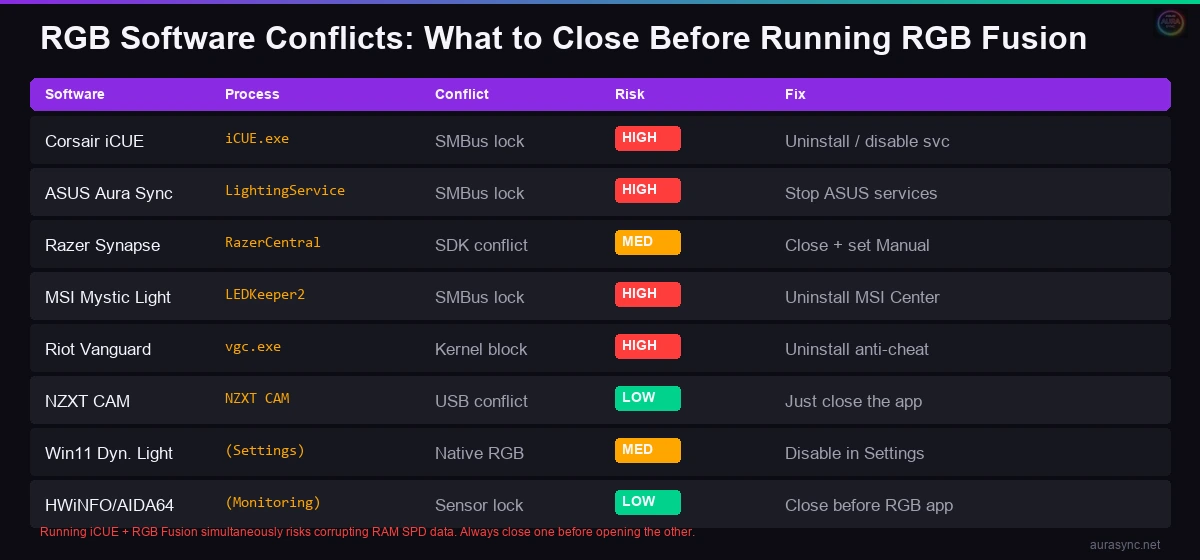
Fix 3: Kill Conflicting RGB Software
This one catches people off guard. If you’re running Armoury Crate, iCUE, Razer Synapse, or any other RGB control app alongside RGB Fusion, they’re probably fighting over your hardware. The SMBus (the communication bus that controls RGB on your RAM sticks) can only be accessed by one app at a time.
Here’s what to do:
- Open Task Manager and look for these processes:
iCUE.exe,LightingService.exe,RazerCentralService.exe,RzChromaSDKService.exe - End all of them
- Open Services (Win+R, type
services.msc) - Find any ASUS, Corsair, or Razer services and set them to “Manual” startup
- Restart RGB Fusion
If RGB Fusion starts detecting devices again, you’ve found your conflict. You’ll need to decide which RGB app to keep. For mixed-brand builds, OpenRGB or SignalRGB might be a better choice than trying to run three manufacturer apps simultaneously.
⚠️ Heads up: Running iCUE and RGB Fusion together can corrupt your RAM’s SPD data. I’ve seen reports on r/pcmasterrace of G.Skill Trident Z sticks losing their XMP profiles because two apps were wrestling over SMBus control. Not worth the risk.
Fix 4: Check Your BIOS RGB Settings
BIOS updates on Gigabyte boards sometimes reset the RGB LED settings to defaults, and “default” doesn’t always mean “on.” This bit me after I updated my B650 AORUS Elite AX firmware to the latest AGESA version.
- Restart your PC and enter BIOS (spam Delete during boot)
- Navigate to Settings or Peripherals (varies by board)
- Look for “RGB LED” or “LEDs in System Power On State“
- Make sure it’s set to On or Enabled
- Check “Power LED Support” under the Chipset tab, set it to Enabled
- Save and exit
On newer AORUS boards, Gigabyte removed the in-BIOS RGB control entirely. They want you to install the desktop app. So if you can’t find the setting, it might not exist on your board. In that case, skip to the next fix.
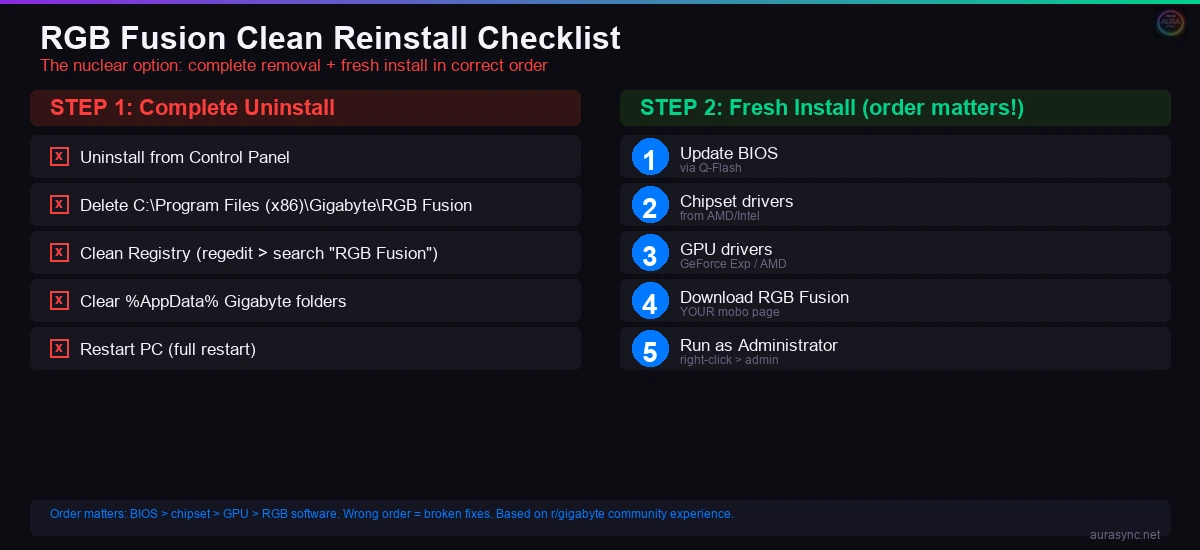
Fix 5: Clean Reinstall of RGB Fusion
If nothing above worked, it’s nuke-and-reinstall time. But you can’t just uninstall from Add/Remove Programs and call it done. RGB Fusion leaves traces everywhere, and those remnants will corrupt a fresh install.
- Uninstall RGB Fusion from Control Panel (Programs and Features)
- Open File Explorer and delete the entire
C:\Program Files (x86)\Gigabyte\RGB Fusionfolder - Open Registry Editor (Win+R, type
regedit) and search for “RGB Fusion” entries, delete them (back up your registry first if you’re nervous about this) - Check
%AppData%and%LocalAppData%for any Gigabyte folders and remove them - Restart your PC
- Download the latest version of RGB Fusion 2.0 (Build B24.1202.1 as of this writing) from Gigabyte’s official support page for your specific motherboard model
- Install and run as Administrator
I want to stress that last point. Don’t download RGB Fusion from random sites. Go to Gigabyte’s support page, find YOUR motherboard, and download the version listed there. Different boards sometimes need different RGB Fusion builds.
Download RGB Fusion 2.0: Head to Gigabyte’s official support page, search for your specific motherboard model, and grab the RGB Fusion version listed there.
Fix 6: Update Everything (BIOS, Chipset, GPU Drivers)
I saved this for later because it takes the most time, but outdated firmware is a real cause of RGB Fusion failures. When I updated my B650 AORUS Elite AX BIOS to support the latest AGESA 1.2.0.3, RGB Fusion suddenly started detecting my RAM sticks that it had been ignoring for weeks.
Update in this order:
- Motherboard BIOS: Download from Gigabyte’s support page, flash via Q-Flash in BIOS
- Chipset drivers: Get from AMD or Intel directly, not Gigabyte
- GPU drivers: Use GeForce Experience or AMD Software for the latest version
- RGB Fusion itself: Reinstall after updating everything else
The order matters. BIOS first, then chipset, then GPU, then RGB software. I made the mistake of updating RGB Fusion first and then updating my BIOS, which promptly broke everything I’d just fixed.
RGB Fusion Not Detecting RAM Specifically?
RAM detection is its own special nightmare. Your G.Skill Trident Z5 or Kingston Fury might work perfectly for gaming but refuse to show up in RGB Fusion’s device list. This is almost always an SMBus conflict.
Things to check:
- Close ALL other RGB software first. iCUE is the biggest offender here. Armoury Crate’s Aura Sync is a close second.
- Check if your RAM is on Gigabyte’s compatibility list. Not all RGB RAM works with RGB Fusion, especially newer DDR5 kits.
- Try reseating the RAM. I know it sounds basic, but I’ve had a stick that was seated enough to work for computing but not enough for RGB Fusion to detect it over SMBus.
- Disable XMP/EXPO temporarily. Some users on r/gigabyte reported that RGB Fusion detection improved after temporarily running RAM at JEDEC speeds, detecting it in RGB Fusion, then re-enabling XMP.
RGB Fusion Crashing or Freezing Your Entire PC?
If RGB Fusion isn’t just not working but actively crashing your system, that’s a different problem. I’ve seen reports on BleepingComputer forums of RGB Fusion 2.0 causing full system freezes and even BSODs, usually related to a driver conflict.
The quick fix: run sfc /scannow from an elevated Command Prompt, then reinstall RGB Fusion. If it’s still crashing, check Windows Event Viewer (eventvwr.msc) for the exact error. Most crash-related issues trace back to either a corrupted .NET Framework install or a conflict with Valorant’s Vanguard anti-cheat (yes, really, Vanguard blocks some RGB services because they access kernel-level drivers).
If RGB Fusion keeps crashing even after a clean reinstall, it might be worth running a scan with something like Malwarebytes to rule out malware that’s corrupted system files. I’ve seen a couple of forum posts where corrupted DLLs in the RGB Fusion directory turned out to be caused by malware, not by Gigabyte’s bad code.
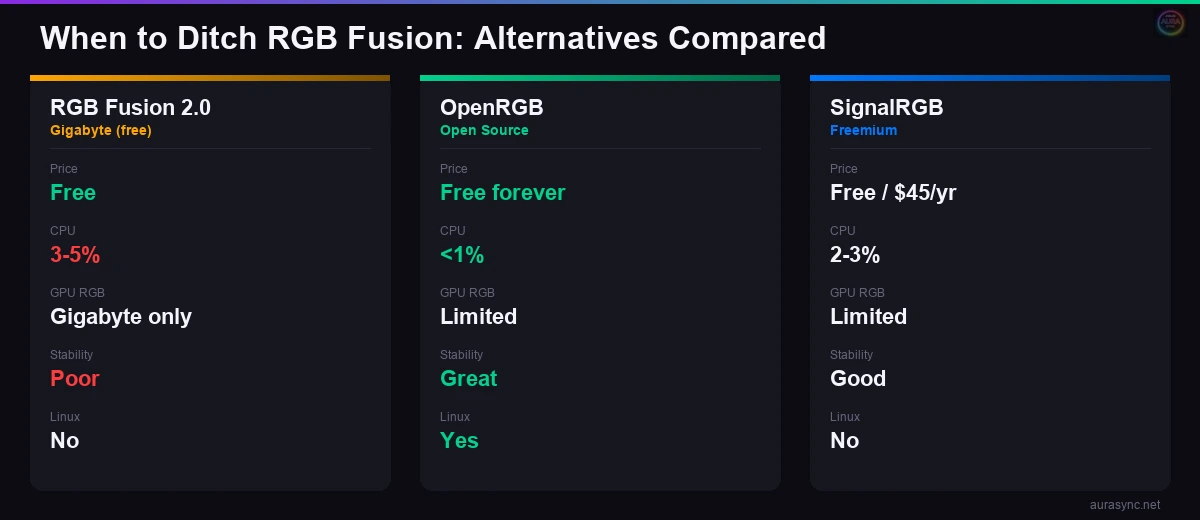
When to Give Up on RGB Fusion (The Honest Take)
Look, I’ll be real with you. RGB Fusion has the worst reputation of any major RGB software, and it’s earned. The interface hasn’t been meaningfully updated in years, GPU detection is unreliable, and Gigabyte’s newer “Gigabyte Control Center” (GCC) app that’s supposed to replace it is somehow even buggier in its current state.
If you’ve tried everything above and you’re still fighting with it, here are your realistic options:
- OpenRGB: Free, open-source, supports most Gigabyte motherboards. It won’t control your GPU RGB on the latest cards (security restrictions), but it handles mobo and RAM lighting. I switched to it for everything except my GPU.
- SignalRGB: Has better effect options than RGB Fusion, but the free version has limitations and the Pro version costs $45/year. Worth trying the free tier first.
- Set it in BIOS and forget it: On boards that still have BIOS-level RGB control, you can set a static color there and never touch RGB Fusion again. Not ideal, but it works.
(I ended up using OpenRGB for my motherboard and RAM, and just leaving my GPU on its default AORUS rainbow cycle. It’s not perfect, but at least nothing crashes anymore. Sometimes “good enough” is the actual solution.)
Frequently Asked Questions
Why does RGB Fusion keep crashing my PC?
RGB Fusion crashes are usually caused by corrupted DLL files, conflicts with anti-cheat software like Vanguard, or SMBus conflicts with other RGB apps. Delete the AtiTool folder and GvBiosLib.dll from the installation directory, then reinstall. If crashes continue, check Windows Event Viewer for the specific error.
Can I use RGB Fusion and iCUE at the same time?
You can, but you shouldn’t. Both apps try to control RGB through the SMBus, and running them simultaneously can cause detection failures, stuck colors, and in worst cases, corrupt your RAM’s SPD data. Pick one or switch to OpenRGB which handles both brands.
Does RGB Fusion work on Windows 11?
Yes, but Windows 11 24H2 introduced compatibility issues that affect service startup. If RGB Fusion stopped working after a Windows update, try running it as Administrator and check that the ASUS/Gigabyte services are running in services.msc. Also disable Windows 11’s built-in Dynamic Lighting feature (Settings, Personalization, Dynamic Lighting) since it conflicts with third-party RGB apps.
What’s the difference between RGB Fusion and Gigabyte Control Center?
Gigabyte Control Center (GCC) is supposed to be the successor to RGB Fusion. It bundles RGB control with fan curves and system monitoring. As of early 2026, GCC is still buggy and missing features that RGB Fusion has. Most users on r/gigabyte still recommend sticking with RGB Fusion 2.0 until GCC matures.
Is there a way to control RGB without any software?
On some Gigabyte boards, you can set a static RGB color in BIOS under the Peripherals or Settings tab. This persists without any software running. For more options, standalone RGB controllers that connect directly to your ARGB headers give you hardware-level control. Check our guide on ARGB vs RGB headers to make sure you’re connecting things correctly.
That covers pretty much everything I’ve dealt with on my own system and everything I’ve seen across the forums. If you found a fix that I didn’t cover, I’d genuinely like to hear about it. RGB Fusion has so many edge-case bugs that there’s probably a whole category of problems I haven’t run into yet on my specific hardware.
Good luck. You’ll need it with this software.
Related Guides
- How to use RGB Fusion 2.0 — the basics walkthrough.
- OpenRGB as the cross-vendor alternative — for when RGB Fusion keeps failing detection.
- RGB sync troubleshooting playbook — the cross-vendor categorisation of these failures.
- Best RGB software for Windows — where RGB Fusion ranks.