
I spent three hours last Tuesday staring at a completely dark PC because Mystic Light decided to vanish from MSI Center after a Windows update. No warning, no error message. I opened MSI Center and the Mystic Light tab was just gone. My ARGB strips and case fans were stuck on a static rainbow cycle I didn’t choose, and I couldn’t change a thing.
I’ve been running an MSI B550 Tomahawk build for about two years now, and this isn’t the first time Mystic Light has pulled this stunt. I’ve dealt with it refusing to detect my RAM, freezing on the loading screen, and straight up disappearing from MSI Center at least four or five times. I’m pretty sure I’ve tried every fix that exists at this point.
So if your Mystic Light isn’t working, I get it. I’ve been there. Here are the 16 fixes that actually got it working again for me, starting with the easy stuff and ending with the nuclear options.
Why Mystic Light Stops Working
Before I get into the fixes, it helps to understand why this keeps happening. There are three main reasons I’ve run into.
The MSI Center transition broke everything. MSI replaced Dragon Center with MSI Center a while back, and the migration was rough. I had remnants of Dragon Center left on my system even after I “uninstalled” it, and those leftover files kept conflicting with MSI Center. If you ever used Dragon Center, there’s a solid chance leftover registry entries or services are still interfering.
Windows updates randomly break MSI Center. I’ve noticed this pattern where a major Windows 11 feature update rolls out, and within a week Mystic Light stops detecting my hardware. I think it has something to do with how Windows handles the SMBus driver, which is what most RGB software uses to communicate with your motherboard LEDs.
Other RGB software conflicts. I learned this the hard way. I had ASUS Armoury Crate installed because I bought a used GPU that came with it pre-installed, and it was silently fighting with Mystic Light over SMBus access. Only one program can control the SMBus at a time, so if anything else is trying to grab it, Mystic Light will either crash or not show up at all.
Quick Fixes to Try First
I always start with these because they take about 30 seconds each and I’ve seen them fix the issue more often than you’d expect.
1. Check if Mystic Light is actually enabled in MSI Center
I know this sounds obvious, but MSI Center has a feature management screen where you can enable and disable individual modules. I’ve had Mystic Light disable itself after an MSI Center update. Open MSI Center, go to the “Features” section, and make sure Mystic Light is toggled on. If it says “Install,” click it and let it download.
2. Switch MSI Center language to English
This one sounds absurd but I’ve seen it work on three different systems. If you’re running MSI Center in any language other than English, switch it to English, restart the app, and check if Mystic Light appears. There’s apparently a localization bug that hides certain modules in non-English languages.
3. Run MSI Center as administrator
Right-click the MSI Center shortcut and select “Run as administrator.” Mystic Light needs low-level hardware access to control your RGB, and sometimes Windows doesn’t give MSI Center the permissions it needs unless you explicitly run it elevated. If this fixes it, you can set it to always run as admin in the compatibility settings.
4. Restart the MSI Center service
Press Win + R, type services.msc, and hit Enter. Find “MSI Center Service” in the list, right-click it, and select “Restart.” Sometimes the background service crashes silently and Mystic Light can’t communicate with your hardware until you restart it.
Reset RGB in BIOS
If the quick fixes didn’t work, the next thing I’d try is resetting your RGB settings in BIOS. I’ve had situations where the BIOS-level RGB settings got corrupted and Mystic Light couldn’t override them.
5. Enter BIOS and toggle RGB settings
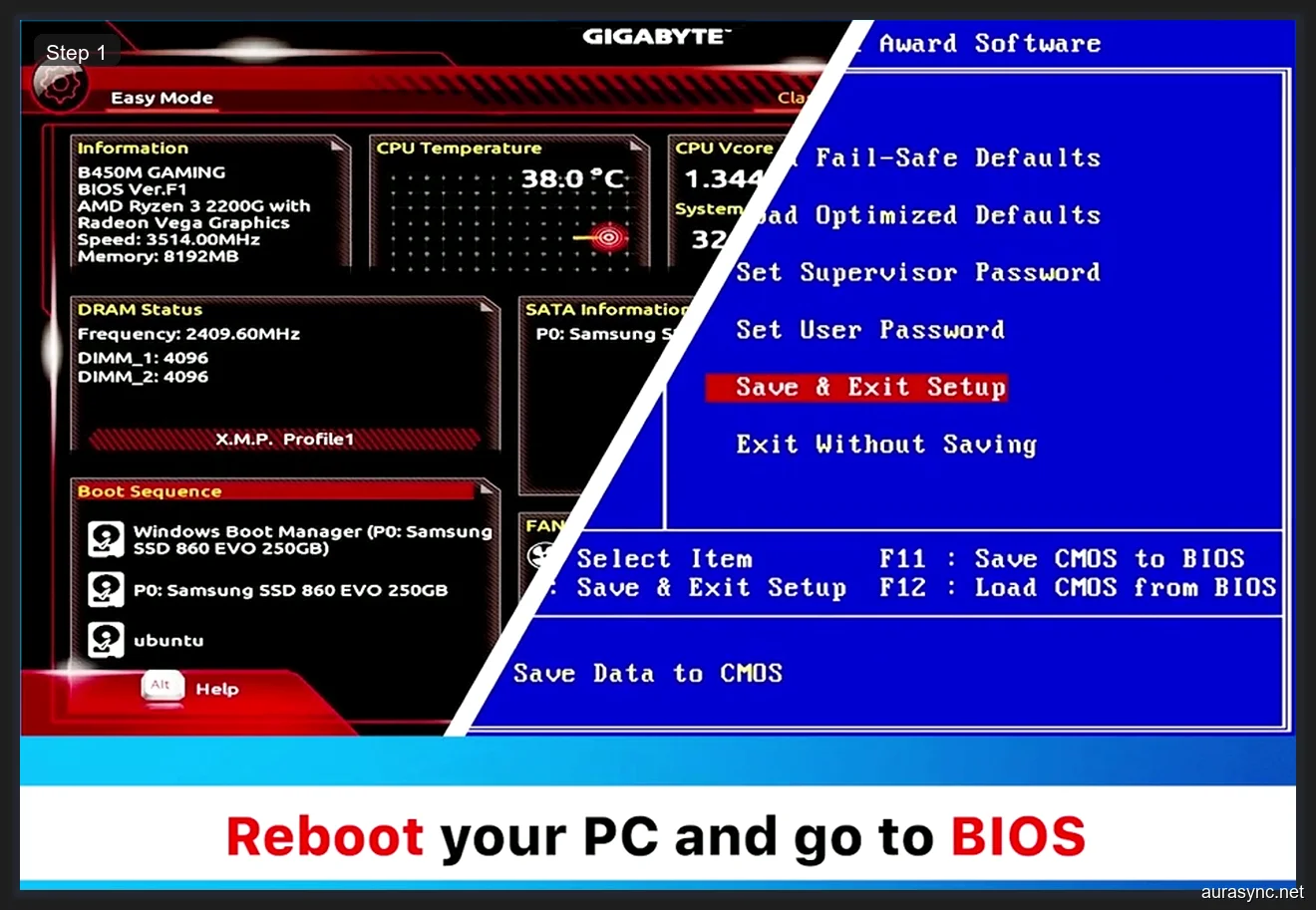
Restart your PC and mash the Delete key during boot to enter BIOS. On MSI boards, look for the RGB LED settings. It’s usually under “Advanced” or sometimes under a specific “LED” or “RGB” section depending on your board.
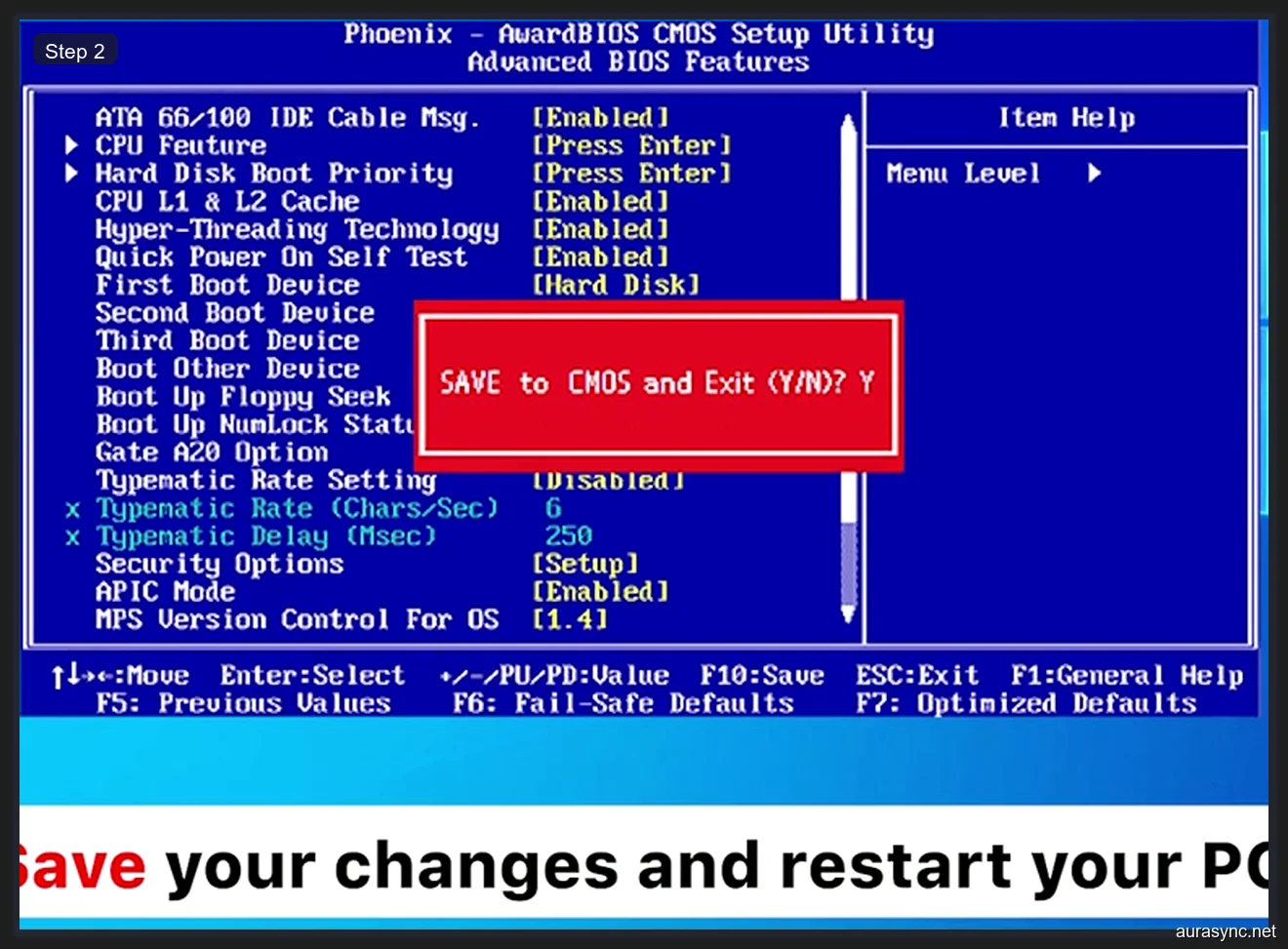
Here’s what worked for me: I turned off the RGB LED setting completely, saved and exited BIOS, let Windows boot fully, then restarted again, went back into BIOS, and turned the RGB LED setting back on. This basically forces the BIOS to reinitialize the LED controller.
6. Load optimized defaults in BIOS
While you’re in BIOS, you can also try loading optimized defaults. This resets all BIOS settings to factory defaults, including the RGB configuration. You’ll need to re-apply your XMP profile and any other custom settings afterward, but it’s worth trying if nothing else has worked. Save and exit after loading defaults.
Check Your Motherboard Model and BIOS Version
I’ve seen people spend hours troubleshooting Mystic Light only to find out their motherboard doesn’t actually support the version of MSI Center they installed. I almost made this mistake myself.
7. Verify your exact motherboard model
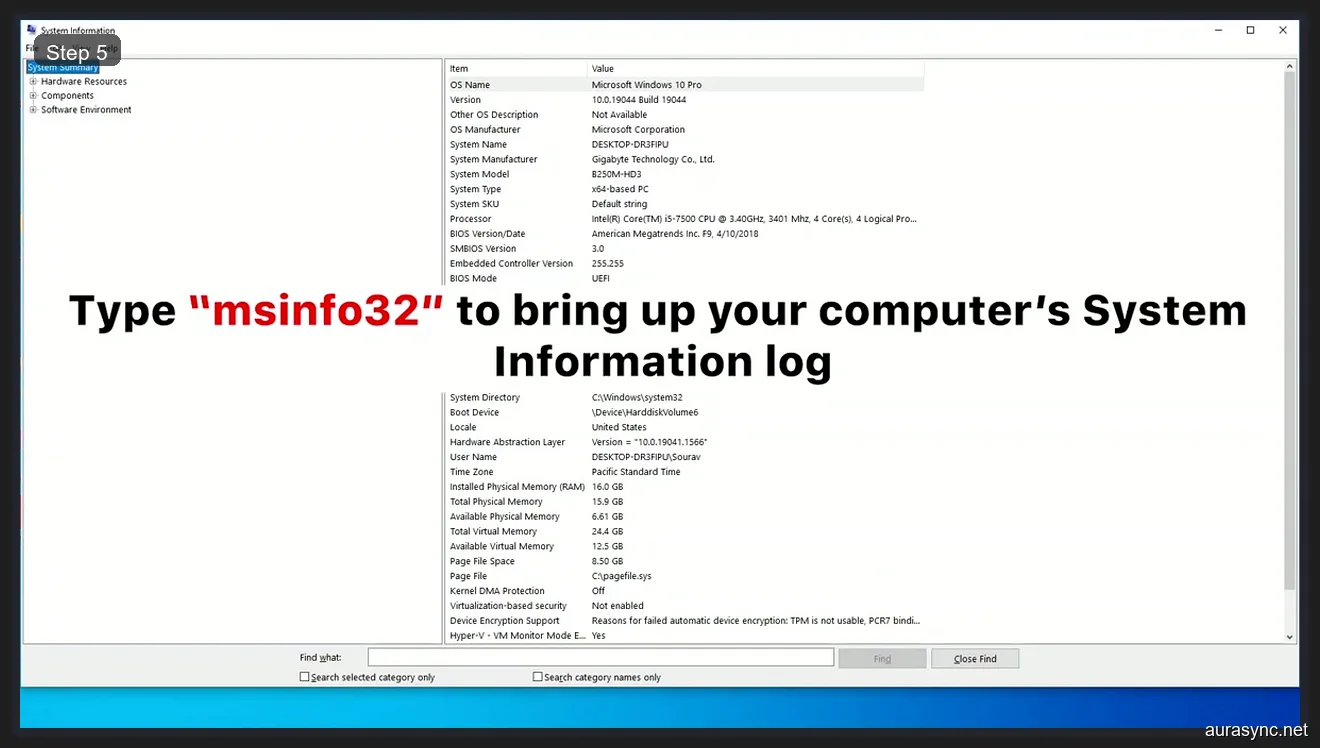
Press Win + R, type msinfo32, and hit Enter. Look for “BaseBoard Manufacturer” and “BaseBoard Product” in System Information. Write down the exact model name. I had a friend who thought he had a B550 Tomahawk but actually had a B550M Tomahawk (the micro-ATX version), and they use different Mystic Light modules.
8. Update your BIOS to the latest version
Go to MSI’s support page, search for your exact motherboard model, and check if there’s a BIOS update available. I’ve had Mystic Light issues that only got fixed after a BIOS update because MSI patched the LED controller firmware. Download the BIOS file, put it on a FAT32 USB drive, and flash it through M-FLASH in your BIOS. Don’t skip this step if you’re on an older BIOS version.
Remove Conflicting RGB Software
This is the fix that actually solved my problem the first time Mystic Light broke. I had no idea that other RGB apps could completely block Mystic Light from working.
9. Check for conflicting RGB apps
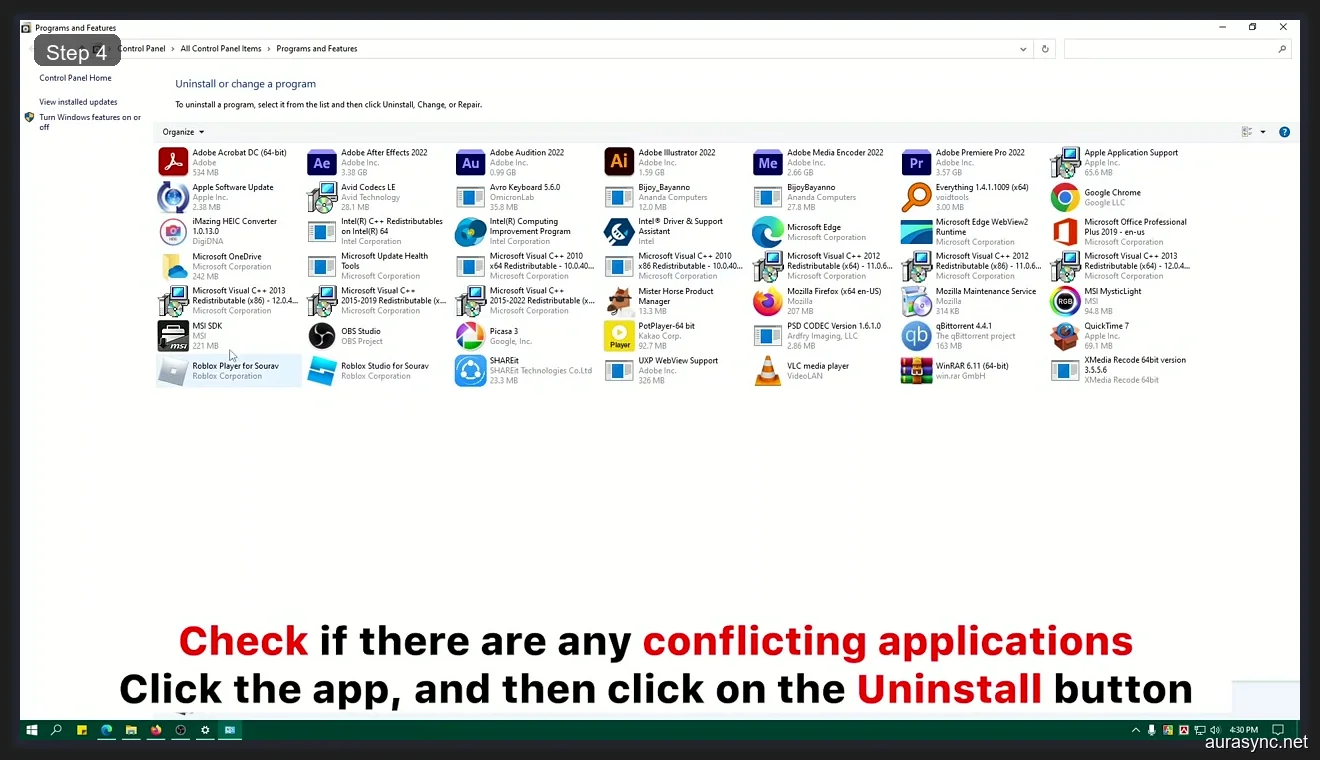
Open Programs and Features (just search for it in the Start menu) and look for any of these programs:
- ASUS Armoury Crate – This one is notorious. If it’s installed, it will grab the SMBus and Mystic Light can’t access your RGB. Here’s how to fully remove Armoury Crate.
- Corsair iCUE – iCUE can conflict if you’re using it to control motherboard RGB instead of just Corsair devices.
- Gigabyte RGB Fusion – If you have any Gigabyte RGB Fusion components, its software can fight with Mystic Light.
- OpenRGB – Even OpenRGB can conflict if it’s running in the background.
- SignalRGB – Same deal. Only one RGB controller should be active at a time.
10. Uninstall all conflicting RGB software
I know it’s annoying, but you really need to uninstall every other RGB control program before troubleshooting Mystic Light. You can always reinstall them later once you’ve confirmed Mystic Light is working. Uninstall them through Programs and Features, then restart your PC before moving on.
Clean Reinstall MSI Center
If Mystic Light is still not working after removing conflicting software, it’s time for a clean reinstall. This is the fix that works for me about 80% of the time, but you have to do it properly or the same issues will come back.
11. Uninstall MSI Dragon Center (if present)
If you still have Dragon Center installed alongside MSI Center, that’s almost certainly your problem. Uninstall Dragon Center completely through Programs and Features. Also check for “MSI SDK” and “MSI Gaming App” while you’re there. Those are old MSI utilities that can also cause conflicts.
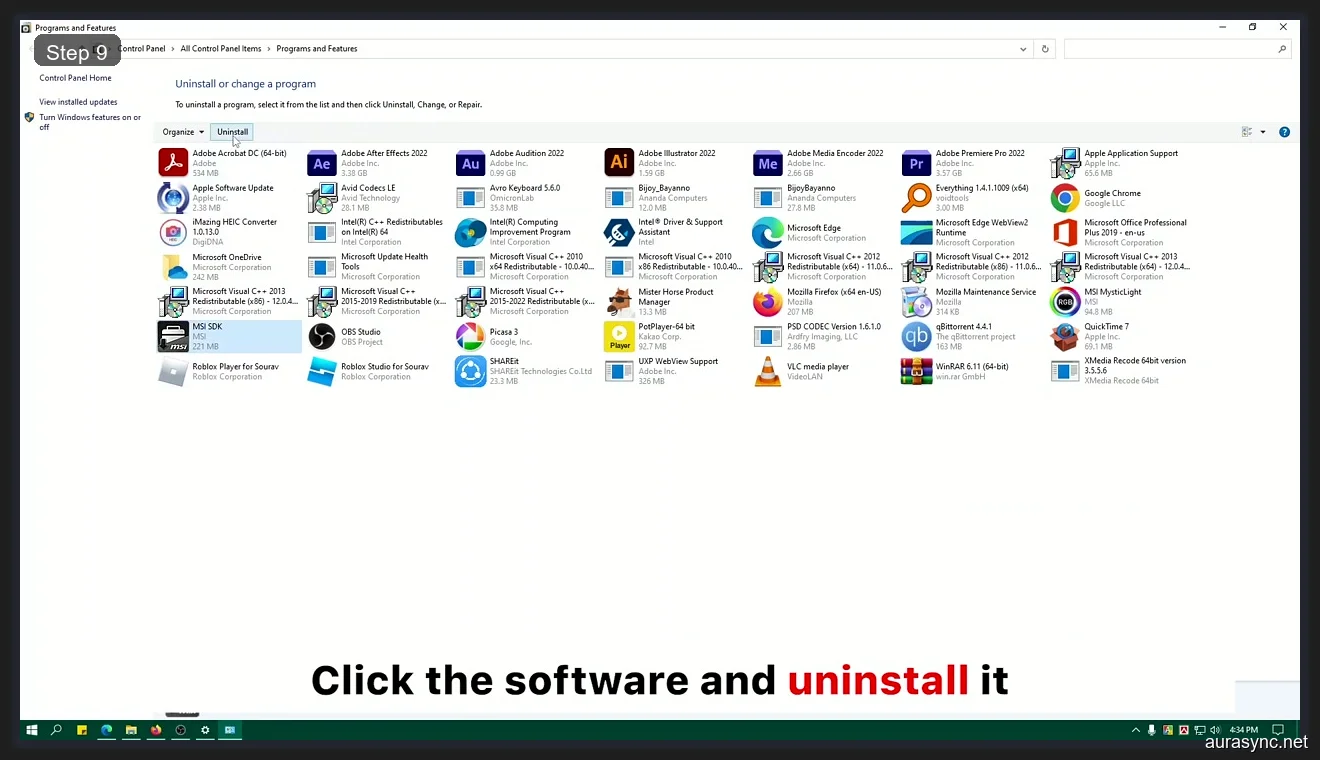
12. Uninstall MSI Center completely
After removing Dragon Center, uninstall MSI Center itself through Programs and Features. Once it’s uninstalled, navigate to C:\Program Files (x86)\MSI and delete the entire MSI folder if it still exists. Also check %AppData% and %LocalAppData% for any remaining MSI folders and delete those too. Restart your PC after cleanup.
13. Install MSI Center fresh from the Microsoft Store
Here’s the important part: don’t download MSI Center from MSI’s website. I’ve had better luck getting it from the Microsoft Store. Open the Microsoft Store, search for “MSI Center,” and install it from there. The Store version tends to be more up-to-date and installs cleaner.
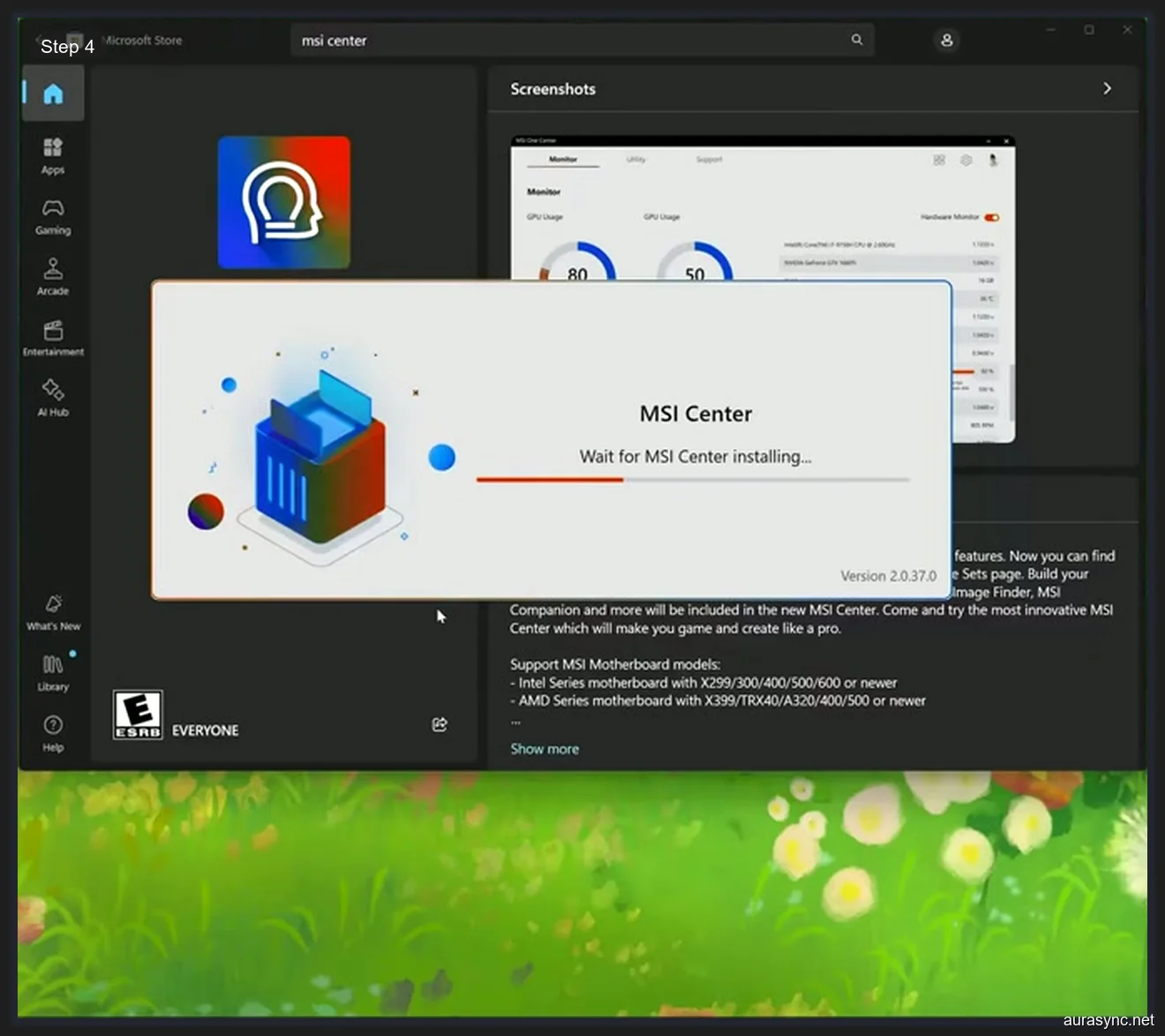
Once MSI Center finishes installing, open it and go to the Features section. Find Mystic Light and click “Install” to add the module. Let it download and install completely before trying to use it.
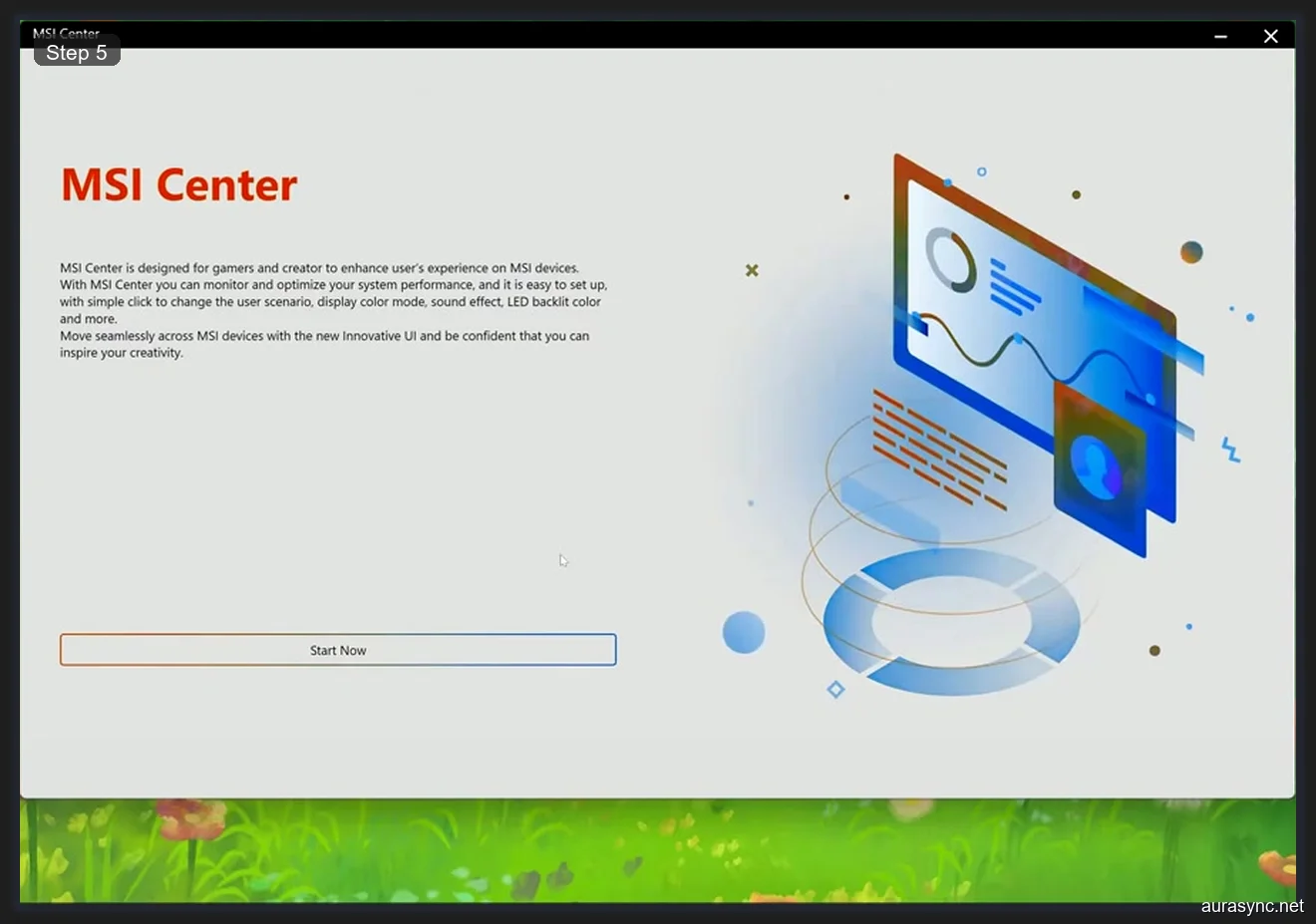
14. Install the Mystic Light module and test
After MSI Center installs, open it and navigate to the Mystic Light section. If the tab appears and you can see your hardware devices listed, you’re good. Try changing a color to confirm it’s actually communicating with your RGB controller. If it still doesn’t work, move on to the nuclear option below.
Nuclear Option: Full Driver Cleanup
If nothing else has worked, it’s time to go scorched earth on your drivers. I’ve only had to do this twice, but both times it fixed the issue when nothing else would.
15. Clean GPU driver reinstall with DDU
Download Display Driver Uninstaller (DDU) and boot into Safe Mode. Run DDU to completely remove your GPU drivers. I know this sounds unrelated, but I’ve seen corrupted GPU drivers interfere with the SMBus, which is what Mystic Light uses. After DDU finishes, restart normally and let Windows install a basic display driver, then install the latest GPU driver from NVIDIA or AMD’s website.
After the GPU driver is clean, download and install the latest chipset drivers from AMD or Intel’s website (depending on your platform). Then do a clean MSI Center install using the steps from the previous section.
16. Reset MSI Center via Windows Apps settings
If you don’t want to go through the full DDU process, there’s one more thing you can try. Go to Settings > Apps > Installed Apps, find MSI Center, click the three dots, and select “Advanced options.” Click “Reset” to reset the app to its default state. This clears all MSI Center data without needing a full uninstall. Restart your PC and open MSI Center again.
Alternatives If Nothing Works
I’ll be honest. Sometimes Mystic Light is just broken and MSI takes months to fix it. If you’ve tried everything above and your RGB is still stuck, there are two solid alternatives that I’ve used myself.
OpenRGB is a free, open-source RGB controller that works with most MSI motherboards. It bypasses MSI Center entirely and talks directly to your RGB hardware. I used OpenRGB for about six months while waiting for MSI to fix a particularly bad Mystic Light bug, and it worked great. The interface isn’t as polished as Mystic Light, but it’s way more reliable.
SignalRGB is another option that has a nicer interface than OpenRGB and supports more effects. It’s free for basic use, with a premium tier for advanced effects. If you’re comparing the two, I wrote a comparison of SignalRGB vs OpenRGB that might help you decide.
Just remember to close whatever alternative you’re using before trying Mystic Light again. Running two RGB controllers at the same time is asking for trouble.
Frequently Asked Questions
Why did Mystic Light disappear from MSI Center?
I’ve seen this happen after MSI Center updates, Windows updates, and conflicting software installations. The most common cause is that the Mystic Light module got disabled or uninstalled during an update. Open MSI Center, go to Features, and check if Mystic Light needs to be reinstalled. If it’s not even listed as an option, your MSI Center installation is probably corrupted and needs a clean reinstall.
Does MSI Center work with Dragon Center motherboards?
Yes, MSI Center replaced Dragon Center and supports most boards that Dragon Center supported. However, you need to completely uninstall Dragon Center first. Having both installed at the same time will cause conflicts. Check MSI’s support page for your specific motherboard to confirm MSI Center compatibility.
Can I use Mystic Light without MSI Center?
Unfortunately, no. Mystic Light is a module inside MSI Center (or the older Dragon Center), so you need MSI Center installed for Mystic Light to work. If you want to control your MSI board’s RGB without MSI Center, your best options are OpenRGB or SignalRGB.
Why does Mystic Light not detect my RAM?
I’ve had this exact issue. Mystic Light sometimes can’t detect RGB RAM if another program is accessing the SMBus. Close all other RGB software, restart your PC, and open Mystic Light before anything else launches. If that doesn’t work, check your BIOS for a “Memory RGB” or “DRAM LED” setting and make sure it’s enabled. Some RAM brands also need their own software installed first to be recognized.
Is Mystic Light compatible with non-MSI components?
Mystic Light can control most standard 5V ARGB and 12V RGB devices connected to your MSI motherboard’s RGB headers. It can also control compatible RAM modules and some GPU backplates. However, it can’t control RGB devices that are connected through USB or proprietary connectors on non-MSI hardware. For those, you’ll need the manufacturer’s own software or a universal tool like OpenRGB.
Will reinstalling Windows fix Mystic Light?
Probably, but I wouldn’t recommend it just for an RGB issue. A clean Windows install will definitely fix any software conflicts, but it’s overkill. Try the clean reinstall steps in this guide first. I’ve never had to reinstall Windows to fix Mystic Light. The clean MSI Center reinstall process handles it in almost every case.
Related Guides
- MSI Mystic Light setup guide — the from-zero walkthrough once it’s working.
- RGB sync troubleshooting playbook — the cross-vendor categorisation.
- OpenRGB cross-vendor alternative — the escape hatch if Mystic Light keeps failing.
- Armoury Crate vs MSI Center vs RGB Fusion — the broader vendor comparison.