
I spent a weekend trying to get Windows 11’s built-in RGB controller to actually replace iCUE on my desk. Most of it worked. The bits that didn’t were fixable with a single toggle nobody really talks about, and the bits that aren’t fixable… well, that’s where this whole feature shows its age.
If you’ve never poked at it, “Dynamic Lighting” is the panel Microsoft slipped into Settings → Personalization back in late 2023. It’s their attempt to do for RGB what they did for printer drivers years ago: stop making you install a 400 MB vendor utility for every brand on your desk. The idea is good. The execution is uneven, and the supported-device list is still way shorter than the marketing suggests. I’ve been running it on a laptop with a Logitech G502 X PLUS plugged in, and once you understand the priority system it’s actually pretty usable. (Spoiler: most people don’t even open the section that controls the priority system.)
This is going to be the practical walkthrough I wish I’d had: every panel, every effect, the gotchas that the official Microsoft support page doesn’t mention, and an honest answer to the question I get asked most (“can I finally uninstall G HUB?”). Quick warning before we start: this isn’t a replacement for Razer Synapse or Armoury Crate if you’ve got a fully kitted ROG board with RGB RAM. I’ll explain why in the “what it doesn’t do” section.
Where Dynamic Lighting actually lives
Press Win + I to open Settings, click Personalization on the left, then Dynamic Lighting on the right. That’s the whole hunt. There’s no separate app to download, no service to start manually, no Microsoft Store install. If you’ve got a compatible device plugged in, the page shows it. If you don’t, it tells you that too.
Heads up about something weird that happens the first time you open this page: any compatible device on your system will momentarily go dark. My keyboard’s lighting blinked off the moment I landed on the panel. That’s not a bug. Windows is taking over the LampArray HID descriptor from whatever was driving it before (the vendor utility, the driver default, whatever), and there’s a half-second handover where nothing’s controlling it. Don’t panic. Toggle “Use Dynamic Lighting on my devices” to On and your lights come back, this time controlled by Windows.
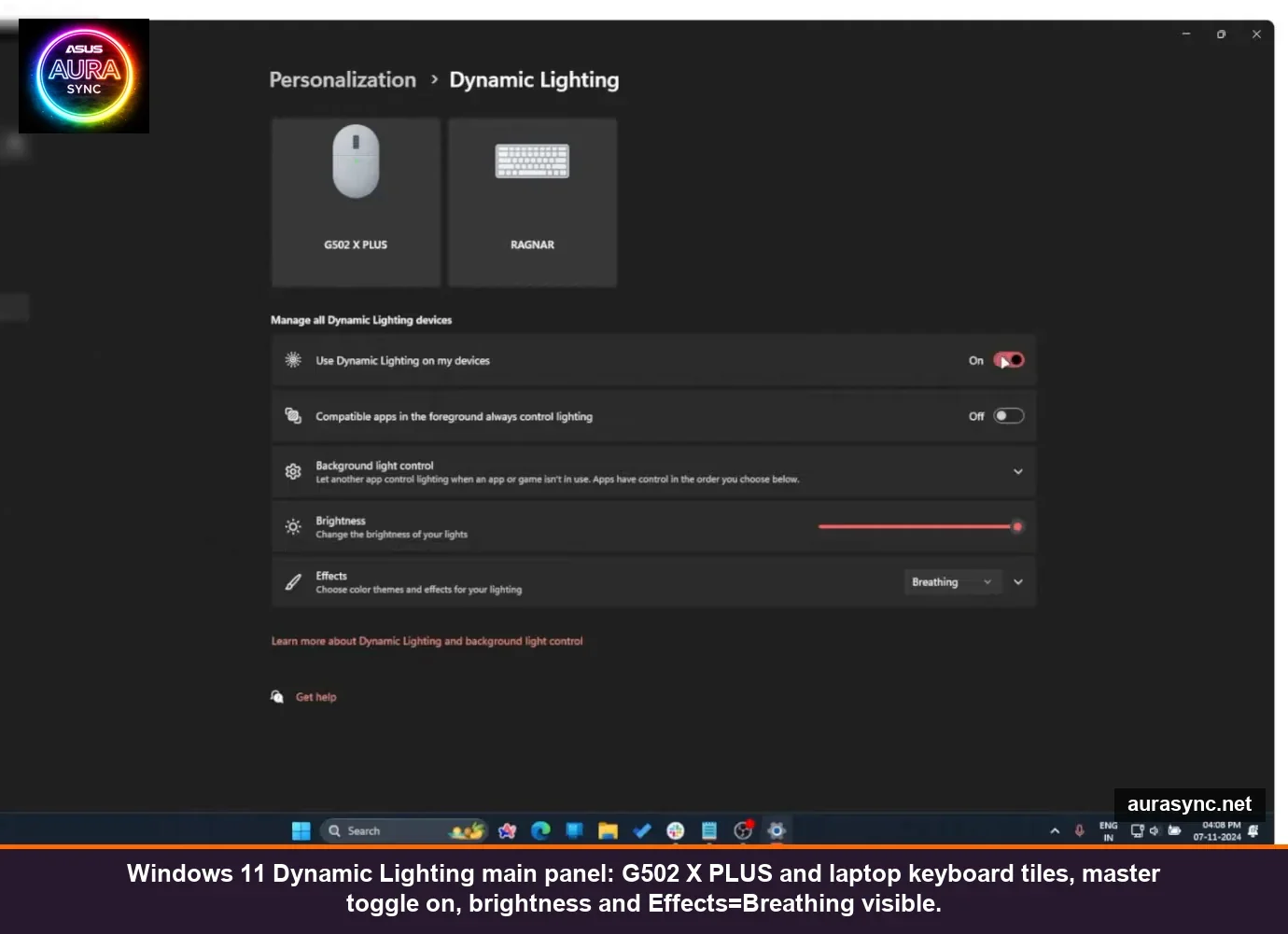
The compatible-devices grid at the top is the moment of truth. Mine showed two tiles: my G502 X PLUS mouse and the laptop’s keyboard (“Ragnar” is the laptop’s name, not a Microsoft product). If your stuff isn’t there, no amount of clicking will summon it. Compatibility runs through the open HID LampArray standard, and the device manufacturer either implemented the firmware for it or they didn’t. Logitech committed to LampArray across the entire G LIGHTSYNC line, which is why basically every modern G-series mouse and keyboard shows up. Razer’s done a chunk of their lineup (BlackWidow V3 and V4 Pro, the Huntsman family, DeathStalker V2, Ornata V2/V3, Naga Pro). Microsoft’s official partner list also includes Acer, ADATA/XPG, ASUS ROG, HP/HyperX, Lenovo, MSI, NZXT, SteelSeries, and Twinkly, but “partner” doesn’t mean “every product” so check the actual MS Learn page before you plan a build around this.
The four sliders that control everything
Once Dynamic Lighting is on, the master panel gives you four things to play with. Top to bottom: the master toggle (covered above), “Compatible apps in the foreground always control lighting” (covered later because it’s important), “Background light control” (also covered later, even more important), the brightness slider, and an Effects dropdown.
The brightness slider is honestly weaker than I expected. At 100% on my keyboard, the lighting still looks dimmer than the same keyboard sitting on the OMEN Light Studio default. I’m not the only person noticing this; there are forum threads going back to 2024 calling it out. It’s not a deal-breaker, just don’t expect headroom. If you’ve already got brightness cranked in BIOS or in your vendor utility, this slider basically maxes out the limits Windows knows how to ask for.
All six effects, from honestly useful to honestly useless
The Effects dropdown gives you six options: Solid color, Breathing, Rainbow, Wave, Wheel, and Gradient. Each one expands into its own sub-panel with its own controls. I went through every single one. Here’s what they actually do.
Solid color is the one most people will end up using. Pick a colour, the lights stay that colour. Done. There’s a “Match my Windows accent color” toggle that, when enabled, hands the colour choice to whatever you’ve set in Personalization → Colors. I actually like this. Set Windows accent to a deep blue and watch the keyboard, the mouse and the wallpaper all sit in the same palette. It’s the closest this feature gets to feeling like a real OS-level lighting system.
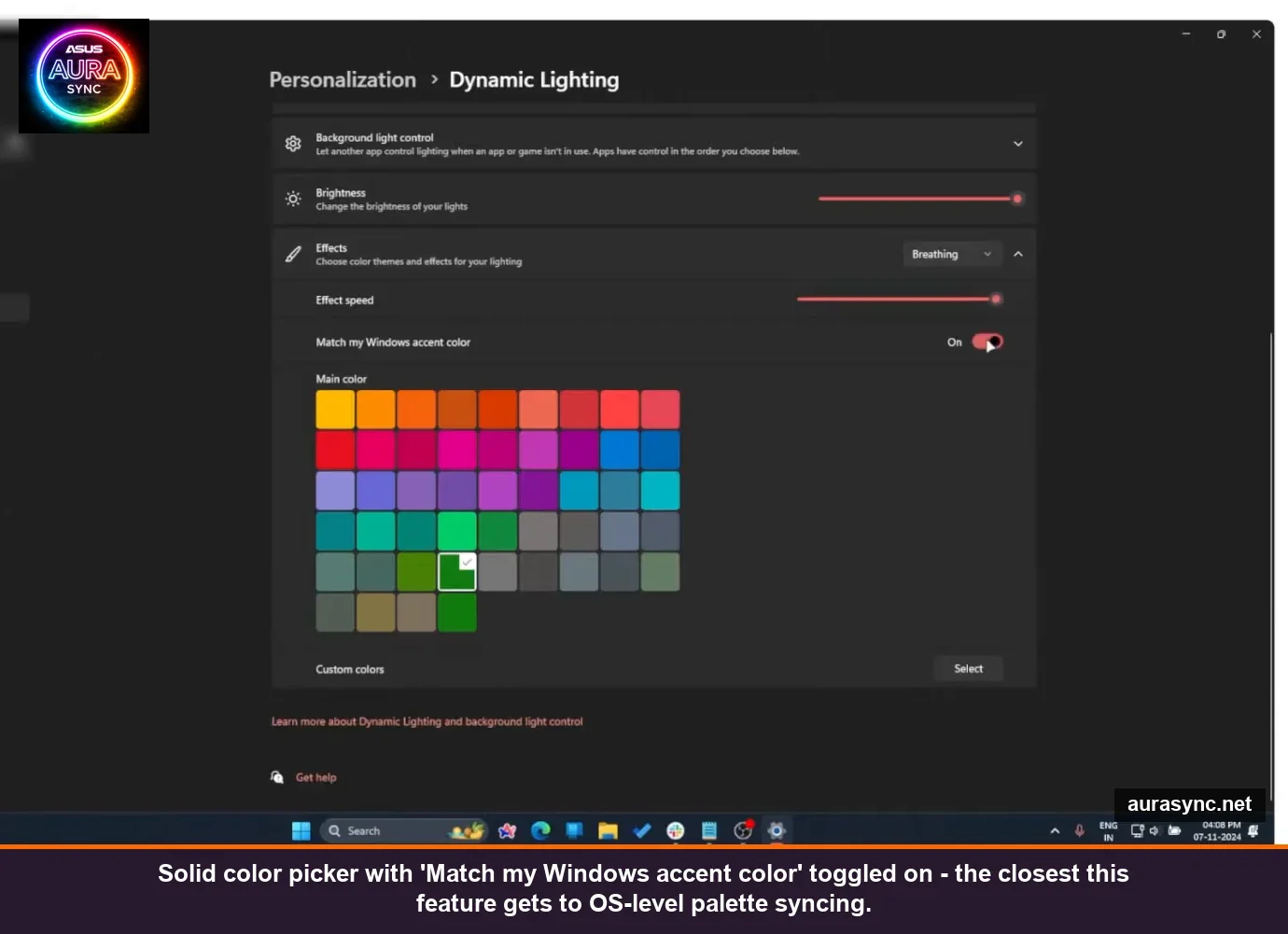
About the colour picker: don’t trust the on-screen swatch. The host of the Candid.Technology demo I cross-referenced flagged this too, and I confirmed it on my own kit. The pure red square in the picker shows up on my keyboard as more of an orange-red, and the deep purple picks up a magenta tilt. That’s not Windows’ fault, it’s a property of consumer RGB LEDs (each one has a slightly different colour curve depending on the diode bin). The official Microsoft Learn troubleshooting page acknowledges this in one line: “Colors can vary slightly on devices from different manufacturers. This is somewhat expected.” Just budget a couple of minutes of fiddling if you care about getting an exact shade.
Breathing is your standard slow fade in/out on a single colour. Speed slider controls how fast. Nothing weird here.
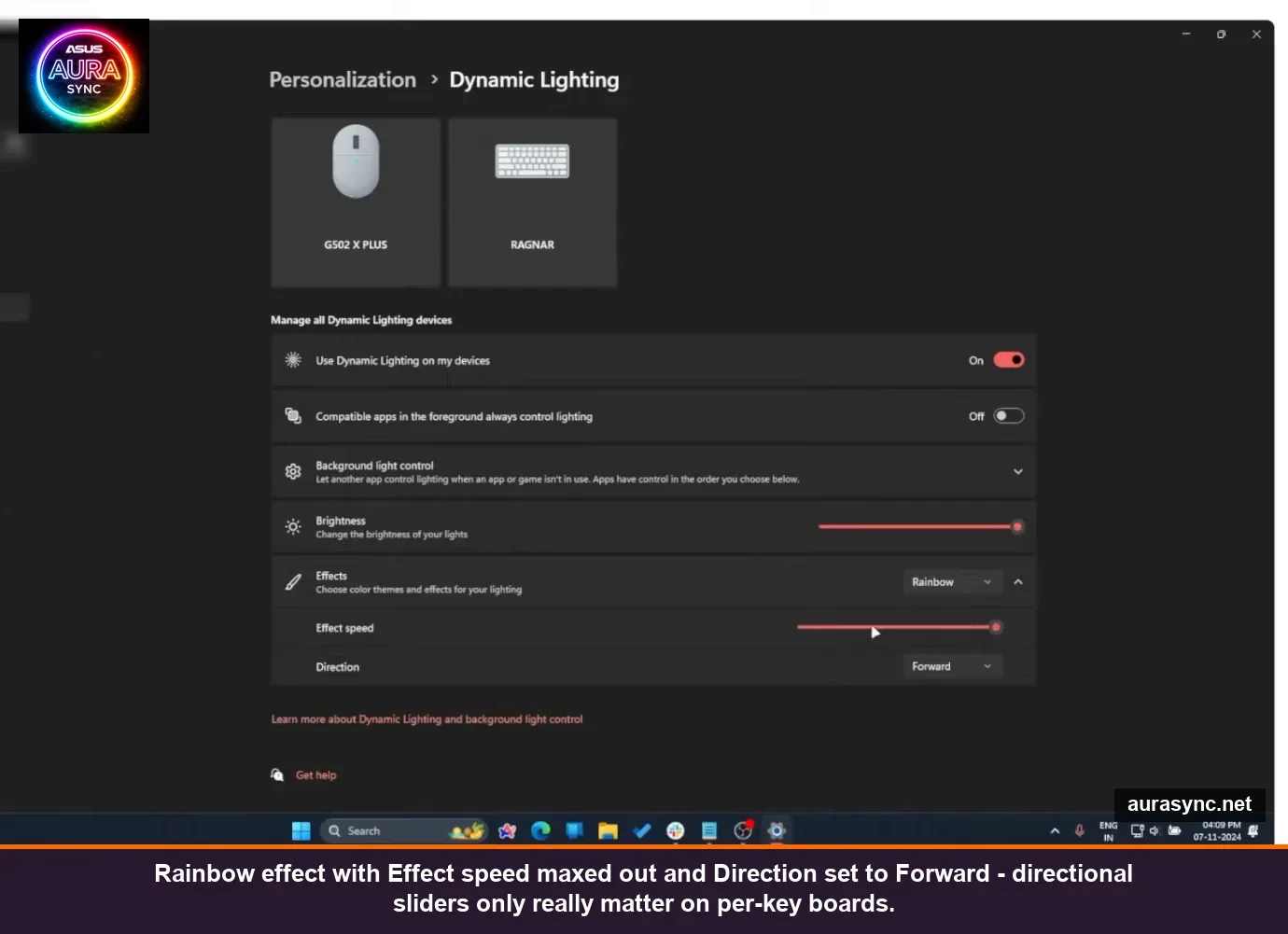
Rainbow cycles the spectrum. Speed slider, plus a Direction dropdown (Forward / Backward) that, on most keyboards, is basically cosmetic. Direction means something on a per-key board where the rainbow visibly travels. On a four-zone keyboard? Forward and Backward look identical. I tested both. They’re identical.
Wave, Wheel and Gradient all give you two colour pickers (a “Main color” and a “Second color”) and let the system blend between them. Wave is a moving blend with a direction option. Wheel is a spiral animation. Gradient is static, just a smooth colour transition that doesn’t move. Same caveat as Rainbow on direction: if you don’t have per-key RGB, the directional effect is almost invisible. Wave on a four-zone HP laptop keyboard, for example, just looks like all four zones doing a slow pulse together.
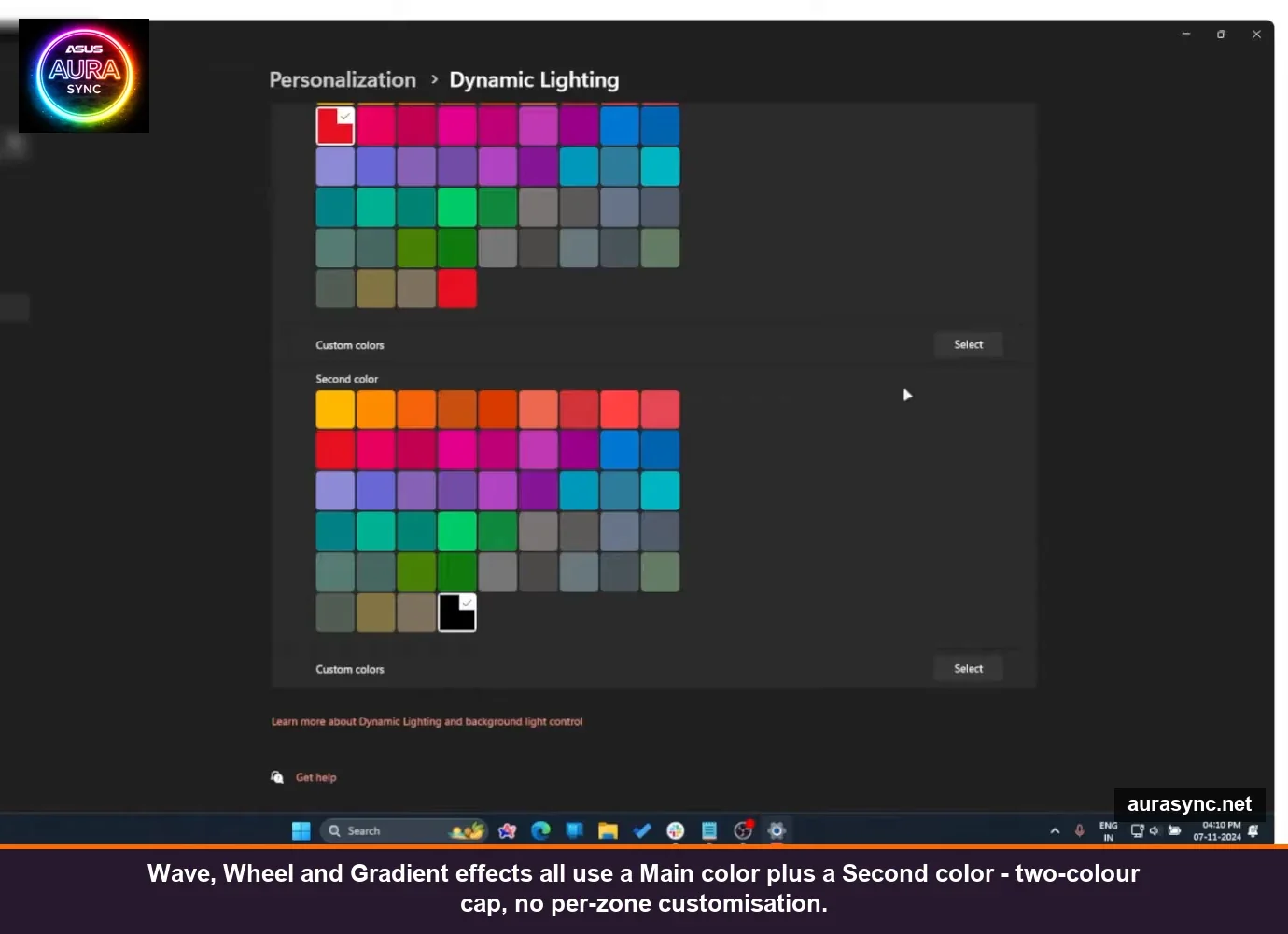
That’s the whole effects library. Six effects, two-colour cap on the multi-colour ones, no per-zone customisation, no scripting, no music reactive mode. If you’re coming from SignalRGB or even iCUE Murals, this will feel sparse. If you’re coming from “no central RGB control at all,” it covers 90% of what most people actually do.
The one panel that decides whether any of this works: Background light control
This is the bit that most tutorials skim past, and it’s also the bit that explains why your RGB keeps “breaking” if you’ve got Dynamic Lighting on alongside other utilities.
Click Background light control in the main panel and it expands into an ordered list. The app at the top wins. That’s the entire model. If “Dynamic Lighting Background Controller” is at the top, Windows controls your lights. If you’ve got OMEN Light Studio installed and it shows up in the list, you can drag it above Dynamic Lighting and OMEN takes over instead. Same for SignalRGB, which has its own integration documented in their support docs.
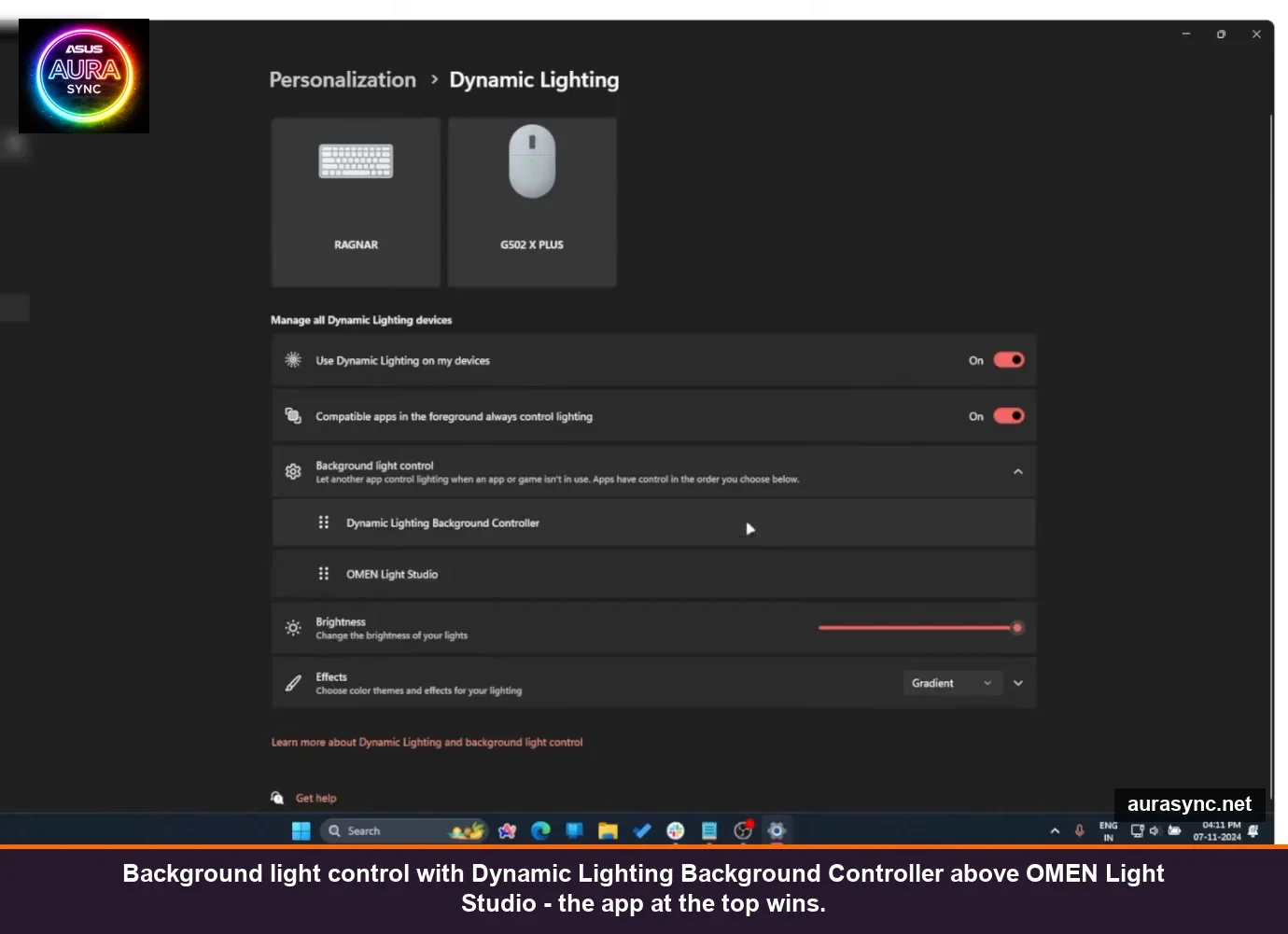
I tested this exact scenario. I had Dynamic Lighting at the top, the G502 X PLUS happily syncing with the keyboard. Then I dragged OMEN Light Studio above it. The mouse RGB instantly stopped responding to Windows because OMEN doesn’t know how to drive a Logitech mouse. The keyboard kept working because OMEN owns it. Drag Dynamic Lighting back to the top and the mouse comes back. Once you’ve seen this happen once, every weird “my RGB stopped working after I installed X” post on Reddit suddenly makes sense.
Now the famous gotcha: Logitech G HUB doesn’t show up in this list. Not on my install, not on the demo I cross-referenced, not on any of the half-dozen forum threads I read. G HUB just… isn’t a citizen of the priority system. So if you have G HUB running, it’s going to fight Dynamic Lighting in a way you can’t actually arbitrate from inside Settings. Practical fix: pick one. Either uninstall G HUB and let Windows drive your Logitech gear, or accept G HUB owns Logitech and turn off Dynamic Lighting per-device for those tiles. SignalRGB users have hit similar issues; there’s a thread on the SignalRGB forum about SignalRGB itself sometimes not appearing in the priority list after a fresh Windows reinstall.
⚠️ Heads up: Windows updates have a habit of resetting the priority order back to default. If your RGB suddenly switches back to whatever Windows wants after a feature update, this is almost certainly why. Open Background light control, drag your preferred app back to the top.
“Compatible apps in the foreground always control lighting” – leave this on
Above the Background light control section there’s a separate toggle: “Compatible apps in the foreground always control lighting.” It’s a separate concept from priority. What it does: when a Dynamic Lighting-aware game or app is the active window, that app gets to drive your lights for as long as it’s in front. Soon as you alt-tab away, control falls back to whoever’s at the top of the priority list.
Turn this on. Almost no game uses it yet (Microsoft is still trying to convince developers to integrate the API), but the ones that do, do really nice things; cooldown indicators on keyboard rows, low-health flashes, that kind of thing. Leaving it on costs you nothing because non-aware apps just don’t trigger it. With the LampArray API maturing slowly, this is the toggle that’s going to matter more over the next couple of years, not less.
What Dynamic Lighting still doesn’t do (the honest list)
This is where I have to be straight with you, because most write-ups gloss over it.
RGB RAM is barely supported. The HID LampArray spec includes a “Chassis” device class, but the number of RAM kits implementing it natively is small enough that I couldn’t find a single mainstream G.Skill, Corsair, or Kingston kit that shows up in Dynamic Lighting on its own. There’s a long-running ROG forum thread (titled “RAM Lighting not controlled by windows dynamic lighting”) where users with otherwise-fully-supported X670E and Z890 setups report their RAM staying locked to whatever Aura set last. If RAM lighting is a priority for you, you still need Armoury Crate or iCUE.
Motherboard ARGB headers are out of scope. The 5V three-pin headers (JRAINBOW on MSI, ADD_GEN2 on ASRock, etc.) are controlled by the motherboard’s RGB controller chip, which doesn’t pretend to be a HID LampArray device. So your case fans, your strip in the front, the GEM bar, the GPU backplate, none of that is controllable from this panel unless your motherboard vendor specifically built a LampArray firmware shim, which most haven’t. Practical translation: the Dynamic Lighting tile probably won’t show your motherboard at all.
Mixed-brand sync only goes as deep as the supported-devices list. The pitch (“sync everything from one place”) only works for the devices in the list. Razer keyboard plus Logitech mouse plus HP laptop kbd? Probably fine, all three vendors have done the work. Razer keyboard plus Corsair mouse plus G.Skill RAM plus Lian Li Uni Fans? You’re going to be running iCUE for the mouse, L-Connect for the fans, and Trident Z Lighting Control for the RAM, with Dynamic Lighting only owning the Razer board. That’s not Microsoft’s fault but it’s the reality, and it’s why “the unified RGB future” still hasn’t quite arrived.
Sleep and shutdown behavior is inconsistent. On my laptop the keyboard goes properly dark when the lid closes. On a desktop test I did earlier, the case-side lighting stayed on through Sleep and only died at full shutdown. Behaviour depends on the device’s own firmware, not on Dynamic Lighting itself. (If you want lights properly off in standby, that’s a BIOS setting on the motherboard, not a Windows setting.)
So who is this actually for?
Honest verdict, after a weekend of fiddling: Dynamic Lighting is genuinely good if your RGB collection is mostly modern peripherals (Logitech G mouse, Razer keyboard, an HP or HyperX headset, maybe a SignalRGB-managed setup as the boss layer). For that profile, it absolutely lets you uninstall a couple of vendor utilities, save 200-400 MB of RAM, and get one consistent colour scheme without setting up the same effect three times.
It’s not the right tool if you’re running a full RGB build with motherboard headers, RAM, AIO pump, fan controllers, and you actually want to control all of that from one place. For that build, you’re still living in vendor-utility land (Armoury Crate, iCUE, Mystic Light) or you’re using a third-party unifier like SignalRGB or OpenRGB and just letting Dynamic Lighting sit at the bottom of the priority list as a fallback.
If you’ve never used it, take five minutes today and at least open the panel. You might find your devices already there, with no install required, and you can ditch a vendor utility you forgot you even had running.
Quick FAQ
Does Dynamic Lighting work on Windows 10?
No. It’s a Windows 11 feature only. Microsoft built it on Windows 11’s HID stack updates and there’s no backport. If you’re on Windows 10 the only options are vendor utilities or third-party tools like OpenRGB.
Why doesn’t my RGB RAM show up?
RAM modules talk to the motherboard’s SMBus, not the HID stack. Until RAM vendors ship LampArray-compatible firmware (and almost none do), Dynamic Lighting can’t see them. You still need vendor software like Armoury Crate, iCUE or Trident Z Lighting Control for RAM colour.
Will it conflict with Razer Synapse, iCUE or Armoury Crate?
It can, but the Background light control panel is exactly there to resolve it. Drag the app you actually want to win to the top of the priority list. If your vendor utility doesn’t show up at all (the common cases are G HUB and sometimes SignalRGB after a Windows reinstall), pick one or the other and disable the loser per-device.
Why does my RGB reset to rainbow after a Windows update?
Feature updates sometimes reset the Background light control priority to default, which puts Dynamic Lighting back on top. If you previously had Armoury Crate or SignalRGB at the top, drag it back. This is by design (Microsoft considers Windows the safe fallback), not a bug.
Is the brightness slider broken on my keyboard?
Probably not “broken,” just dim by design. Multiple users have reported maximum brightness through Dynamic Lighting being noticeably lower than what the same keyboard does in its vendor utility. If you need full brightness, it might be worth keeping the vendor app installed just for that.
Can a game actually trigger my RGB through Dynamic Lighting?
Yes, if the game is built against the LampArray API and you’ve got “Compatible apps in the foreground always control lighting” toggled on. The current list is short (most game RGB integrations are still through Razer Chroma or SignalRGB game packs), but the API is open and that pool is slowly growing.
Related Guides
- RGB sync troubleshooting playbook — for the Dynamic Lighting vs vendor app fight.
- Why your RGB resets to rainbow after restart — the related reboot-state problem.
- How to sync RGB across ASUS, Corsair, Razer — the cross-vendor flow that bypasses Dynamic Lighting.
- OpenRGB cross-vendor setup — the deeper alternative if Dynamic Lighting isn’t enough.