
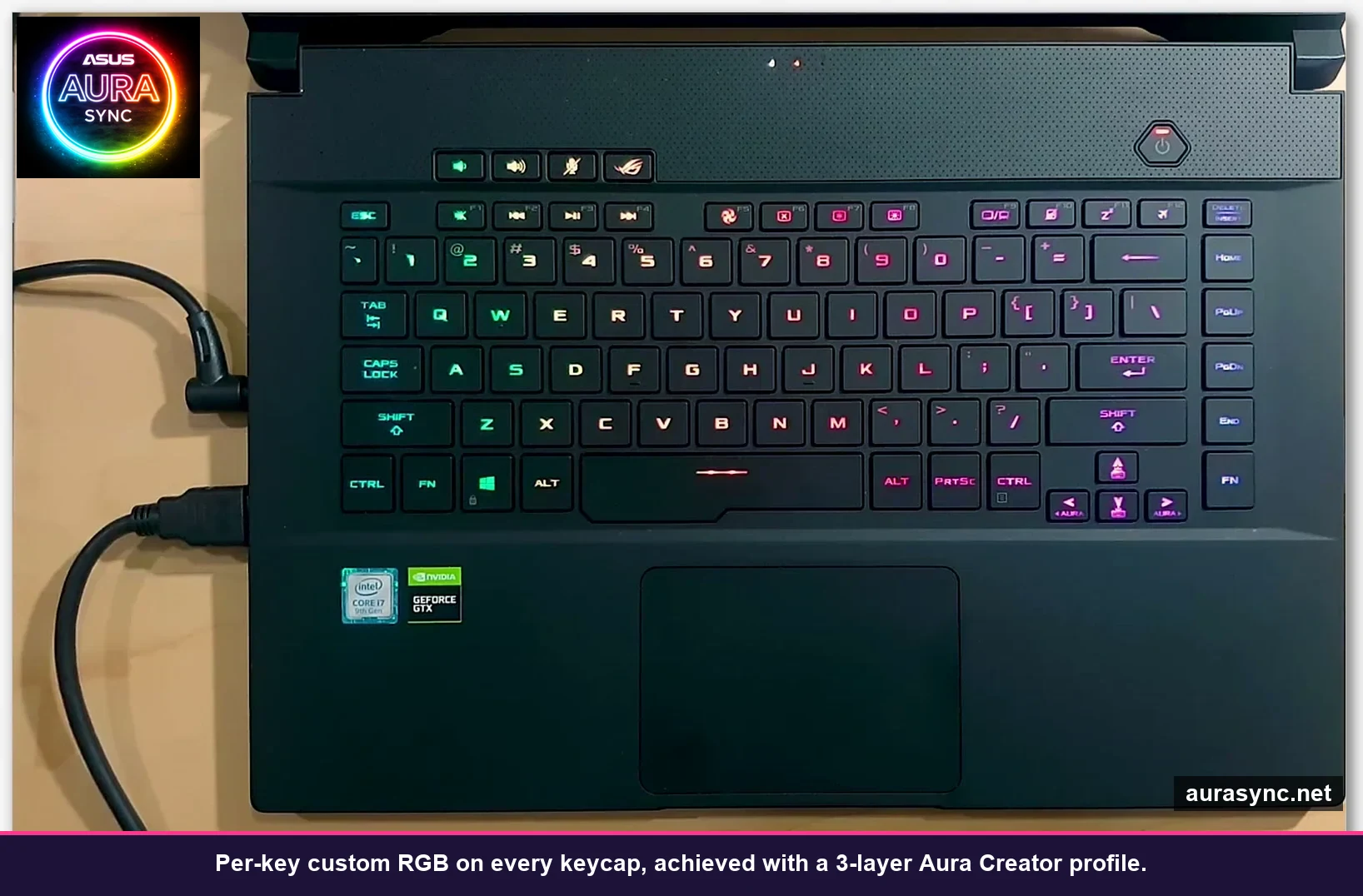
Three Armoury Crate reinstalls, one Microsoft Store error code I had to Google twice, and about four hours of me cursing at a timeline… I finally got Aura Creator to do what I wanted. My arrow keys cycle through purple and cyan for 2 seconds, then breathe in magenta for another second, while the rest of the keyboard slow-color-cycles in the background. And the number row? Strobes blue and red like a tiny ambulance when I hit Caps Lock by accident.
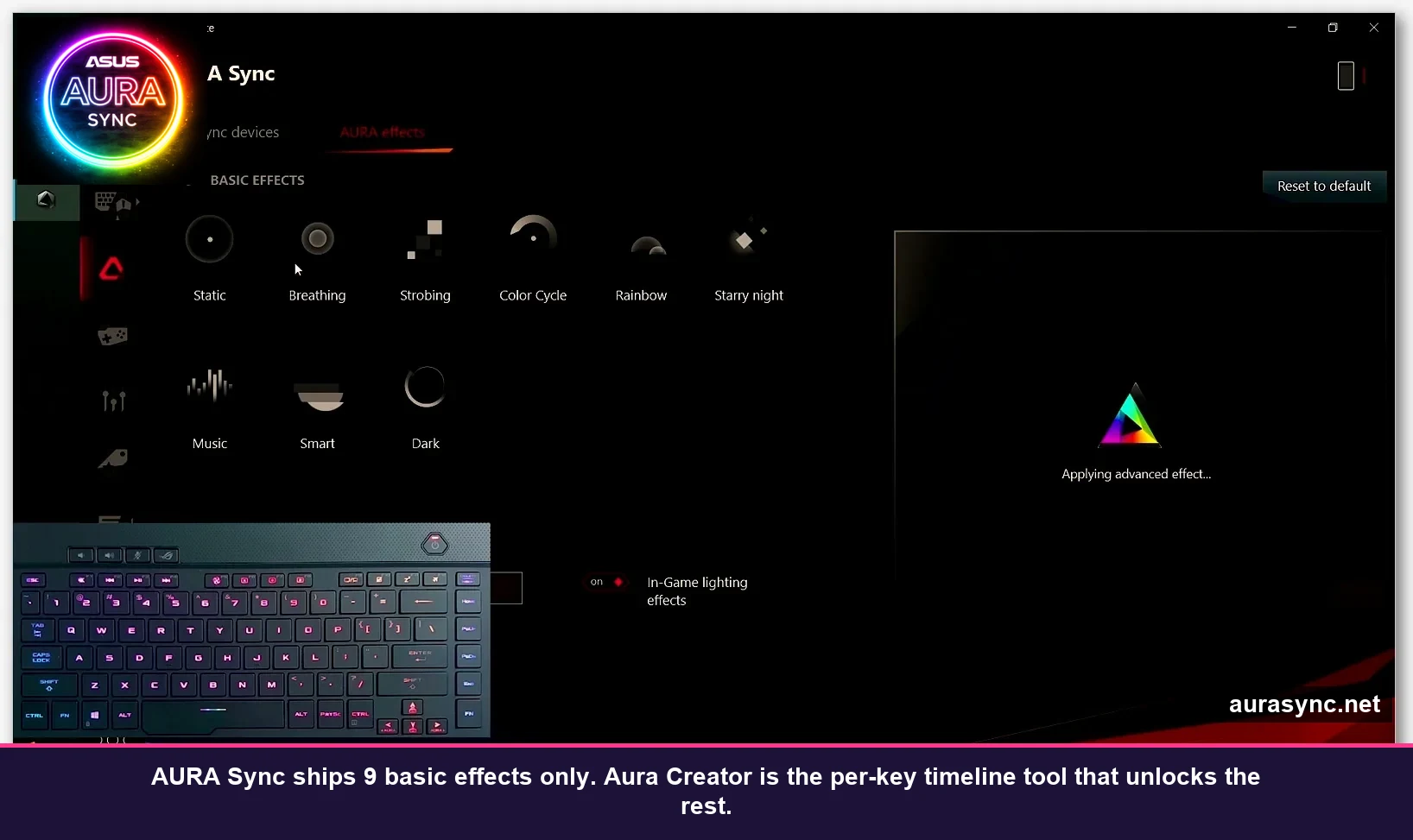
I’ve owned an ROG Strix Scar 15 for about a year and change, and for most of that time I ran the same boring Static Cyan preset from AURA Sync. Not because I hated the other options, but because Aura Sync’s nine basic effects felt like training wheels. I’d see other people’s per-key custom animations on r/ASUS and wonder what dark magic they used. Turns out it’s called Aura Creator, and it’s been sitting in the Microsoft Store the whole time. For free.
(Side note: I tried SignalRGB first because everyone there was hyping it up. It worked, but it doesn’t let me set different timeline effects per key on an ROG laptop. Aura Creator does. That’s the whole reason I came back.)
What Aura Creator actually is (and why Aura Sync alone isn’t enough)
Here’s the part ASUS could honestly explain better. Armoury Crate bundles three RGB tools that overlap in confusing ways. AURA Sync is the dumb-simple one, you pick Static, Breathing, Color Cycle, or one of six other presets, and every compatible device does that one thing in that one color. AURA effects (the newer In-Game layer) reacts to events like FPS kills or Discord pings. Aura Creator is the third tool, and it’s the only one that gives you timeline-based animation across every individual LED.
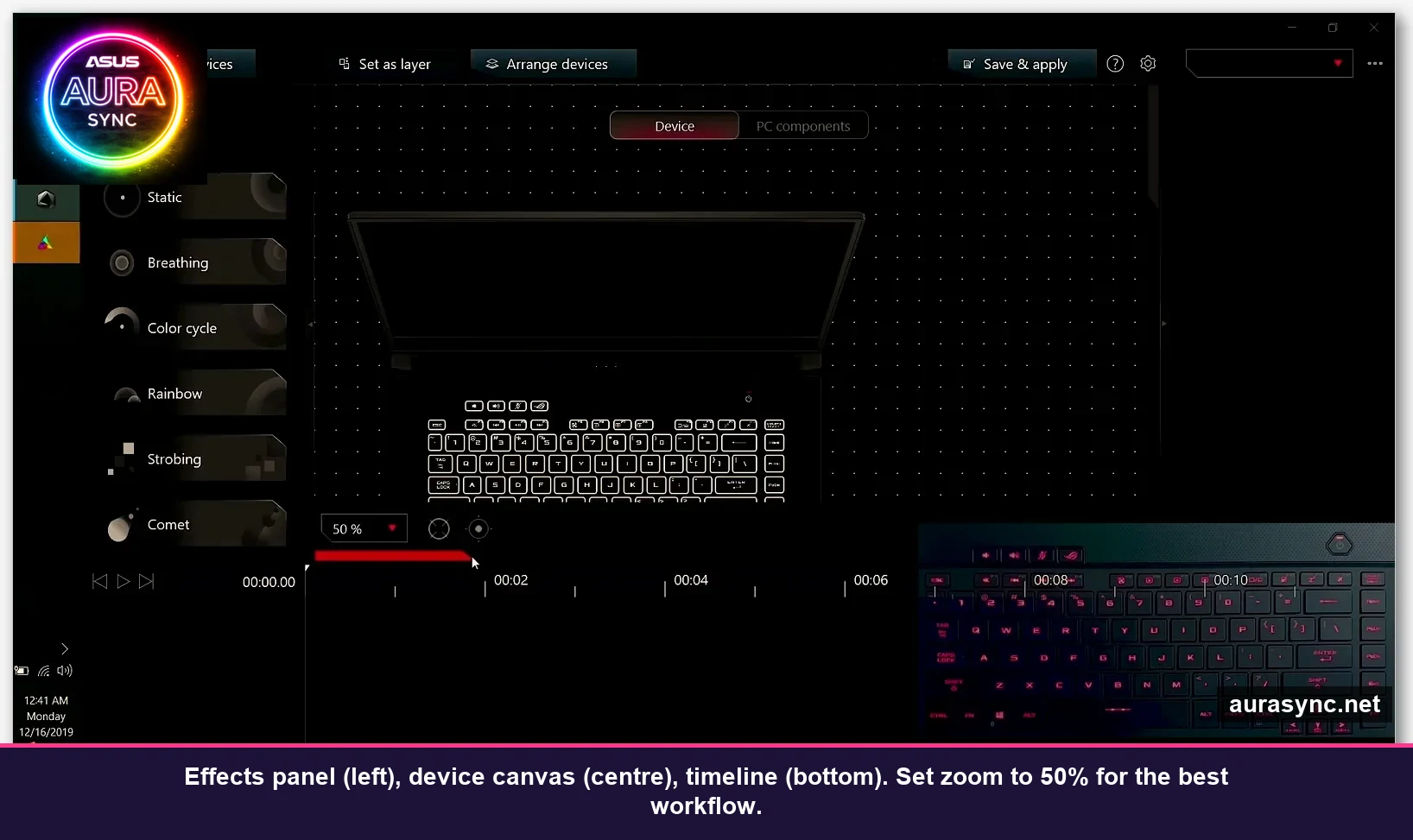
Think of it like Premiere Pro but for RGB. You get a timeline that runs 10+ seconds. You stack layers on it. Each layer contains an effect (Color cycle, Breathing, Strobing, Static, Comet, Rainbow). Each effect is bound to a zone you drew on the device canvas. When the timeline loops, the whole thing plays back in sync. That’s it. That’s the entire mental model. Getting used to it just takes about an hour of messing around.
The biggest gotcha: tick the device in Armoury Crate first
This is the single biggest gotcha I wish someone had told me. Aura Creator isn’t a totally standalone app. It reads the device list from Armoury Crate’s AURA Sync page. If a device is physically plugged in but the checkbox in Sync devices is unticked, Aura Creator shows “No devices available” and you sit there reinstalling things for an hour. Been there.
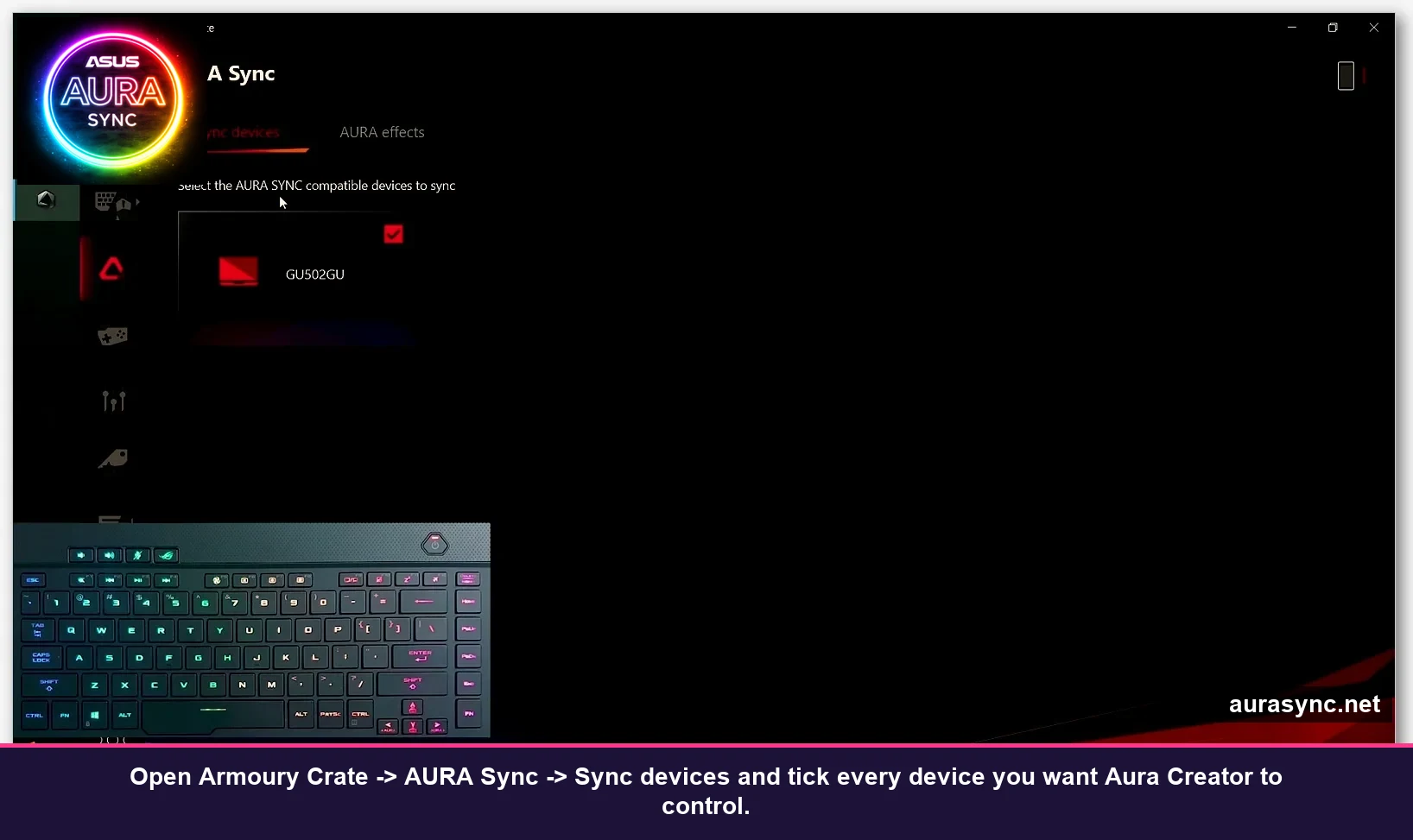
Open Armoury Crate, go to AURA Sync, click the Sync devices tab, and tick the red checkbox on every device you want Aura Creator to see. Save the change. Now reopen Aura Creator and the device shows up on the canvas. This one click solves about 60% of the “No devices” complaints I’ve read on the ROG forum.
Where to actually download Aura Creator (and the 0x87E10BC6 fix)
Aura Creator ships through the Microsoft Store only. There’s no standalone installer on ASUS’s support site. You open the Store, search Aura Creator, hit Install. On a clean system it takes about 60 seconds and you’re done.
On my system it was not a clean install. I got Microsoft Store error 0x87E10BC6 the first time, and the second time the Store hung at 95% for ten minutes before erroring silently. If that’s you, the fix that worked for me (pieced together from a ROG forum thread and some trial and error):
- Close Armoury Crate completely (Task Manager, kill anything with “ROG” or “Armoury” in the name)
- Install the LightingService separately first. It’s in the Armoury Crate folder at
C:\Program Files (x86)\ASUS\ArmouryDevice\asus_framework\AuraServiceSetup.exe. Run it as admin - Reboot. Yes, reboot even though the installer doesn’t ask. It registers a driver
- Now go back to the Microsoft Store and install Aura Creator
If that still fails, the nuclear option is Armoury Crate Uninstaller Tool (direct download from ASUS support), reboot, fresh Armoury Crate install from asus.com, then Aura Creator from the Store. I’ve done that twice on this laptop and it’s worked both times. Annoying, but it’s a known workflow. For a deeper rebuild walkthrough check our Armoury Crate uninstall guide.
System requirements (the real ones)
Officially it’s Windows 10 or 11, 64-bit, .NET Framework 4.6.2+, at least 2GB RAM free. In practice you need Armoury Crate installed first (otherwise there’s no device list to pull from), an AURA-compatible product physically connected, and an active internet connection for the Store install. Old Aura Sync-only Windows 7 rigs are out of luck. If you’re on Windows 7, you’re stuck with the legacy Aura 1.x standalone client and none of the timeline features.
First launch: the three things I wish I’d done in order
When Aura Creator opens for the first time, it’s intimidating. Big empty canvas in the middle. Effects panel on the left with six presets. Two tabs at the top (Set as layer / Arrange devices). A Save & apply button in the corner. No onboarding. No wizard. Nothing telling you what to do.
Here’s the exact order that worked for me on the second day. Do these three things before you touch anything else.
- Open Available devices (top-left button). Pick the devices you want to control from this profile. I only selected my GU502GU laptop. If you have an ROG motherboard, an ROG Strix GPU, a Claymore II keyboard, and a Gladius III mouse, you’d tick all four and they’d all live on the same canvas together
- Click Arrange devices. This puts your devices in a spatial layout on the canvas. If you have four devices, you can drag them so the motherboard sits below the GPU and the keyboard is below that. Doesn’t affect function, but it affects how sensible the layout looks when you draw zones across multiple devices
- Set your zoom to 50%. Bottom-left corner. The default 25% is too small to see individual keys. 100% is too zoomed. 50% is the sweet spot
Now you’re ready to build your first profile. Quick note on navigation: click a key on the canvas to select it (turns blue). Shift-click to add more keys. Click-drag to draw a lasso box. Escape deselects everything. The lasso is what you’ll use most.
Building your first profile: a worked example
Let me walk you through exactly what I built on my first real attempt. Target: arrow keys cycling through color, the number row strobing blue and red, and everything else sitting on a slow color cycle in the background. Three zones, three effects, one timeline.
Step 1: Drag the first effect onto the timeline
Select the whole keyboard first (Ctrl+A, or lasso everything). Click Set as layer in the top bar. A new Layer 1 appears on the timeline. Now grab “Color cycle” from the Effects panel and drag it onto Layer 1. The second you drop it, the keyboard preview on the right side of the screen starts color-cycling. Instant feedback, which is genuinely satisfying compared to the old Aura Sync preview lag.
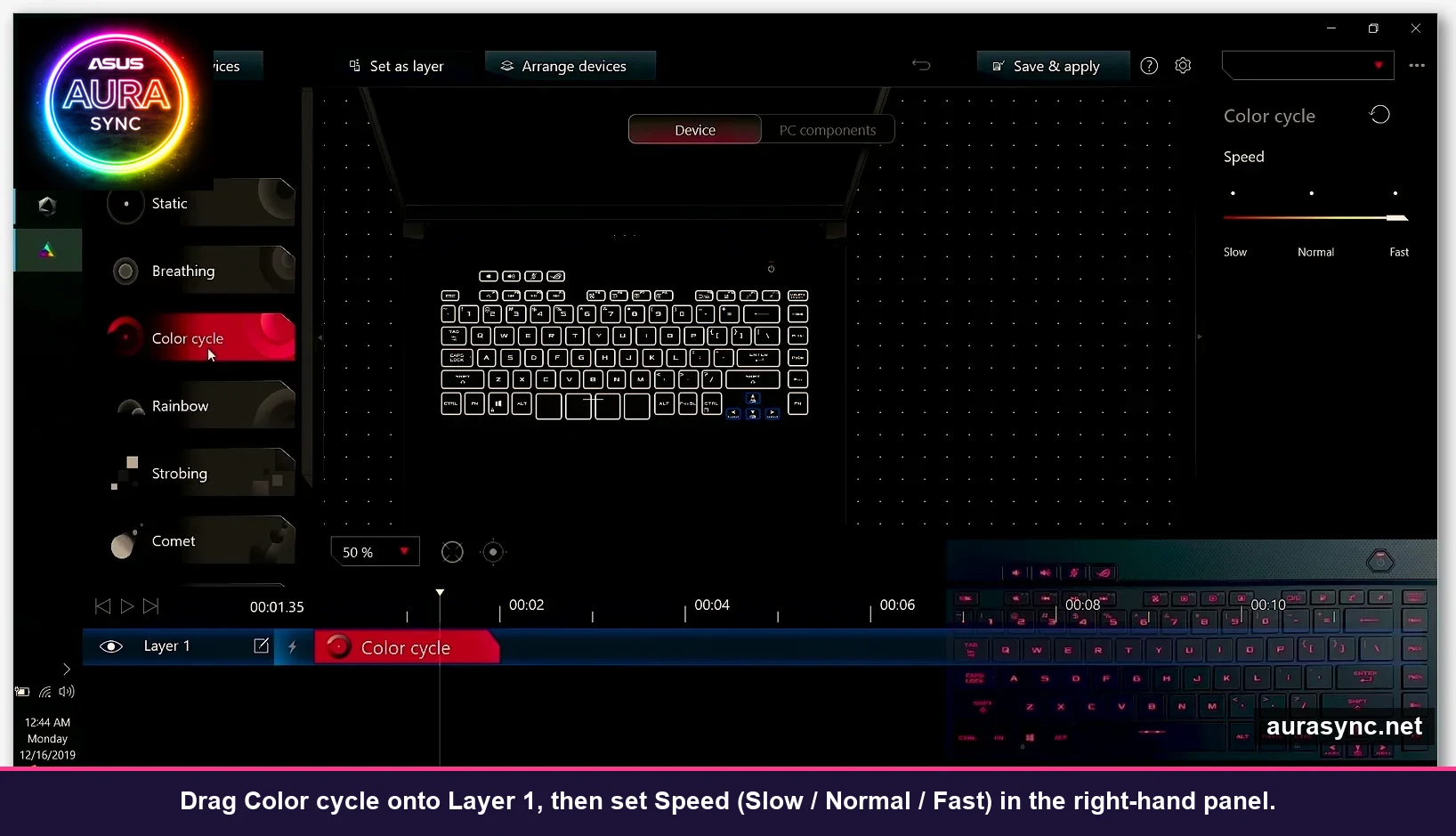
Right panel now shows “Color cycle” settings with a Speed slider (Slow / Normal / Fast). Pick Slow. The preview slows down. Drag the right edge of the color cycle clip on the timeline to extend it to 3 seconds. That’s your background layer done.
Step 2: Stack a second layer on top
Now lasso the arrow key cluster (or hold Shift and click each arrow key). With just those keys selected, click Set as layer again. Layer 2 appears above Layer 1. Drag Breathing onto Layer 2. It starts breathing in the default red. For a 1-second pulse, shorten the clip to 1 second by dragging its right edge left.
Here’s the part that confused me for 20 minutes. Layer 2 is shorter than Layer 1 (1 second vs 3 seconds), so when you play the whole timeline, the breathing effect plays once then stops while the color cycle keeps going. That’s not what I wanted. I wanted the arrow keys breathing constantly. Solution: right-click the breathing clip then Loop. Now it repeats for as long as Layer 1 plays.
Step 3: Understand layer priority (this is the whole thing)
This is the concept that makes Aura Creator click. The top layer wins. Always. If Layer 2 has the arrow keys breathing red, and Layer 1 has the entire keyboard color cycling, the arrow keys will breathe red because Layer 2 is on top. Everything else color-cycles because Layer 1 is the only layer touching those keys.
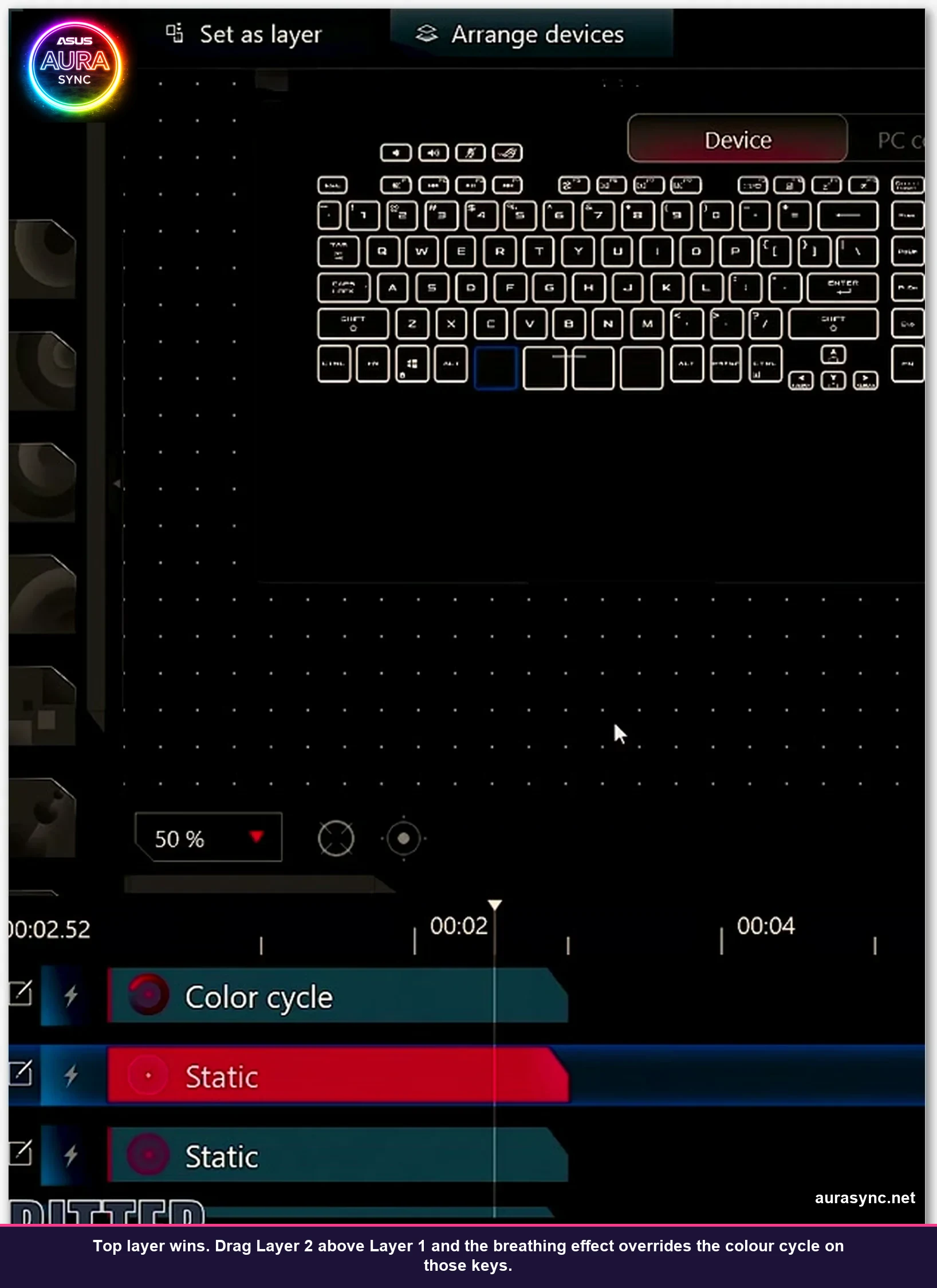
Drag Layer 2 below Layer 1 in the layer list, and the arrow keys instantly join the color cycle. Drag it back on top, they’re breathing again. I tested this about twelve times before it sank in. The visual feedback is immediate, which is why a 30-second experiment teaches more than the ASUS FAQ ever will.
💡 Pro tip: Rename your layers. Double-click “Layer 1” in the layer list and type something like “background cycle”. Double-click “Layer 2” and call it “arrow keys”. When you come back to this profile three months later, you’ll thank past-you. I didn’t rename anything the first time and lost my mind trying to remember which layer was which.
The color picker: RGB values, recent colors, and the random toggle
Every effect with a Color parameter opens the same picker dialog. Click the color swatch next to the effect name in the right panel and the picker pops out.
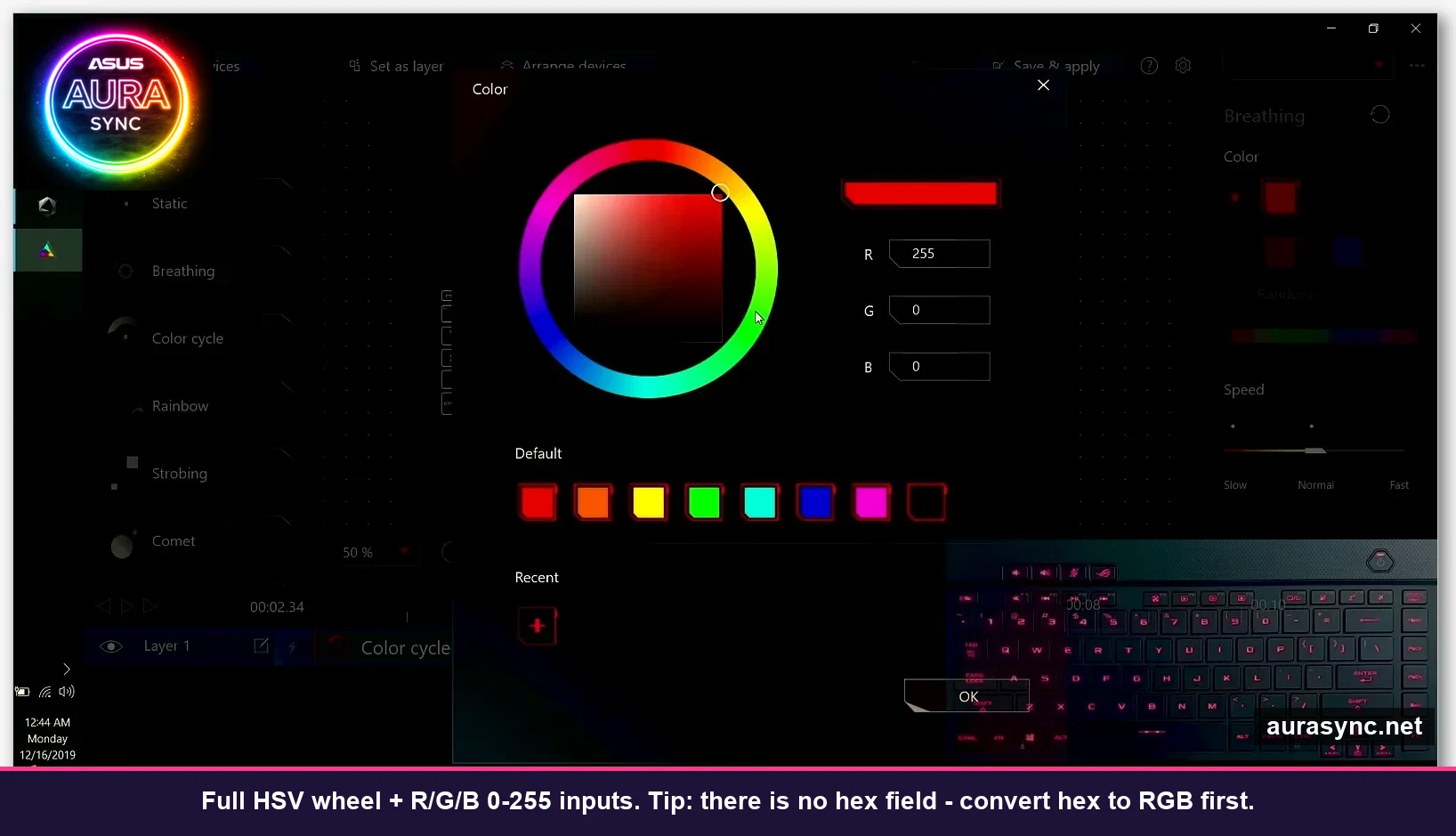
What’s in the picker, left to right: the main HSV wheel where you click to pick hue and saturation, the large preview bar on top, R/G/B text inputs that accept 0-255 (so you can paste a Figma export if you want), a Default swatch row with eight classic colors, and a Recent row that tracks your last eight picks. The little plus box adds the current color to Recent. Below Breathing and some other effects there’s also a Random checkbox that makes the effect pull a new color every cycle. I use it constantly on Strobing because manually picking a strobe color pair gets boring.
One weird thing: the RGB inputs don’t let you paste hex. There’s no #FFAA33 field. If you need a specific hex from a brand palette, convert it to RGB first. I keep a tab open to a hex-to-rgb converter. Minor, but it’s a paper cut that’s been there since 2019 and ASUS hasn’t fixed it.
Saving profiles and switching between them
Once your timeline looks right, hit Save & apply in the top-right corner. A dialog asks for a profile name. Type something descriptive (“game mode”, “chill cycle”, “demo1”), click OK. Aura Creator pushes the profile to the device firmware and the effect applies immediately. You can close Aura Creator now, the lighting stays exactly as saved. It’s not streaming frame-by-frame from the software like SignalRGB does, which is the main reason Aura Creator doesn’t eat CPU.
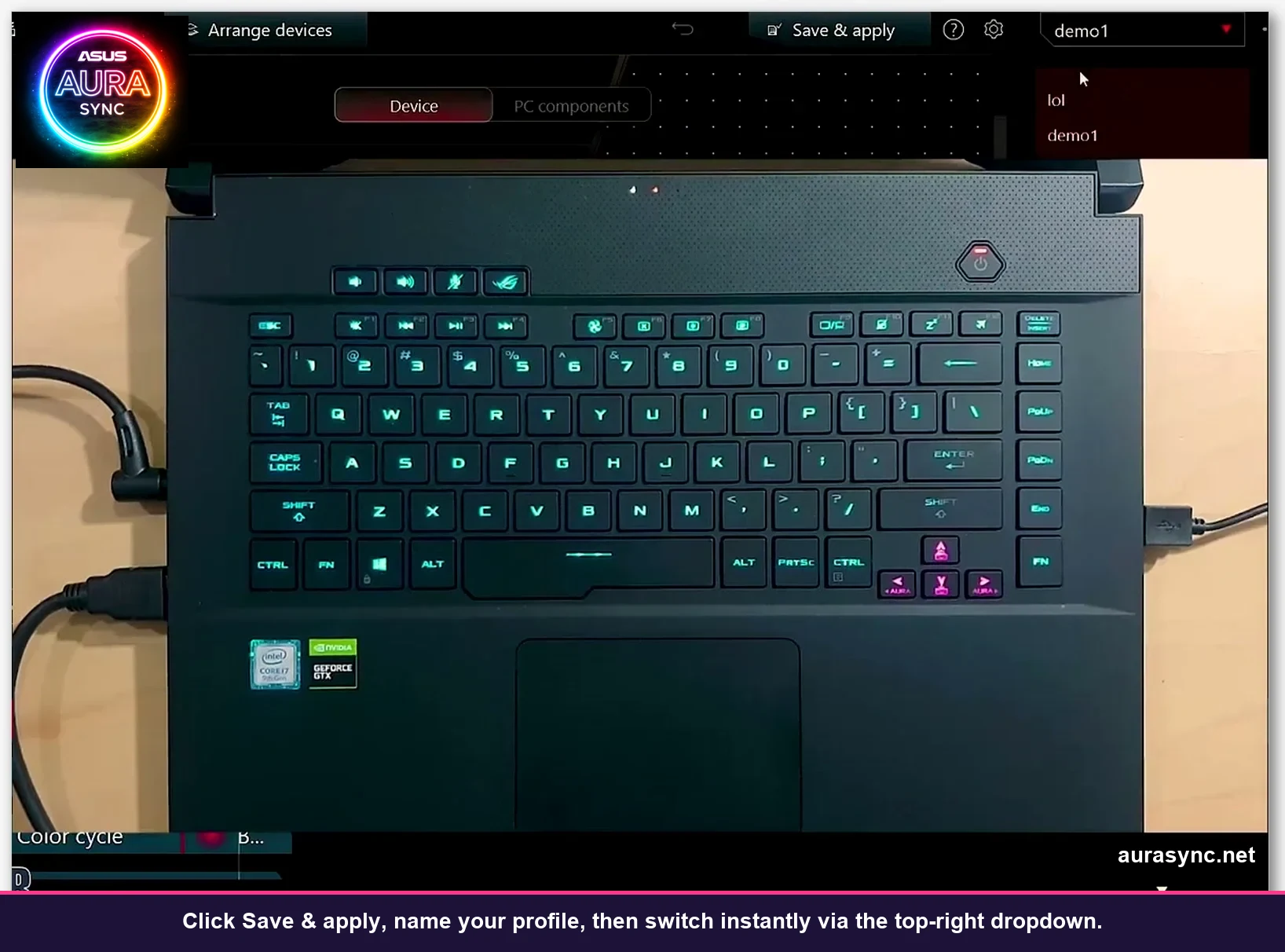
Top-right dropdown shows all your saved profiles. Click any name, the lighting switches. I have three profiles: work (static white, low brightness), game (the three-layer cycle from this article), demo1 (my party trick, red strobing on function keys when I hit Caps Lock). Switching between them takes half a second.
⚠️ Heads up: If you reinstall Aura Creator, your saved profiles are gone. Back them up by exporting. Click the gear icon then Export profile then save the .acp file somewhere safe. I’ve lost profiles twice because I forgot this step, once to an Armoury Crate update and once to a full system reinstall. Export your good ones.
Syncing across multiple AURA-compatible devices
This is where Aura Creator stops being a keyboard tool and starts being a real lighting studio. If you’ve got an ROG motherboard, a Strix GPU with the ROG logo, addressable RGB strips on the GEN2 header, a Claymore keyboard, and a Gladius mouse… you can put all of those on one canvas and design animations that flow across devices. A color ripple that starts at the mouse, moves up the keyboard, jumps onto the motherboard, and exits through the case fans. That’s the payoff.
The catch: compatibility is narrower than Aura Sync’s device list. Aura Creator supports a subset. Some products like the ROG Azoth keyboard use Armoury Crate Gear instead, and Azoth never shows up in Aura Creator no matter what you do. Older Aura Sync products without per-zone addressable lighting appear but only support Static and Breathing at the device level. If you’re planning a build around Aura Creator animations, check the ASUS Aura Creator compatible devices list before you buy.
Is Aura Creator better than SignalRGB, OpenRGB, or just Armoury Crate?
Depends what you’re optimizing for. Here’s my honest take after running all four on the same laptop:
- Aura Creator wins if you want per-key timeline animation on ROG hardware, zero ongoing CPU cost, and tight sync between ASUS devices. Loses if you want effects that react to audio, games, or weather. Those need SignalRGB or the newer In-Game lighting effects toggle in Armoury Crate
- SignalRGB wins for cross-brand sync (Corsair + ASUS + NZXT on one canvas), audio-reactive effects, and a massive effects marketplace. Loses on CPU usage (it streams in real time, I’ve seen 4-6% CPU constantly) and on ROG-specific per-key depth. Our SignalRGB walkthrough covers it if you want to compare
- OpenRGB wins if you’re on Linux or you hate corporate bloat. Loses on UI polish and per-key timeline features. It’s a great utility, but it’s a utility. Check how to use OpenRGB for the setup side
- Armoury Crate alone wins for fan curves, AI noise cancellation, and hardware monitoring. Loses for RGB creativity. Use it alongside Aura Creator, not instead of
I ended up running Aura Creator for the keyboard and case lighting, with SignalRGB turned off completely. If I ever add a Corsair device, I’d switch to SignalRGB across the board. Not because SignalRGB is better at ASUS, but because running two RGB engines side by side causes conflicts. The one I’ve seen most often: SignalRGB grabs the keyboard lighting control from Aura Creator every time the PC wakes from sleep.
Common problems and the fixes that actually worked for me
Aura Creator says “No devices available” even though Armoury Crate detects everything
This is the #1 complaint on the ROG forum and I hit it on day one. Walk through this order: open Armoury Crate then AURA Sync then Sync devices tab then make sure every device has a checked red box. Close Armoury Crate. Reopen Aura Creator. Nine times out of ten, the devices show up. If they don’t, the remaining fix is the AuraServiceSetup.exe + reboot from earlier in this article. I’ve yet to hit a case where that combo doesn’t solve it.
Does Aura Creator work without Armoury Crate?
No. Aura Creator depends on Armoury Crate’s LightingService to talk to your hardware. If you uninstall Armoury Crate, Aura Creator opens but shows an empty device list and no animations play. If you’re trying to avoid Armoury Crate bloat, you’re stuck using SignalRGB, OpenRGB, or JackNet RGB Sync instead. Aura Creator is not a replacement for Armoury Crate. It’s an add-on.
My profile broke after an Armoury Crate update
Known issue. Armoury Crate updates occasionally invalidate the LightingService registration, which makes Aura Creator look like it’s working while silently failing to apply profiles. The fix is identical to a fresh install: run AuraServiceSetup.exe as admin, reboot, reopen Aura Creator, reapply the profile. Five minutes total. If you exported your .acp file earlier, it’ll import cleanly.
Effect stuttering or lag on older laptops
Aura Creator pushes the final profile to device firmware, so playback is usually smooth even on a 5-year-old laptop. Lag during editing is a different story. Lower the timeline zoom, close the PC components tab if you’re not using PC devices, and make sure Armoury Crate isn’t doing a background driver scan. On my GU502GU, editing was buttery smooth once I killed a ghost Game Visual service from the previous Armoury Crate install.
Who should skip Aura Creator entirely
Honestly? If you don’t own ASUS hardware, nothing in Aura Creator is available to you. It’s ROG-first, broader Aura Sync as a secondary layer. If you have a mixed-brand build (Corsair RAM, NZXT fans, MSI GPU), skip Aura Creator and use SignalRGB. If you just want one static color across your whole setup and you’re never going to change it, use AURA Sync, don’t bother with Creator. The timeline is overkill for “make everything red forever”.
Also skip if you’re on Windows 7 (not supported anymore), if your motherboard is pre-Z370 (Aura Creator won’t recognize older RGB headers cleanly), or if you value the snappiness of a pure standalone app. Aura Creator feels a bit sluggish compared to lightweight tools like OpenRGB, and it has Armoury Crate’s occasional weirdness as a dependency.
Frequently asked questions
Is Aura Creator free?
Yes. Aura Creator is a free download from the Microsoft Store on Windows 10 and Windows 11. No subscription, no watermarks, no trial period. Armoury Crate is also free. The only thing you pay for is the ASUS hardware that Aura Creator controls.
Can I use Aura Creator on a non-ASUS PC?
Not meaningfully. Aura Creator technically installs on any Windows 10/11 machine, but without AURA-compatible ASUS devices it opens to an empty canvas with nothing to animate. If you want per-key RGB on non-ASUS hardware, look at SignalRGB or OpenRGB instead.
How many layers can Aura Creator handle?
In practice I’ve stacked 12 layers on a single profile without issues. Official documentation doesn’t list a cap. Performance during playback stays smooth because the animation runs from device firmware after you hit Save & apply. Editing with 20+ layers gets visually cluttered but not technically broken.
Why does my Aura Creator timeline reset when I close the app?
Because you didn’t hit Save & apply. Aura Creator doesn’t auto-save edits. Any unsaved changes are discarded when the app closes. Make the habit of hitting Save & apply every time you’re happy with an iteration. The shortcut is Ctrl+S.
Does Aura Creator support audio-reactive effects?
No, not natively. Aura Creator is timeline-based, not reactive. For audio-reactive RGB you need the Music preset inside AURA Sync, the In-Game lighting effects toggle in Armoury Crate, or a third-party tool like SignalRGB. The two can coexist on different devices but only one engine at a time controls a given device.
Can I export and share my Aura Creator profiles?
Yes. Gear icon in the top-right then Export profile saves a .acp file. Share that file with another ROG user and they can import it on their own Aura Creator (gear icon then Import profile). The catch: if their device layout differs from yours, some zones may not map cleanly and they’ll need to reassign effects to specific keys.
Final thoughts
Aura Creator is the only way to do proper timeline-based, layered, per-key RGB on an ROG system without leaving ASUS’s ecosystem. It’s free, it doesn’t eat CPU once the profile is pushed, and it gives you genuinely creative control that AURA Sync alone can’t touch. The downsides are real: the “No devices available” bug, the Microsoft Store install being flakier than it should be, and the complete lack of onboarding for new users. But if you already own the hardware, there’s zero reason not to spend an hour learning it.
If you’re bouncing back and forth between tools, read our full Armoury Crate walkthrough for the broader ecosystem, and the OpenRGB vs SignalRGB comparison for alternatives. My boring AURA Sync days are over. Three layers, one keyboard, zero regrets.
Related Guides
- ASUS Aura Sync setup guide — the parent Aura ecosystem walkthrough.
- How to use Armoury Crate — the umbrella app that hosts Aura Creator.
- OpenRGB cross-vendor alternative — if you want effect editing across non-ASUS hardware.