
I spent way too long running my NZXT fans on Silent mode and wondering why my CPU was hitting 85°C under load. Turns out NZXT CAM’s fan control is actually pretty solid once you know where everything lives. The cooling tab isn’t just a readout, it’s a full curve editor. And the Profile Sync feature can swap your entire fan + lighting setup automatically when you launch a game. I didn’t touch either of those for the first few months I had the software installed.
This guide covers the parts of NZXT CAM that most people skip: custom fan curves, startup settings, and Profile Sync auto-launch. I’m on version 4.53.2 with an N5 Z690 motherboard. If you’re just here to stop your rig from cooking itself, you’re in the right place.
NZXT CAM General Settings: The First Things to Configure
Before you touch fan curves or profiles, it’s worth getting the General settings right. Go to Settings (gear icon) → PC Monitoring → General. You’ll see three things that actually matter:
- Language — set to English by default, fine for most people
- Temperature Display — Celsius or Fahrenheit. I keep it on Celsius since most thermal guides and Reddit discussions use °C. Switch to Fahrenheit if that’s what you think in.
- Startup options — three checkboxes: minimize to tray on close, start on Windows startup, and start minimized on startup.
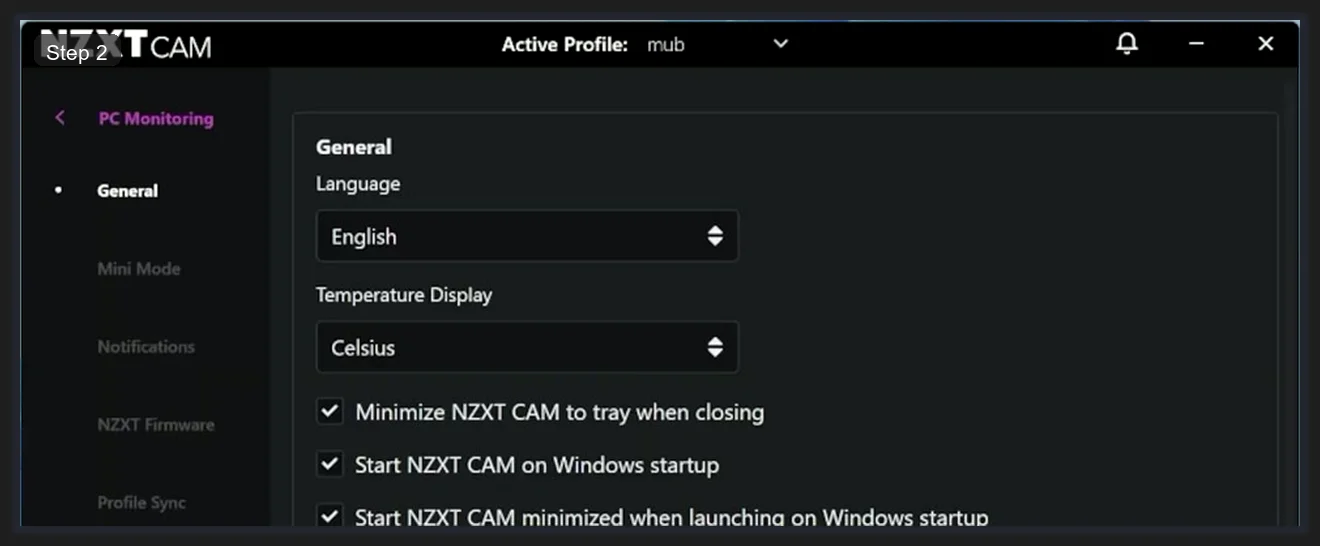
I’d recommend checking all three. NZXT CAM needs to be running in the background for your fan curves and Profile Sync to work. If it’s not in your startup apps, none of the automation does anything. The ‘start minimized’ option means it won’t pop a window in your face every boot — it just quietly loads into the tray.
The left sidebar also shows Mini Mode, Notifications, NZXT Firmware, and Profile Sync. I’ll cover Profile Sync later. For Firmware, it’s worth clicking NZXT Firmware occasionally to check if your KRAKEN or H-series case hub has updates available — it’s not automatic.
How to Read the NZXT CAM Cooling Tab
The Cooling tab is where NZXT CAM earns its keep. Click the snowflake/fan icon in the left sidebar. You’ll see every fan and pump connected to your system listed with live RPM readings.
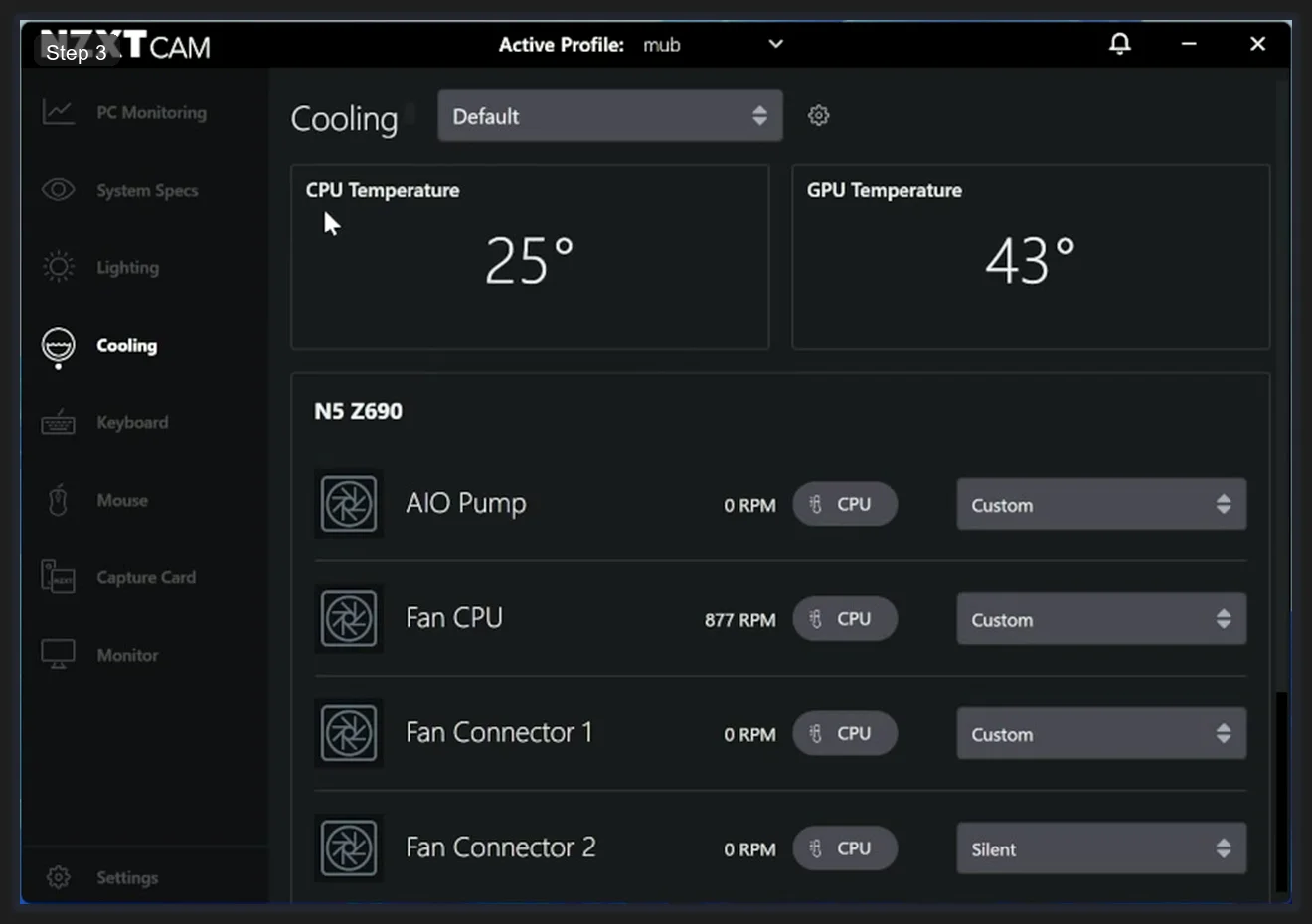
On my setup I can see:
- AIO Pump — 0 RPM reading here because it’s a D5 pump controlled separately; yours will likely show the actual RPM if you’re on a Kraken
- Fan CPU — 877 RPM, set to CPU temperature source
- Fan Connector 1 — 0 RPM, set to CPU source with Silent preset
- Fan Connector 2 — Silent preset
Each fan entry has two controls: the temperature source (CPU, GPU, or a composite) and the preset (Silent, Performance, Fixed, Custom). Silent keeps fans quiet at low temps but ramps up later. Performance starts louder. Custom is what you actually want for most builds.
One thing that trips people up: if you see 0 RPM on a fan you know is spinning, check that CAM detected the correct fan header. Some headers on certain boards don’t report back through the software — that’s a firmware issue, not a CAM bug.
Setting Up a Custom Fan Curve in NZXT CAM
Click the dropdown on any fan and select Custom. A curve editor opens below it. This is a PWM curve — the Y axis is fan speed percentage (0% to 100%), the X axis is temperature in degrees. Green dots are your control points. Drag them to set the behavior.
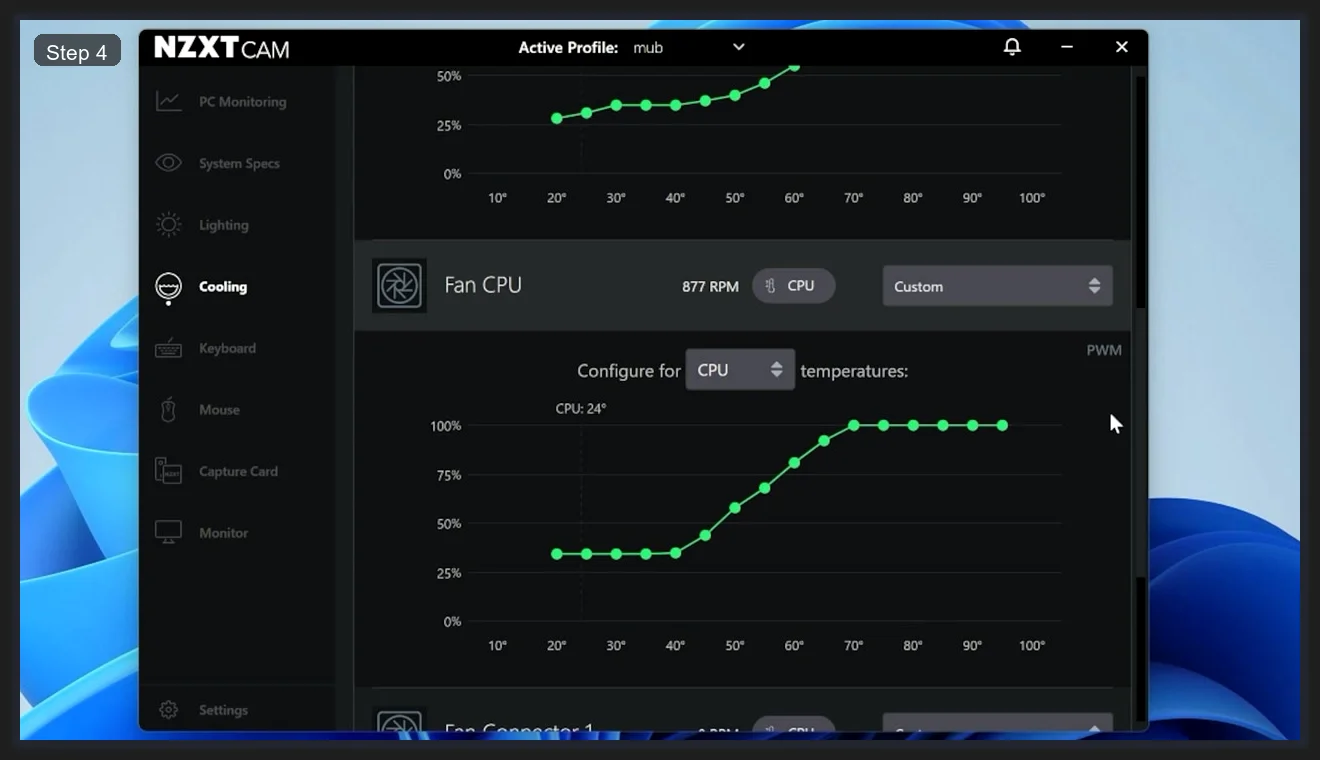
Here’s how I set mine up:
- 0°C – 30°C: 30–35% — fans barely spin, essentially silent during idle/light browsing
- 30°C – 50°C: 35–50% — gentle ramp during light gaming or compilation
- 50°C – 70°C: 50–80% — meaningful airflow during sustained loads
- 70°C+: 80–100% — thermal protection zone, fans go loud but that’s the point
The PWM label in the top right of the curve editor matters — it means NZXT CAM is sending PWM signals to the fan header, not DC voltage control. Most modern case fans are 4-pin PWM, so this is what you want. If you’re on old 3-pin fans you might see DC mode instead.
You can configure each fan to respond to CPU or GPU temperatures. The dropdown above the curve says Configure for: CPU temperatures. If you’ve got a beefy GPU that runs hotter than your CPU (common with RTX 4080/4090 builds), consider setting your case exhaust fans to GPU temps instead.
NZXT CAM Profile Sync: Switching Fan Curves Per Game
Profile Sync is one of those features that sounds niche but I use it constantly. Go to Settings → Profile Sync. You’ll see your components listed (Lighting, Cooling) alongside a profile assignment. The active profile at the top of the app is called ‘mub’ in my case — yours will be whatever name you gave your profile.
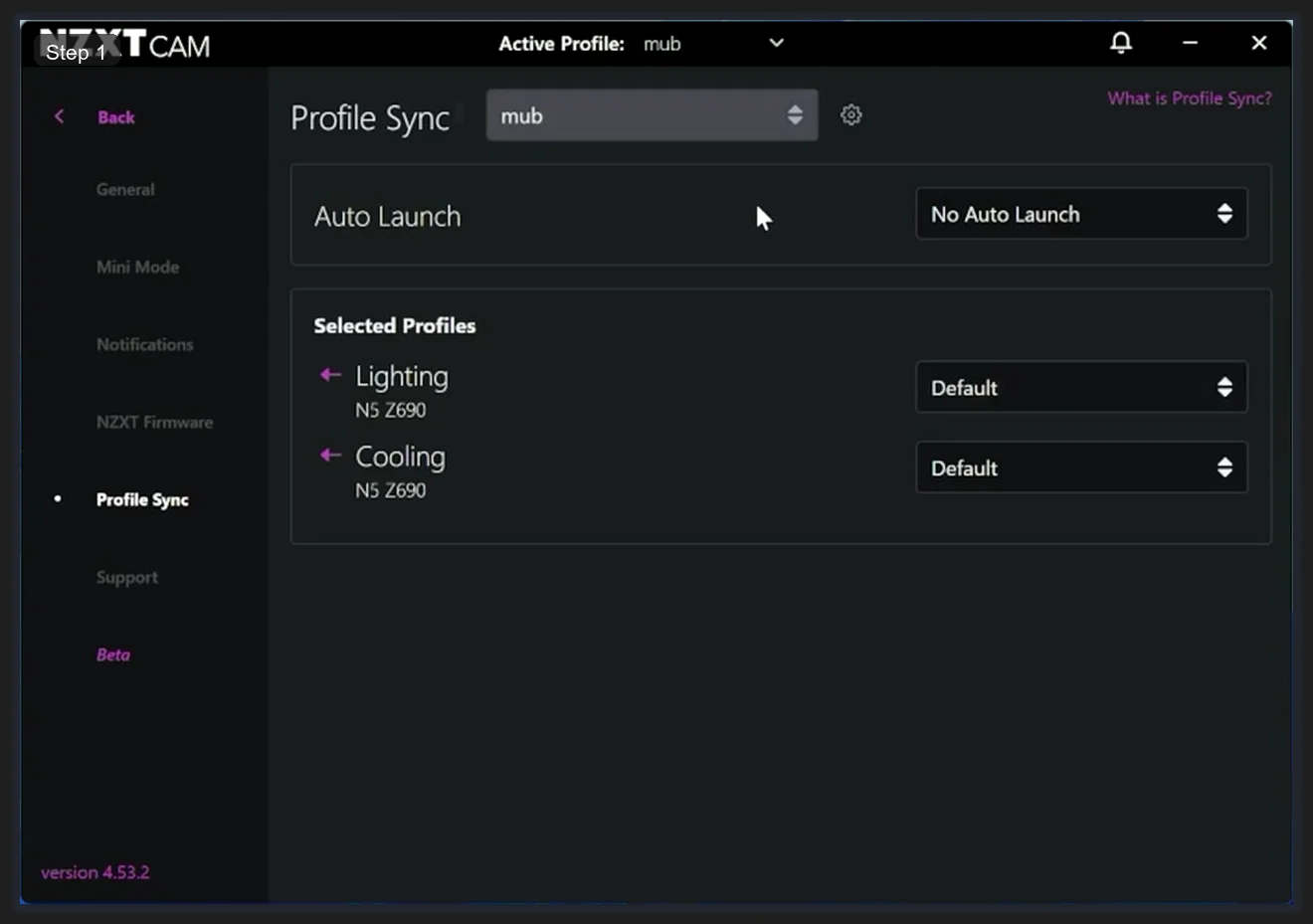
The Cooling and Lighting entries both show Default — that means the profile doesn’t override those settings. If you create a ‘Gaming’ profile with a more aggressive fan curve and set it here, switching to that profile will also switch the fan behavior.
Auto Launch: Switch Profiles When a Program Opens
This is the part that makes profiles actually useful. Click the Auto Launch dropdown on a profile.
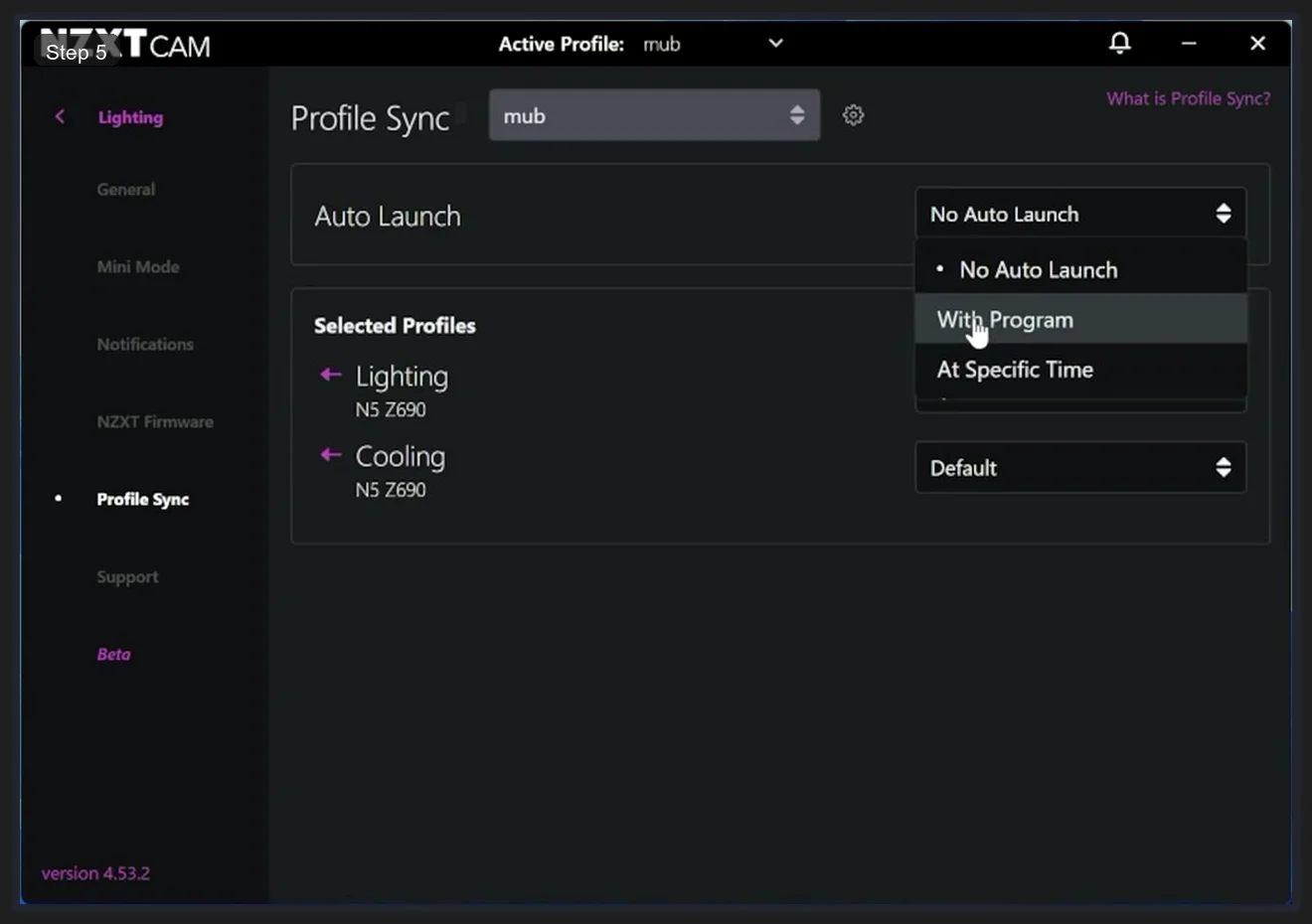
Three options:
- No Auto Launch — manual profile switching only
- With Program — CAM automatically activates this profile when a specific .exe launches. Browse to your game executable.
- At Specific Time — time-based switching, useful for quiet-night profiles
I set my Performance profile to launch with my game launcher .exe. When Steam opens, CAM switches to Performance mode, fans ramp up, lighting goes to the gaming color scheme. When I close the launcher, it doesn’t auto-revert (that’s a limitation — you still switch back manually or set another profile to launch with a different trigger). It’s not perfect but it’s practical.
Common NZXT CAM Cooling Issues and Fixes
Fan Curves Reset After Reboot
If your fan curves keep reverting, make sure NZXT CAM is in your startup programs and the profile you configured the curves in is set as your active profile. Curves are profile-specific. If CAM starts with a different profile, it’ll load that profile’s curves instead.
Fans Not Showing in Cooling Tab
Check that your fans are connected to headers that your motherboard reports through the system. On some Intel boards, fan headers connected to secondary fan controllers don’t expose RPM data to software. You’d need to use your motherboard’s own fan control software (like ASUS Fan Xpert or MSI Dragon Center) for those specific headers.
CAM Using High CPU at Startup
NZXT CAM has had this issue periodically across versions. 4.53.x is generally stable but if you’re seeing 5–15% CPU on idle from CAM processes, try: disable the Overlay feature (Settings → Overlay), reduce the monitoring refresh rate, or reinstall with a clean uninstall using Revo Uninstaller to catch leftover registry entries.
NZXT CAM Fan Control Tips Worth Knowing
- Create separate profiles for gaming, content creation, and idle/night — don’t try to make one curve do everything
- Set Hysteresis if you’re getting fan hunting (rapid speed oscillation) — CAM doesn’t expose this directly but setting your curve’s lowest point at 30% rather than 0% prevents stop-start behavior
- Temperature source matters: for gaming rigs, GPU temp is often the better source for case exhaust fans since GPU heat fills the case before CPU heat does
- The PWM vs DC toggle affects minimum speed — some fans can’t spin below 30% on DC but can hit 15% on PWM; if fans stop and won’t restart, switch to DC
- Profile Sync + Auto Launch needs CAM running at startup to work — confirm the three startup checkboxes in General settings are all enabled
FAQ: NZXT CAM Fan Control
Does NZXT CAM work with non-NZXT fans?
Yes — NZXT CAM controls any fan connected to a header on your motherboard or NZXT hub. You don’t need NZXT fans specifically. The PWM curve editor works with any 4-pin PWM fan. Some features like RGB lighting sync require NZXT hardware, but fan control is universal.
Can NZXT CAM control motherboard fan headers directly?
It can read RPM from most motherboard headers and attempt to control them, but full control depends on your motherboard’s cooperation. For best results, use NZXT Kraken or NZXT Smart Device V2 which give CAM direct hardware access. Motherboard headers may respond partially.
Why does NZXT CAM show 0 RPM on a fan that’s spinning?
Usually a tachometer wire issue — the fan is spinning but the RPM signal isn’t reaching CAM. Check that the fan is 4-pin and properly seated. 3-pin fans on 4-pin headers sometimes don’t report RPM to software. Also check BIOS fan settings aren’t overriding software control.
Will closing NZXT CAM affect fan curves?
Yes. Fan curves are actively maintained by the CAM process. If you close CAM, fans revert to BIOS defaults. That’s why the ‘minimize to tray’ and ‘start on Windows startup’ options exist — keep CAM running minimized rather than closing it.
Can I use NZXT CAM alongside other fan control software?
Not reliably. Running CAM alongside MSI Afterburner’s fan control, ASUS Fan Xpert, or SpeedFan creates conflicts. Stick to one fan control tool at a time. If you need features from multiple tools, pick the one that handles your most important hardware.
Related Guides
- How to use NZXT CAM full guide — the broader CAM overview.
- RGB sync troubleshooting playbook — for cross-vendor RGB issues alongside CAM.