
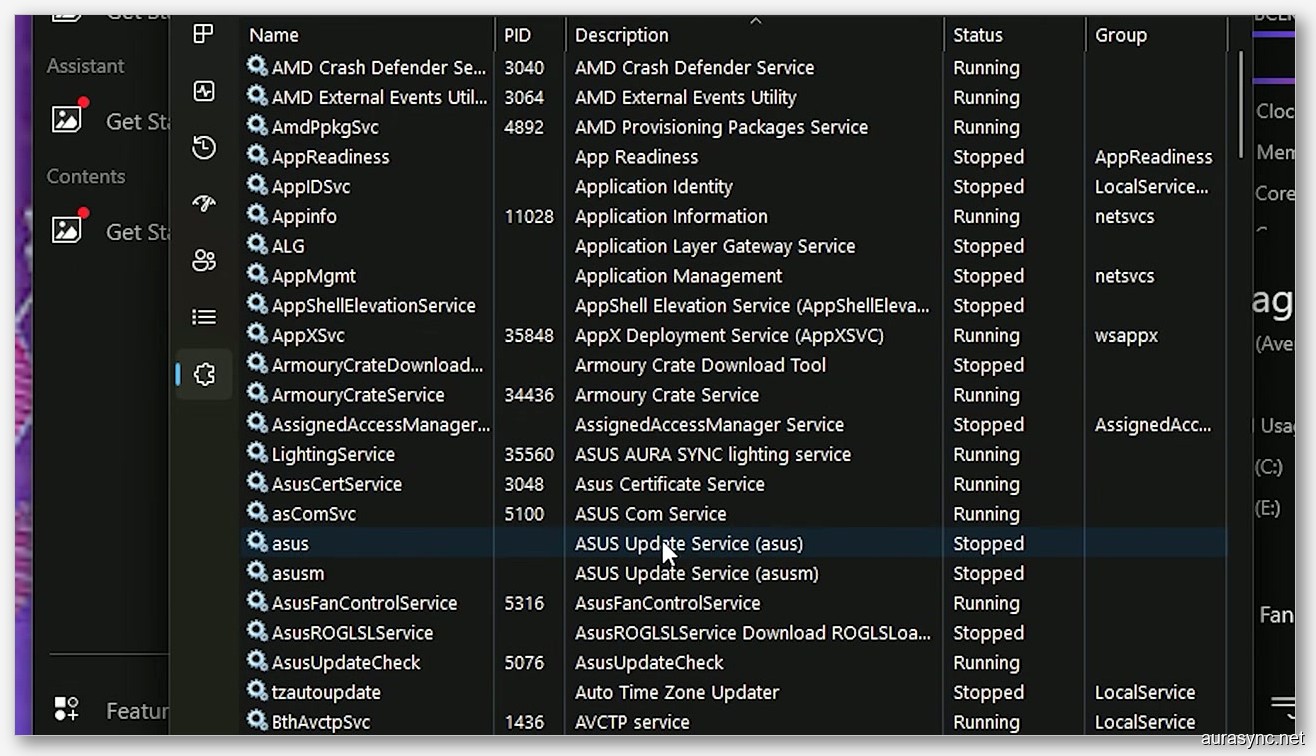
I counted thirteen. Thirteen background services from a single piece of software that’s supposed to control some RGB lights and a couple of fan headers. I’m sitting there staring at Task Manager on my Crosshair X870E Hero build, watching Armoury Crate v3.3.6.0 eat 10% of my CPU and roughly 40% of my memory while I’m doing absolutely nothing. Not gaming. Not rendering. Just… sitting at the desktop.
That was my breaking point.
I’ve been running ASUS boards for three builds now. I’ve dealt with Armoury Crate on every single one of them, and every single time I tell myself “maybe this version will be better.” It never is. If you’re here, you probably already know that feeling. You just want to control your RGB and maybe set a fan curve, but instead you’ve got this bloated monster hijacking your system resources and randomly breaking after Windows updates.
So I decided to remove Armoury Crate. Completely. Nuked every trace of it from my system. And I’m going to walk you through exactly how I did it, why it’s worth doing, and what I actually use now for fan control and RGB lighting. Spoiler: my PC feels noticeably faster.
Why Armoury Crate Deserves to Go
Look, I get it. ASUS builds great hardware. I love my ROG board, I love the build quality, the VRM design, all of it. But the software side? It’s honestly embarrassing for a company this size. And I’m not just ranting here. The ROG forum thread about 13 services has been active for months with users who feel the same way.
It Hogs Your CPU and RAM Like Nothing Else
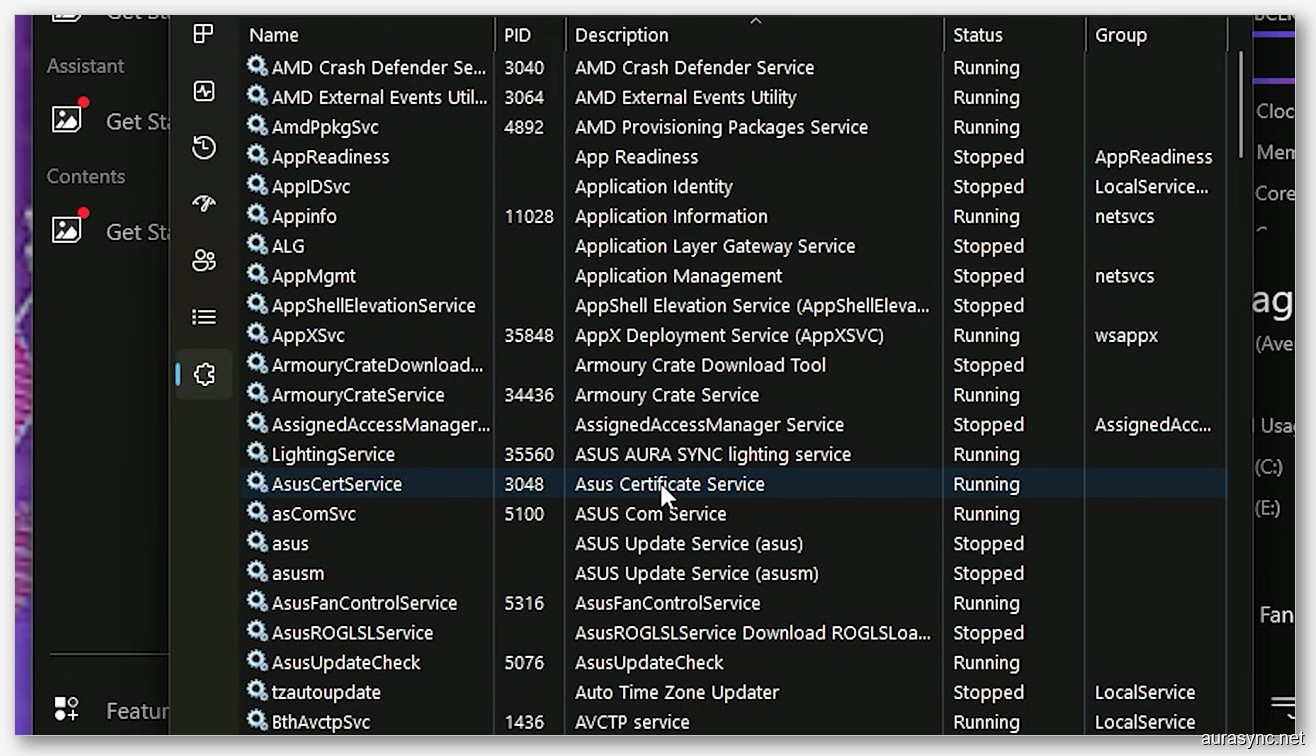
Armoury Crate installs up to 12 or 13 separate background services and processes. Let that sink in for a second. Twelve to thirteen services for RGB control and fan speed management. You’ve got ArmouryCrateService, ASUS Optimization, AuraSyncLightingService, ASUS Certified Service, ArmouryCrateDownloadTool, AsusCom, and a bunch more you’ve probably never even noticed.
I opened Task Manager and started counting. ArmouryCrate.exe, multiple ASUS service entries, the lighting service, the download tool running in the background for no reason. All together? My system was chewing through resources before I even opened a browser. One guy on the ROG forum said he saw his 3DMark scores actually go up slightly after removing it, which is wild for software that “shouldn’t” impact performance.
The Bug Parade Never Ends
If you’ve ever had Armoury Crate not working after a Windows update, welcome to the club. It’s a massive club. The update loops alone drive people insane. You open Armoury Crate, it tells you there’s an update, you install it, restart, and… it asks you to update again. Forever.
Then there’s the loading screen issue. Click on the Devices tab and it just spins. Your hardware doesn’t show up. Your RAM isn’t detected by Aura Sync, your GPU is missing, your motherboard temps don’t read. I’ve personally had all of these happen on the same build, sometimes on the same day.
(Quick tangent: the Windows 11 24H2 update was especially brutal for Armoury Crate users. I know at least a dozen people on r/ASUS who had their installs completely break after that update. ASUS eventually released a patch, but the damage was done.)
It Literally Installs Itself Through Your BIOS
This is the one that really gets me. ASUS embeds an Armoury Crate installer at the firmware level of your motherboard. So every time you do a fresh Windows install on an ASUS board, you get a little popup asking if you want to install Armoury Crate. And it’s enabled by default in the BIOS. They repurposed a Windows feature originally meant for anti-theft software to push their bloatware onto your system. Files appear in your System32 folder without you explicitly saying yes.
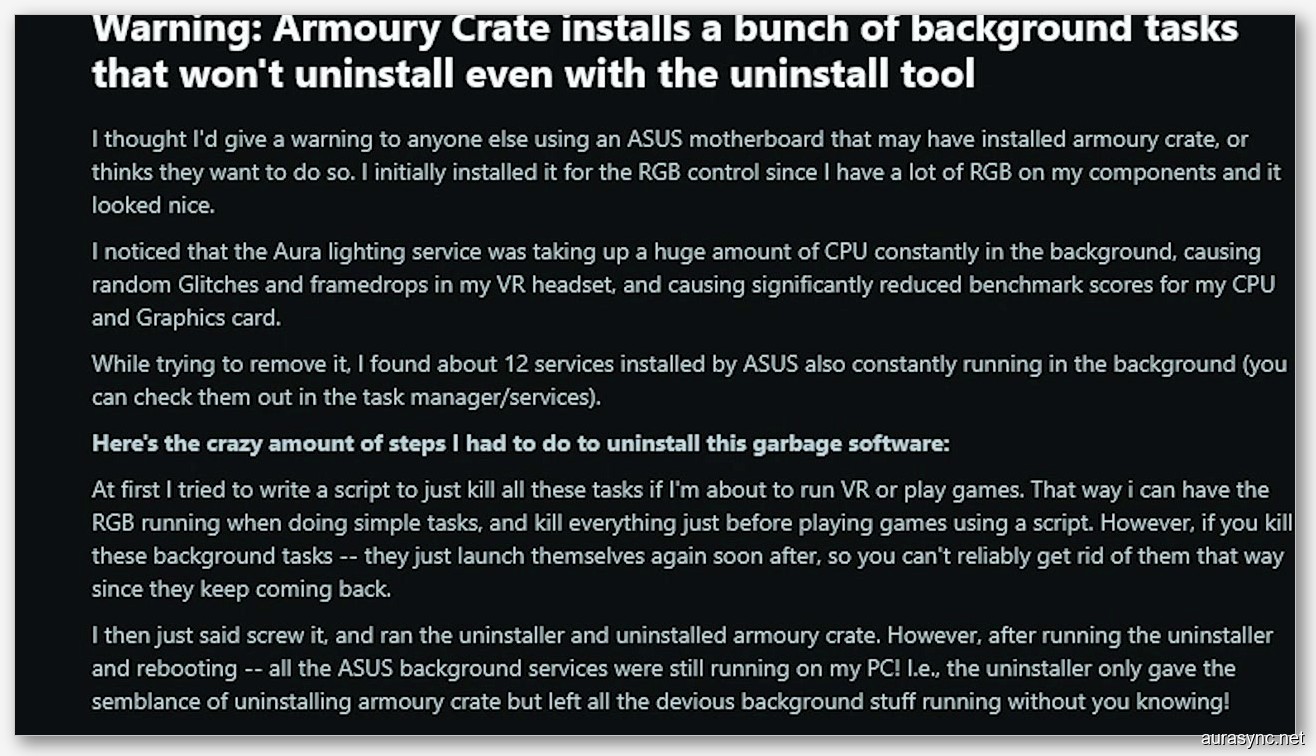
One Redditor on r/pcmasterrace straight up called it “borderline malware behavior.” I wouldn’t go that far personally, but I do think it’s invasive and I don’t love it.
Privacy Concerns Are Real
When you’ve got 12 background services running and you have no clear documentation about what each one does, it raises questions. One Reddit user flat out accused ASUS of “spying on me” through Armoury Crate. Now, ASUS says it’s all system monitoring and update functionality. But the lack of transparency combined with the sheer amount of background activity makes plenty of users uncomfortable. I don’t think it’s actually spyware, but I also can’t tell you exactly what AsusCom.exe is doing at 3am. So…
It Conflicts With Everything
Running Corsair iCUE? Armoury Crate’s LightingService will fight it for SMBus control. Using SignalRGB or OpenRGB? You’ll need to disable Aura Sync services first or they’ll override each other and your RGB will look like a rave gone wrong. I’ve even seen Armoury Crate interfere with overclocking utilities and cause the Windows Settings app to straight up crash when its framework was installed.
Armoury Crate tries to be a jack of all trades. RGB control, fan tuning, driver updates, game profiles, system monitoring. It does all of them… poorly. As one ROG forum poster put it: “it’s just a poor program in general. So many bugs is a guarantee.”
How to Remove Armoury Crate Completely (Step by Step)
Alright, enough complaining. Let’s actually fix this. I’m going to walk through the exact process I used to completely purge Armoury Crate v3.3.6.0 from my system. This isn’t the quick “Add/Remove Programs” approach. If you want the basic uninstall method, check out our Armoury Crate uninstall guide. This is the nuclear option.
Step 1: Kill It in the BIOS First
Before you touch anything in Windows, you need to stop your motherboard from reinstalling Armoury Crate behind your back. Restart your PC and enter BIOS (usually Delete or F2 during boot).
Navigate to the Tools tab. You’ll see an option called ASUS Armoury Crate with a setting for “Download and Install Armoury Crate.” Set this to Disabled.
Save and exit. This is arguably the most important step. Without it, your motherboard will keep nagging Windows to reinstall Armoury Crate every time you boot up.
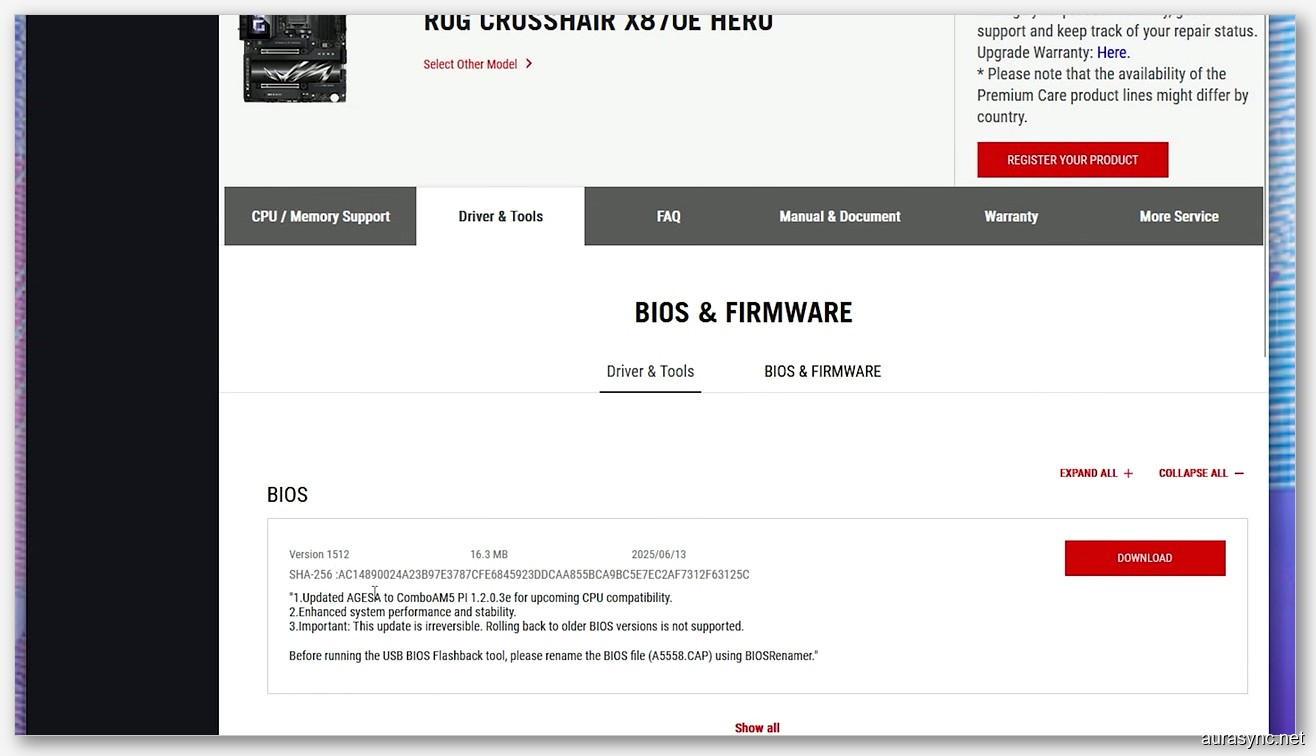
Heads up: If you ever update your BIOS firmware in the future, double check this setting. BIOS updates sometimes reset everything to defaults, and that means Armoury Crate’s auto-download gets switched back on. I learned this the hard way after flashing a new BIOS on my X870E and suddenly getting the install prompt again.
Step 2: Download the Official ASUS Uninstall Tool
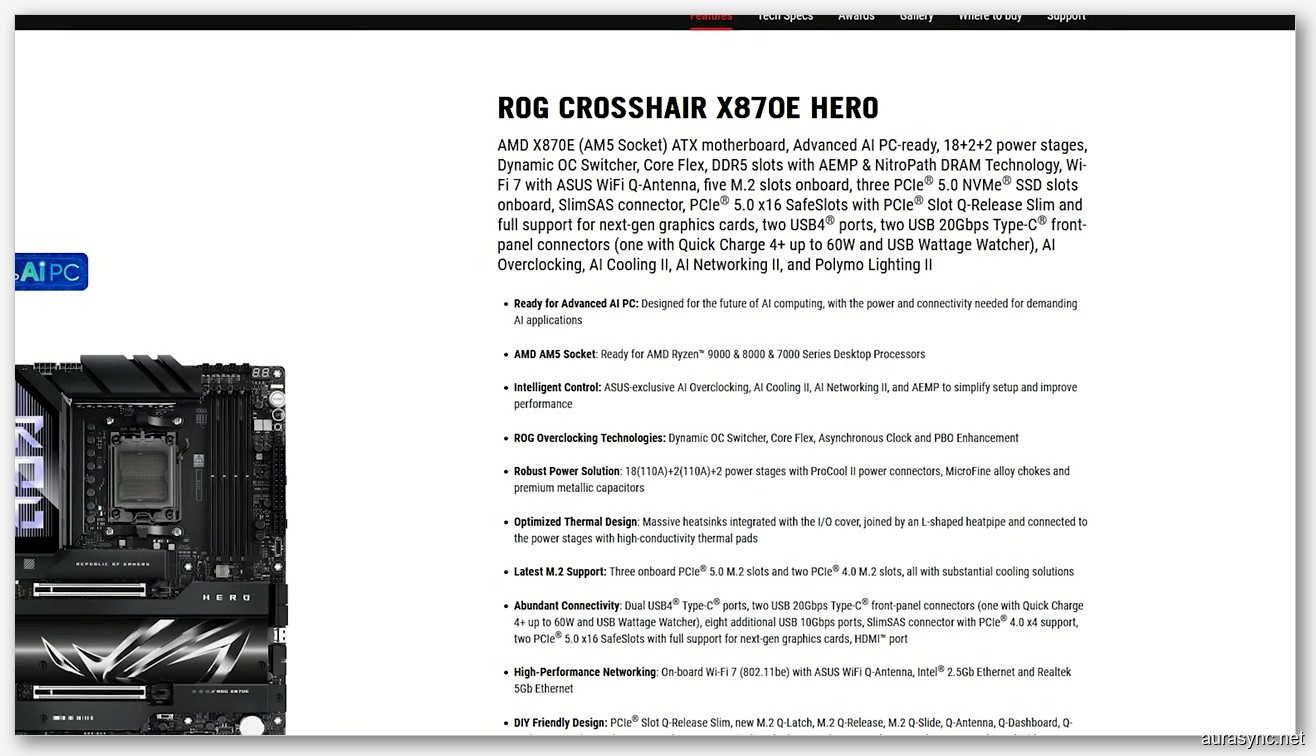
Here’s the funny part. ASUS actually provides a dedicated uninstall tool for Armoury Crate, but they’ve buried it so deep on their website that most people don’t even know it exists. You won’t find it on the main Armoury Crate download page. Here’s where to actually find it:
- Go to the ASUS support page
- Search for your specific motherboard model
- Click Support, then Drivers and Tools
- Select your OS (Windows 11)
- Scroll down to Utilities
- Click “See all downloads”
- Find Armoury Crate Uninstall Tool (current version: v2.3.7.0, updated January 2026)
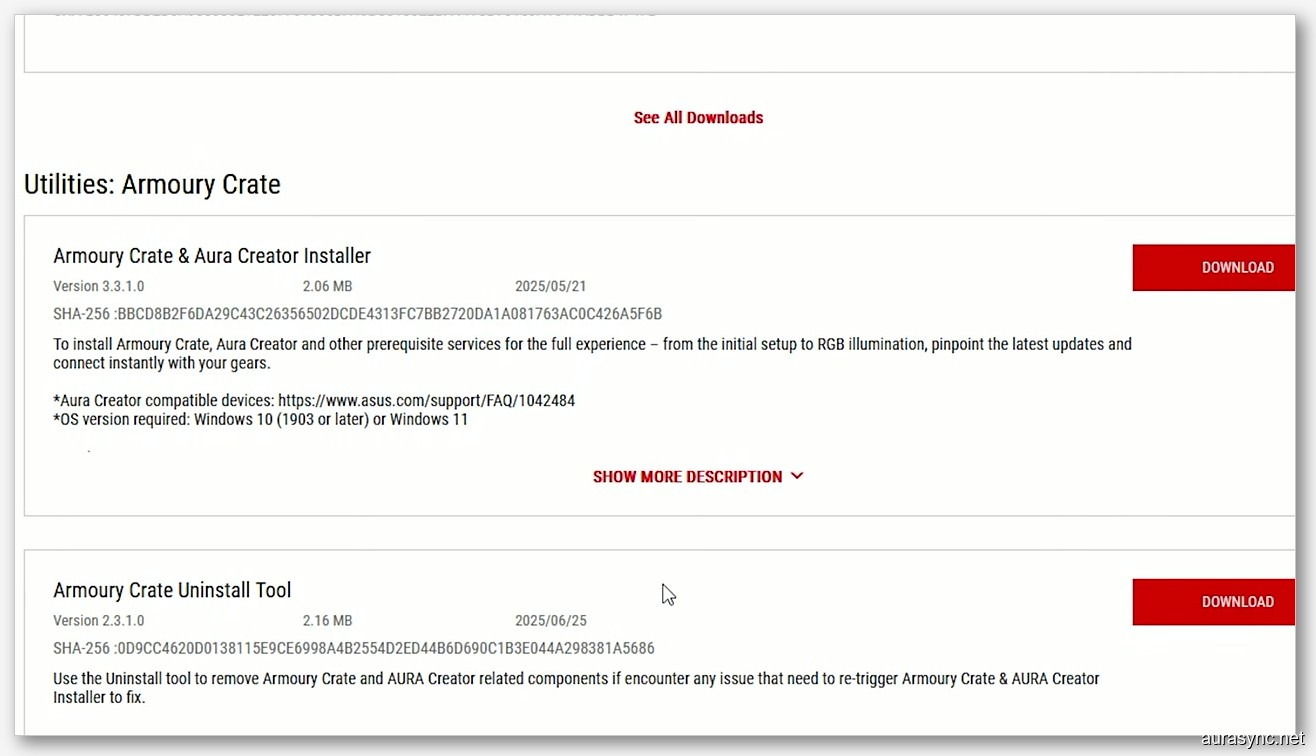
Download it, extract the ZIP, and right-click the uninstall tool executable. Hit Run as administrator. For best results, I’d honestly recommend booting into Windows Safe Mode first and running it from there. Fewer services running means fewer things that can go wrong during the removal.
The tool will detect all Armoury Crate components including Aura Creator if you had that installed. Confirm you want to remove everything, then let it do its thing. It’ll take a few minutes since it’s ripping out a lot of modules. When it’s done, restart your PC.
If the uninstall tool crashes or throws an error on the first try, don’t panic. Just restart and run it again. ASUS themselves acknowledge this can happen. The second attempt almost always works.
Step 3: Hunt Down the Leftovers
The uninstall tool does a decent job, but “decent” isn’t “perfect.” If you’re like me and you want every trace gone, here’s what to check manually:
Delete leftover ASUS folders:
- Open File Explorer, navigate to
C:\Program Files (x86)\ASUSand delete the entire ASUS folder - Also check
C:\Program Files\ASUSand delete if it exists
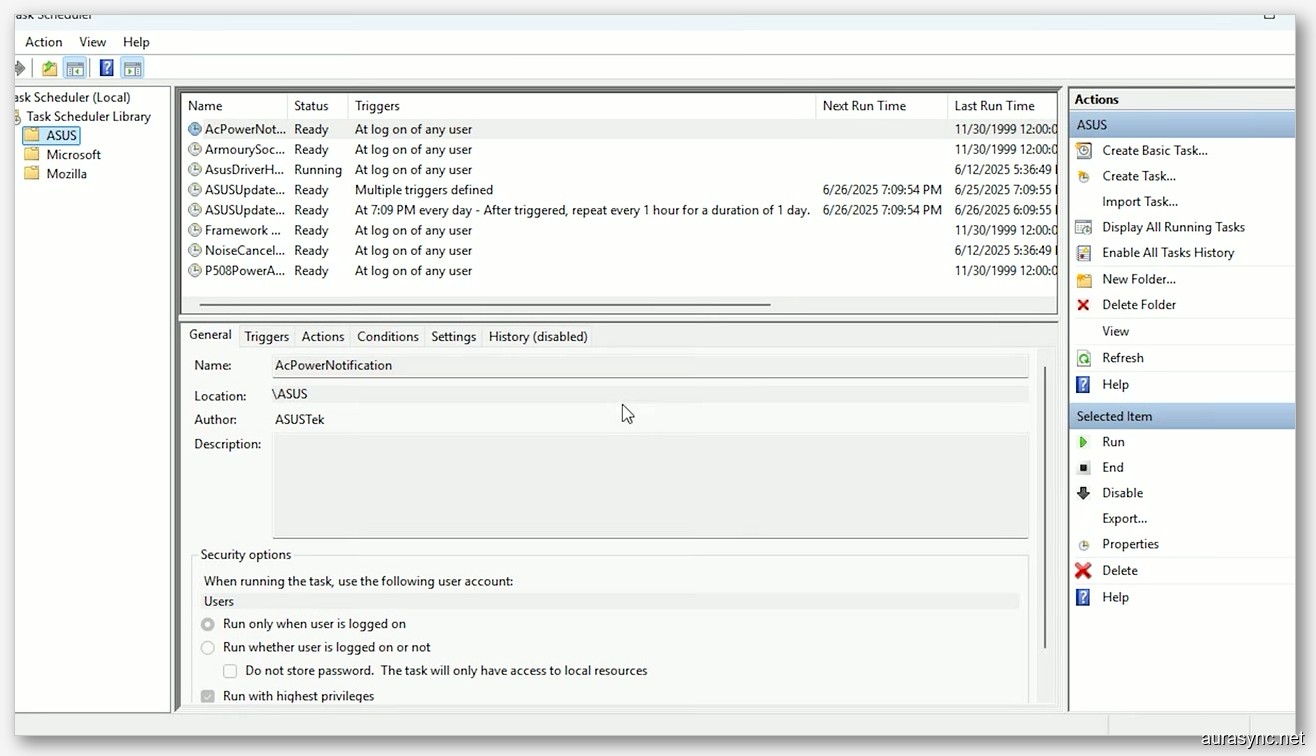
Clean up Task Scheduler:
- Open the Start menu and search for “Task Scheduler”
- Expand Task Scheduler Library
- Look for any ASUS folder or entries. Right-click and delete them. If you can’t delete, disable the task first
Remove leftover drivers:
- Navigate to
C:\Windows\System32\drivers - Look for and delete these files: ASL03, IOmap64, MSIO64
- If they won’t delete, boot into Safe Mode and try again
Registry cleanup (optional but thorough):
- Press
Windows + R, typeregedit, hit Enter - Navigate to
HKEY_LOCAL_MACHINE\SOFTWARE\ASUS - Delete the entire ASUS key
Take a deep breath. It’s over. Check your Start Menu, make sure nothing ASUS related is lurking in your startup apps, and you’re clean.
What Should You Use Instead of Armoury Crate?
Alright, so Armoury Crate is gone. Your PC probably already feels snappier. But you still need fan control and RGB management, right? Here’s what I actually use, and honestly, it’s all better than what Armoury Crate offered.
Fan Control: Three Great Options
BIOS Q-Fan (simplest): Your motherboard’s BIOS already has a built-in fan curve editor called Q-Fan. Reboot into BIOS, set your CPU and case fan curves, save, and forget about it. It works at the firmware level so it doesn’t need any Windows software at all. Zero system resources. For most people, this is genuinely all you need.
FanControl by Rem0o (community favorite): If you want real-time fan adjustment from within Windows, FanControl is the answer. It’s a free, lightweight, open-source tool that lets you create custom fan curves, combine sensor inputs, and adjust on the fly. It supports basically every motherboard including ASUS. I’ve been using V238 for the past few months and it’s been rock solid. Uses maybe 15MB of RAM versus Armoury Crate’s hundreds.
G-Helper (for ASUS laptops): If you’re on a ROG Zephyrus, TUF, or ROG Ally and you relied on Armoury Crate for performance profiles, G-Helper is a must. It’s a lightweight indie tool that handles fan modes, CPU power limits, keyboard RGB, and all the stuff Armoury Crate did on laptops, but without the bloat. Laptop users constantly rave about how much snappier their machines feel after the switch.
RGB Lighting: Better Options Exist
OpenRGB (free, open-source, all brands): OpenRGB is my go-to now. It controls ASUS motherboard RGB, G.Skill RAM, Corsair peripherals, basically everything, through a single interface. No bloat, no twelve background services. I covered this extensively in our OpenRGB vs SignalRGB comparison if you want the full breakdown.
SignalRGB (premium, polished): If you want fancy screen-sync effects and don’t mind the freemium model, SignalRGB is the more polished option. It’s prettier than OpenRGB and easier to set up, but the pro features cost $45/year.
For manufacturer-specific peripherals, Corsair iCUE and Razer Synapse still work fine for their own hardware. The key difference is you won’t have Aura Sync’s LightingService fighting them for SMBus control anymore.
Drivers and BIOS Updates: Just Use the ASUS Website
One of Armoury Crate’s “selling points” was automatic driver and BIOS updates. You don’t need software for this. Go to the ASUS support page, look up your motherboard model, and download drivers directly. It takes two minutes and you get exactly the drivers you need without Armoury Crate bundling extra stuff in.
How to Keep Armoury Crate From Coming Back
Armoury Crate is persistent. Like, impressively persistent. Here’s how to make sure it stays gone:
- BIOS check after every firmware update: I can’t stress this enough. Flash a new BIOS? Go right back to Tools and verify Armoury Crate download is still disabled
- Say no to accessory prompts: If you plug in a new ROG keyboard or mouse, Windows might prompt you to install Armoury Crate. Just click “No” and never ask again. Your peripherals work fine as standard USB devices, and OpenRGB can handle the RGB
- Watch ASUS driver packages: Sometimes when downloading a chipset driver or audio driver from ASUS, the installer will have Armoury Crate checked by default. Always do a custom install and uncheck it
- Periodic maintenance: Every few months, check your Task Scheduler and Services for anything ASUS-related that might have snuck back in
Is Removing Armoury Crate Actually Worth It?
Honestly? Yes. And it’s not even close.
After removing Armoury Crate from my X870E Hero build, I noticed faster boot times almost immediately. My idle CPU usage dropped from 10% to about 2-3%. RAM usage went down significantly. Everything just felt… cleaner. One Flight Simulator community member reported that MSFS 2024’s intro animation went from a stuttering mess to smooth after removing Armoury Crate. That tracks with what I experienced in general system responsiveness.
Now, if you’re someone who genuinely uses every feature (RGB sync across all devices, fan expert, the gaming profiles, Aura Creator), then yeah, maybe Armoury Crate makes sense for you. Check our Armoury Crate download page if you decide you want it back. But if you’re like the majority of us who just want basic fan control and some RGB without the bloat… there are much better options available.
I haven’t reinstalled Armoury Crate in four months. I don’t miss it. My rig runs quieter, boots faster, and I have more control over my hardware than I ever did with ASUS’s software. FanControl handles my fans. OpenRGB handles my lighting. And my PC doesn’t need to run thirteen services in the background just to keep some LEDs the right color.
Your PC works for you. You don’t have to tolerate software that doesn’t play nice.
FAQ
Will removing Armoury Crate void my ASUS warranty?
No. Armoury Crate is optional utility software. Removing it doesn’t affect your hardware warranty in any way. Your motherboard, GPU, and other components are covered regardless of what software you have installed.
Can I still control my RGB without Armoury Crate?
Yes. OpenRGB and SignalRGB both support ASUS motherboards and most RGB peripherals. OpenRGB is free and open-source. You won’t lose any RGB functionality, and honestly the third-party tools give you more control.
Does Armoury Crate slow down my PC?
It can. With 12-13 background services running, users report noticeable CPU and RAM usage at idle. Removing it typically results in lower idle CPU usage, faster boot times, and improved overall system responsiveness. Some users even report slight improvements in benchmark scores.
What’s the difference between uninstalling and the official removal tool?
The standard Windows uninstall (Add/Remove Programs) leaves behind services, drivers, registry entries, and scheduled tasks. The official ASUS Armoury Crate Uninstall Tool (v2.3.7.0) removes most of these components. For a truly clean removal, you should still manually check for leftover files and registry entries after running the tool.
Will Armoury Crate reinstall itself after I remove it?
It can if you don’t disable it in your BIOS first. ASUS embeds an installer at the firmware level that prompts Windows to install Armoury Crate on boot. Go to BIOS, find the Tools tab, and disable the Armoury Crate auto-download setting. Also check this setting after any BIOS update, as it can reset to enabled.
Is G-Helper safe to use on ASUS laptops?
Yes. G-Helper is a well-known community tool specifically built as a lightweight replacement for Armoury Crate on ASUS laptops and the ROG Ally. It’s open-source and actively maintained on GitHub. Many laptop users prefer it over Armoury Crate for its minimal resource usage and reliable performance mode switching.
Related Guides
- Armoury Crate vs G-Helper — the lightweight ASUS laptop replacement.
- OpenRGB as the cross-vendor lighting replacement — what to run instead for RGB.
- ASUS Aura Sync setup guide — if you’re keeping Aura but losing Armoury Crate.