
I’ve installed Armoury Crate on three different ASUS builds in the last six months and every single time I’d just smash through the installer, ignore the device updates, and then wonder why Aura Sync was acting weird and only half my RGB was syncing. The problem was never Armoury Crate. The problem was that I was treating it like a glorified driver and it actually wants to be set up properly.
So this is the version I wish someone had handed me the first time. Specifically how to get Aura Sync working across every ASUS device on your build (motherboard, AIO, RAM, mouse, addressable strips, keyboard) without the usual “one thing won’t sync” nightmare. I’m running this on a ROG Crosshair X870E Hero with a Ryzen 7 9800X3D, ROG Ryuo III AIO, ROG Keris II Ace mouse, 48GB DDR5 at 6400, plus a no-name addressable strip. The walkthrough applies to basically any ASUS bundle though.
If you came here because vendor RGB apps don’t talk to your non-ASUS hardware, that’s a different problem and I covered the cross-brand workaround in this guide (uses SignalRGB instead). This one is for people staying inside the ASUS ecosystem.
Why Armoury Crate is the only Aura Sync now
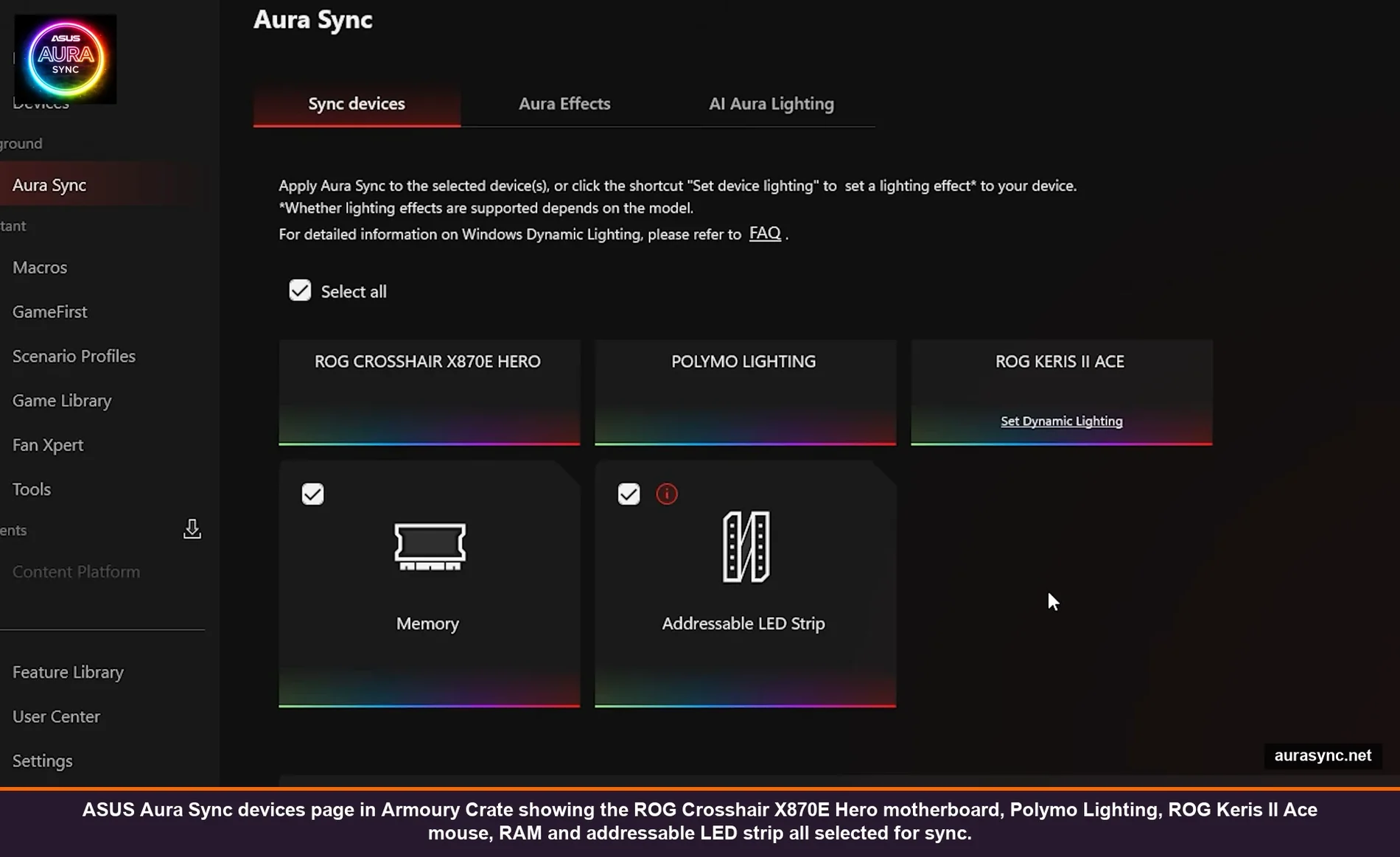
Quick history because this confuses people. ASUS used to ship Aura Sync as a standalone app. It hasn’t been standalone for years. Every Aura Sync feature is now baked into Armoury Crate as a sidebar item called, predictably, “Aura Sync.” If you’re searching for the old standalone Aura Sync installer you’re going to find sketchy mirrors and dead pages. Don’t. Just install Armoury Crate from rog.asus.com and Aura Sync is in there.
Armoury Crate also handles fans (Fan Xpert 4), updates, mouse/keyboard customization, performance modes, and if you have an OLED-equipped AIO like the ROG Ryuo III, the custom GIF/clock display on it. Aura Sync is the lighting subset.
Step 1: Clean install (skip if Armoury Crate is already happy)
If Armoury Crate is acting up, do a clean install instead of trying to repair it. ASUS provides an official uninstall tool that nukes Armoury Crate, AURA, ASUS Framework Service, and a bunch of orphaned services that the regular Add/Remove Programs leaves behind. Search “Armoury Crate Uninstall Tool” on ASUS support, run as admin, reboot, then install Armoury Crate fresh from the ROG site. The download page link is in the Armoury Crate section under Software & Utility for whatever motherboard or laptop you have.
⚠️ Heads up: Don’t try to uninstall via Programs and Features. Half the services stay behind and they cause the exact “RGB acts weird” problems you’re trying to fix. Use the dedicated uninstall tool, then reboot before you reinstall.
If you bought a new ASUS motherboard recently, Armoury Crate probably installed itself on first boot. In that case skip this step and go straight to updates.
Step 2: Update everything before you touch RGB
This is the step everyone skips and it’s the single biggest reason Aura Sync misbehaves. Open Armoury Crate, go to Devices, click your motherboard. If there are firmware or driver updates pending, you’ll see a little orange dot. Run them. If your AIO has a screen on it (Ryuo III, Ryujin, etc.), that has its own firmware and it’s listed under the AIO entry, separately from the motherboard. Update that too.
Then close Armoury Crate completely (not just minimize, fully exit from the system tray) and reopen it. Devices that updated need a fresh launch to show up correctly. About a third of the time I’ve had a device “missing” from Aura Sync that mysteriously reappeared after this restart.
While you’re in there, also go to Settings → Update Center → Check for Updates. This catches the framework-level updates that the device pages don’t show.
Step 3: Set Armoury Crate as your Dynamic Lighting controller
This is the bit that nobody mentions and it ruined two of my evenings before I figured it out. Windows 11 has its own RGB system called Dynamic Lighting (Settings → Personalization → Dynamic Lighting) and by default it tries to control any RGB device it sees. If both Windows Dynamic Lighting AND Armoury Crate are trying to control your Aura Sync devices, the result is one of them wins for half the devices and the other wins for the rest, and you get a build where your RAM is doing one thing and your motherboard is doing something completely different.
Fix: open Settings → Personalization → Dynamic Lighting → “Compatible apps in the foreground always control lighting” → set Armoury Crate as the priority app. Now Windows steps out of the way and Armoury Crate runs the show.
I wrote a longer breakdown of how Dynamic Lighting plays with vendor apps here if you want the full picture, but for ASUS specifically just make sure Armoury Crate has priority and you’re done.
Step 4: Configure your addressable headers (Gen 1 vs Gen 2)
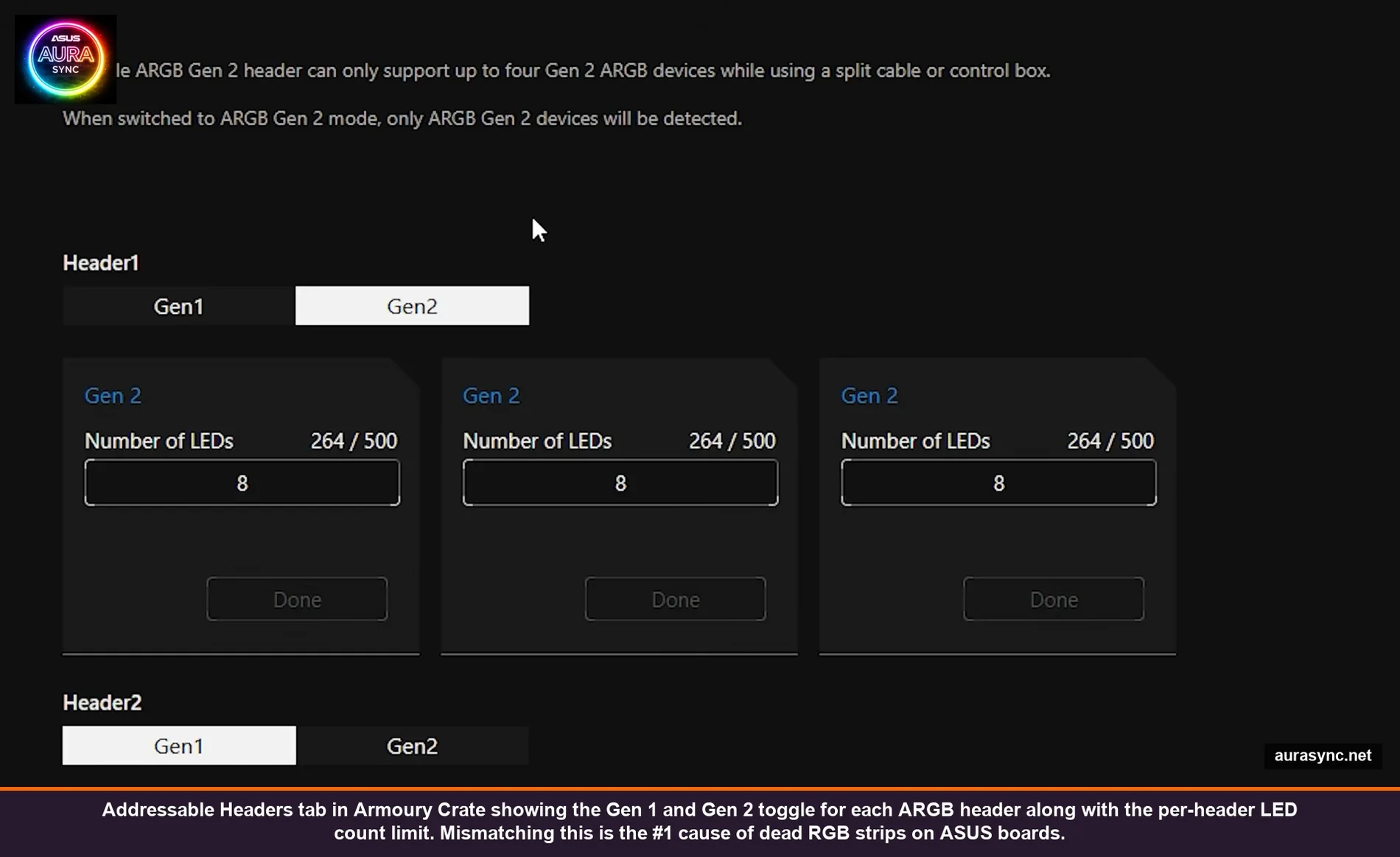
This is a real gotcha. Modern ASUS motherboards have ARGB Gen 2 headers, which are different from the regular Gen 1 ARGB headers most strips use. The Gen 2 spec supports per-device addressing (each device on a daisy chain can be controlled separately) but only up to four Gen 2 devices per header.
In Armoury Crate, open Devices → your motherboard → Addressable Headers tab. For each header you’ll see a Gen 1 / Gen 2 toggle and an “LED count” field.
The rule: match the toggle to what’s actually plugged in. If you have a regular ARGB strip (the standard 5V three-pin connector with a square key), keep that header on Gen 1 and enter the LED count manually. If you have a Gen 2 device (like the ROG Ryuo III pump head, which is 8 LEDs), switch to Gen 2 and the number of detected devices shows up automatically.
If you mix Gen 1 and Gen 2 on the same header, the header will reject the Gen 2 devices entirely. They just won’t light up. That’s the “my RGB strip doesn’t work” symptom that 90% of ASUS forum threads end up being.
💡 Pro tip: If you don’t know your strip’s LED count, count the visible LED dots and multiply by your strip’s density. A 30-LED-per-meter strip that’s 50cm long is 15 LEDs. If you guess wrong, the effect will look choppy or only half the strip will animate. Worth getting right.
One more weirdness: the LED count cap shown in Armoury Crate is per-header and depends on your specific motherboard. The X870E Hero shows “264/500” which means I can put up to 500 LEDs on this header total but my current setup uses 264. Most boards cap around 240-500. If you exceed it the rest just don’t render.
Step 5: Pick your Aura Sync effect (and what each one is actually good for)
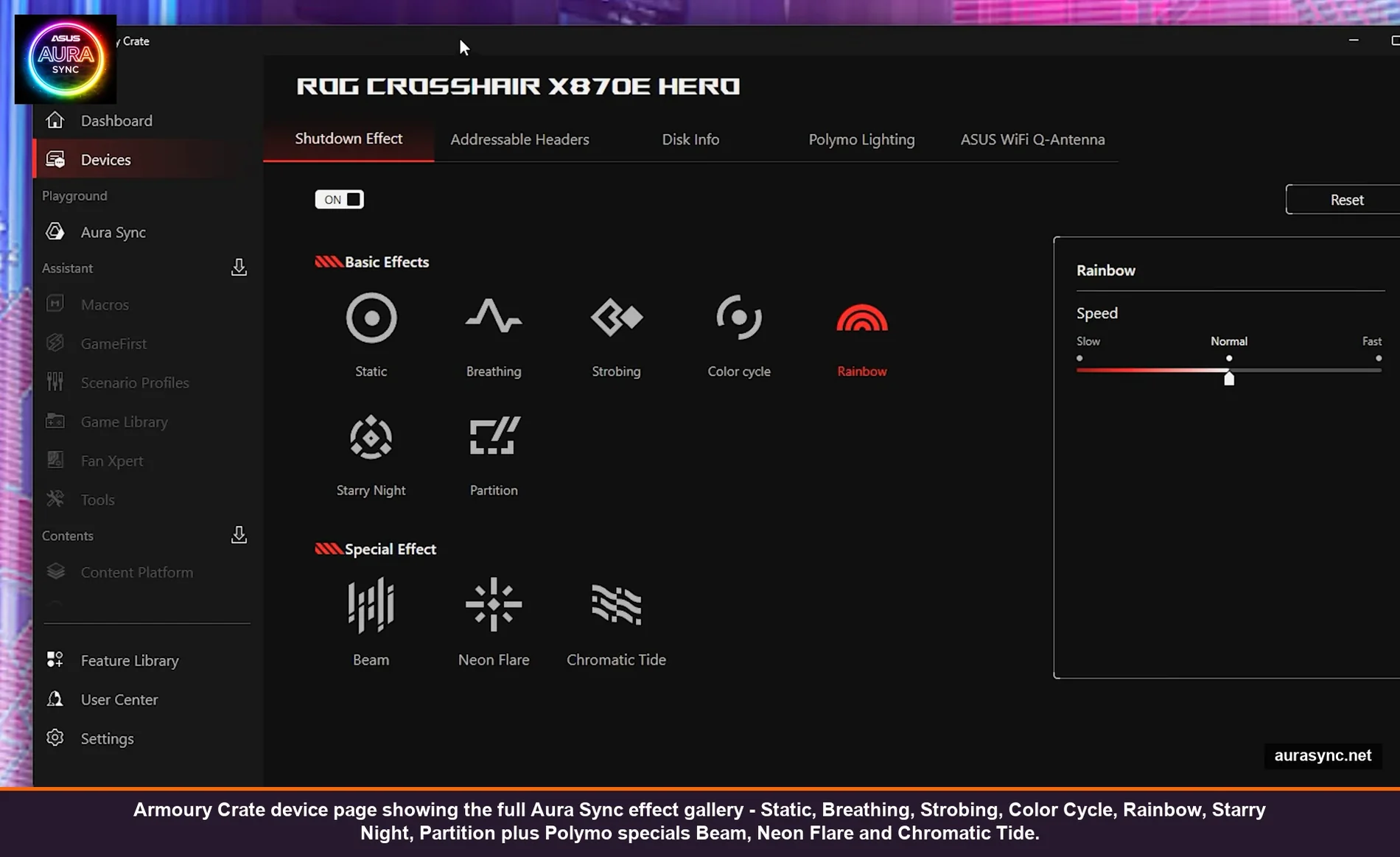
Armoury Crate ships with a Basic Effects row and a Special Effects row. The basic ones are Static, Breathing, Strobing, Color Cycle, Rainbow, Starry Night, and Partition. Special effects (which require the Polymo Lighting Feature Library installed) include Beam, Neon Flare, and Chromatic Tide.
My honest take after living with all of them:
- Static – sounds boring but it’s the most underrated effect. One color, no animation, looks expensive instead of toy-like. I run my entire build on solid amber for work hours and it’s the only thing my partner doesn’t roll her eyes at.
- Color Cycle – the default. Smooth shift through the rainbow. Fine. Generic. Defaults to “every other PC.”
- Rainbow – same as Color Cycle but instead of every device being one color at a time, it’s a rainbow gradient sweeping across. Better for builds with multiple long strips because the gradient actually traverses physical space.
- Breathing – one color, fade in fade out. Good if you find solid too static and rainbow too busy.
- Starry Night – random twinkles on a base color. Surprisingly nice for a more ambient look. I use this for movie nights.
- Strobing – don’t. Just don’t. It’s a seizure waiting to happen and looks like a 2007 club PC.
- Beam / Neon Flare / Chromatic Tide – the Polymo specials. They look great on the OLED Polymo panel that comes on certain ROG boards (Hero, Extreme tiers) but on regular ARGB strips they devolve into generic color cycle behavior because there’s not enough resolution.
You can apply any effect to all selected devices at once or click into individual devices to give them their own effect. The Aura Sync page has a “Select All” checkbox at the top – that’s the quickest way to mass-apply.
One quiet feature people miss: the Speed slider. Almost every effect has it, defaulting to “Normal.” Slower speeds (Slow + custom drag) make the same effect feel completely different – more cinematic, less “gamer.” Try Color Cycle at 25% speed for a week and you’ll never go back to Normal.
Step 6: AI Aura Lighting (the new toy)
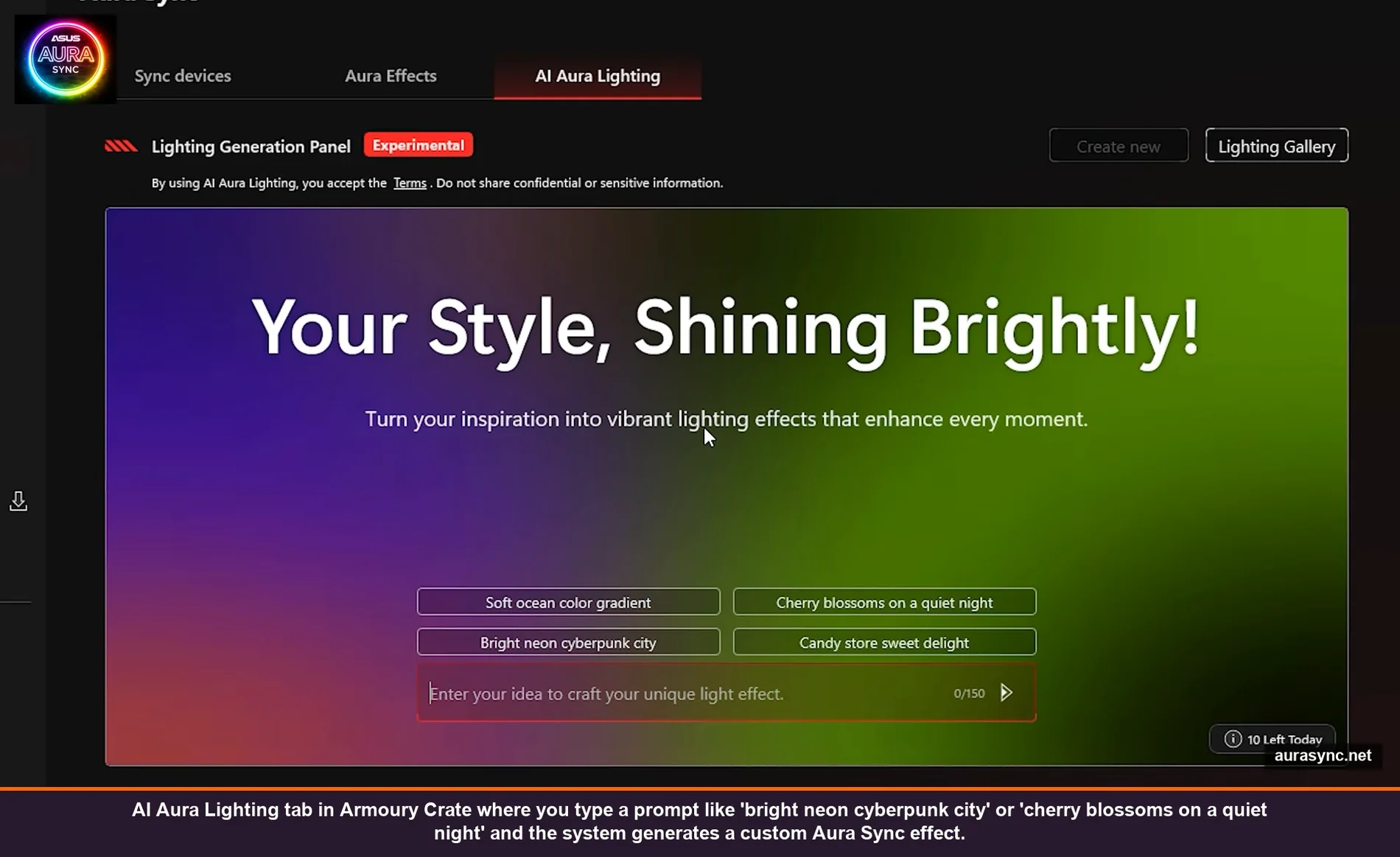
The AI Aura Lighting tab is recent and it’s actually fun. You type a prompt (“bright neon cyberpunk city,” “soft ocean wave gradient,” “cherry blossoms on a quiet night”) and it generates a custom lighting effect using whatever colors and motion match the prompt. Then you can save the generated effect to your gallery.
It’s labeled “Experimental” right now and there’s a daily limit (10 generations a day at the time of writing). The output quality varies. Prompts with clear color cues (“bright neon cyberpunk city” → magenta + cyan) work way better than vague mood prompts (“calm” → some random pastel that doesn’t really feel calm). Treat it like Stable Diffusion for RGB – prompt specifically, get specific results.
The generated effects can also be set as your live wallpaper through Aura Wallpaper if you install the Aura Wallpaper component from the Feature Library. That’s a separate rabbit hole but worth knowing about.
Step 7: Sync individual peripherals (mouse, keyboard, headset)
If you have ROG peripherals – Keris mouse, Strix keyboard, Delta headset, whatever – they show up in the device list under their own entry. Click into them and there’s a Lighting tab.
The thing to know: each peripheral has its own lighting controller and by default it doesn’t sync with motherboard Aura Sync. You have to toggle “Aura Sync” on each peripheral’s Lighting tab. Or, alternatively, you can click “Set Dynamic Lighting” if you’d rather Windows handle that specific device.
For my Keris II Ace I keep it on Aura Sync so it matches the rest of the build. For the keyboard (which sees more attention in dimmer light) I have it on a brighter solid white that overrides the rest. There’s no rule that says everything has to be synchronized – you can mix.
📝 Note: The polling rate setting on the Performance tab of ROG mice (Keris II Ace defaults to 1000Hz, can go to 8000Hz on the wired/dongle paths) is unrelated to RGB but if you’re already in there, set it to whatever your monitor refresh divides into evenly. 8000Hz only matters for high-refresh competitive play and absolutely murders your CPU at idle. I leave mine at 4000Hz as a compromise.
Step 8: Save your config so it survives reboots
Armoury Crate saves Aura Sync settings automatically, but the saving is per-profile per-effect. If you set up a custom Color Cycle with specific speed/colors and don’t explicitly save it as a preset, it’s saved but you can’t recall it after switching to another effect. Click the bookmark/save icon next to the effect after you’ve dialed it in – that puts it in your “Lighting Gallery” for one-click recall later.
Also: Armoury Crate has a Shutdown Effect tab on the device page (separate from the regular Aura Sync). This is what your motherboard does when the PC is OFF but still has standby power. Default is Off (everything dark). I leave mine on Starry Night with a slow speed – the case has a subtle blue twinkle when off and it looks intentional rather than dead.
If you don’t want any RGB when the PC is off, leave Shutdown Effect off AND make sure ErP S5 is enabled in your BIOS. ErP S5 cuts standby power to the RGB headers entirely.
The bloat to skip during setup
Armoury Crate’s Feature Library has a bunch of optional installs. Here’s what’s worth installing and what to ignore:
Install:
- Aura Sync core – obviously
- Polymo Lighting – if your board has the OLED Polymo panel
- Fan Xpert 4 – the only good fan curve UI ASUS makes
- Aura Creator – if you want to design custom per-LED animations (advanced)
Skip:
- Content Platform / Promotion – it’s marketing content for ASUS games and gear. Pure bloat.
- GameFirst – “QoS network prioritization.” On a modern home network with reasonable upstream this does basically nothing measurable. Adds a service that sits in the background.
- Game Library – duplicates what Steam/Epic already do.
- ARGB vs RGB header difference — the foundational 3-pin vs 4-pin background.
You can always install them later from the Feature Library page. There’s no penalty for skipping.
Common Aura Sync problems and the actual fix for each
One device won’t sync, everything else works
99% of the time this is the addressable header Gen 1/Gen 2 toggle being on the wrong setting. Open the Addressable Headers tab and flip the toggle for the header that device is plugged into. If that doesn’t fix it, the LED count is wrong – check the count and adjust.
RGB resets to rainbow after every reboot
Different problem entirely – it’s a Dynamic Lighting / vendor app fight. I covered the full fix in this troubleshooting guide. Short version: priority app order in Dynamic Lighting settings, plus the OpenRGB fallback if that fails.
Aura Sync is missing from the sidebar entirely
Means Armoury Crate doesn’t see any Aura-compatible devices, which usually means the chipset or framework driver is missing. Settings → Update Center → Check for Updates. If that doesn’t surface anything, run the ASUS Driver Hub (it’s under Tools, or you can download it standalone) and let it install everything labeled “Required.”
Effect changes apply, then disappear after a few seconds
Almost always Windows Dynamic Lighting fighting back. Set Armoury Crate as the priority controller in Dynamic Lighting settings (Step 3 above). If you’d rather just kill Dynamic Lighting entirely, the toggle is right at the top of that page.
Can’t sync RAM (G.Skill, Crucial, etc.)
Most ARGB RAM kits work with Aura Sync because they expose the SMBus addressing the spec uses. The exceptions are Corsair (uses iCUE’s proprietary protocol, won’t sync with Aura) and some Crucial Ballistix runs. For Corsair RAM your only option is to either run iCUE alongside Armoury Crate (works but it’s clunky), or use a cross-brand tool like SignalRGB that talks to both.
Aura Sync vs Armoury Crate vs the third-party alternatives
If you’ve made it this far and you’re still hitting walls, the honest truth is that vendor RGB apps have a ceiling. Aura Sync is great for ASUS-only builds. The moment you have a Corsair fan, a Razer mouse, and a Lian Li UNI controller in the same build, no single vendor app handles it all. That’s where SignalRGB and OpenRGB come in.
I’ve written separate breakdowns of OpenRGB vs SignalRGB and SignalRGB free vs pro if you want to compare. For an ASUS-pure build though, stick with Armoury Crate. It’s lighter than it used to be, the AI Aura Lighting tab is genuinely fun, and you don’t need a third-party layer.
FAQ
Is Aura Sync still being developed or is it abandoned?
Actively developed, just not as a standalone product anymore. Armoury Crate gets monthly-ish updates and Aura Sync features land with those. The AI Aura Lighting tab dropped in 2025 and the Polymo Lighting effects expanded again in early 2026. ASUS isn’t sunsetting it.
Do I need an internet connection for Aura Sync to work?
For the basic effects no. For AI Aura Lighting yes (the prompts get processed server-side). For the Lighting Gallery sync across devices, also yes. But if you just want Color Cycle on your build, offline is fine.
Will Aura Sync drain my CPU or GPU?
Armoury Crate sits at around 0.3-0.8% CPU at idle with Aura Sync running on a 9800X3D. Negligible. The GameFirst service is the heavier component, which is why I recommend skipping it. If you see Armoury Crate using 5%+ CPU constantly, something’s wrong – usually a stuck device update.
Can I control my Aura Sync RGB from a phone app?
There’s an ROG Mobile app but it’s mainly for ROG phones and laptops. For desktop Aura Sync, no first-party phone control exists. Third-party tools like SignalRGB have web/companion control but Armoury Crate itself is desktop-only.
Will Armoury Crate auto-update? Should I let it?
It auto-checks but doesn’t auto-install. You get notifications. I let it install Aura Sync and Fan Xpert updates immediately, defer firmware updates by a week so I can read the patch notes / forum reactions first, and never let it update the BIOS automatically (always do that manually through BIOS Flashback for safety).
Does this work the same on ROG laptops?
Mostly yes. The Aura Sync section on laptops is sparser because there’s only the keyboard backlight to control, but the workflow is identical. Performance modes (Silent / Performance / Turbo) are way more relevant on laptops than desktops because of thermals.
Wrapping up
Armoury Crate has a reputation for being janky and a lot of that reputation was earned in the 2020-2022 era when it was a memory hog with broken services. The current version is fine. Most of the “Aura Sync doesn’t work” complaints you’ll find on Reddit trace back to skipped updates, the Gen 1/Gen 2 header toggle, or Dynamic Lighting priority – all of which this guide covers.
If you do the clean install, the updates, and set Armoury Crate as the Dynamic Lighting priority, then Aura Sync just works. The customization beyond that is gravy.
And if it still won’t behave for you, post in the ROG forums with a screenshot of your Aura Sync device list and the addressable header settings – that’s the info that lets people actually help. Good luck.