
Four RGB apps. I was running four separate RGB apps on the same PC just to keep my lights from going full rainbow vomit. Armoury Crate for the ASUS B550 motherboard headers. Corsair iCUE for the LL120 fans. RGB Fusion for the Gigabyte GPU backplate. And then G.Skill’s little tray app for the Trident Z RAM. Four apps, four system tray icons, four sets of background services fighting over SMBus access.
Then someone on r/pcmasterrace told me to try OpenRGB.
I uninstalled everything, installed one 15MB portable app, hit “Rescan Devices,” and every single RGB device showed up in a single window. All four brands. One color picker. One profile system. Zero bloatware. I genuinely couldn’t believe it worked on the first try.
That was six months ago. I haven’t gone back. If you’re sitting there with multiple RGB apps eating your system resources and conflicting with each other, this guide is for you. I’m going to walk you through the exact OpenRGB setup process I used, from download to fully configured profiles.
What Is OpenRGB and Why Should You Care?
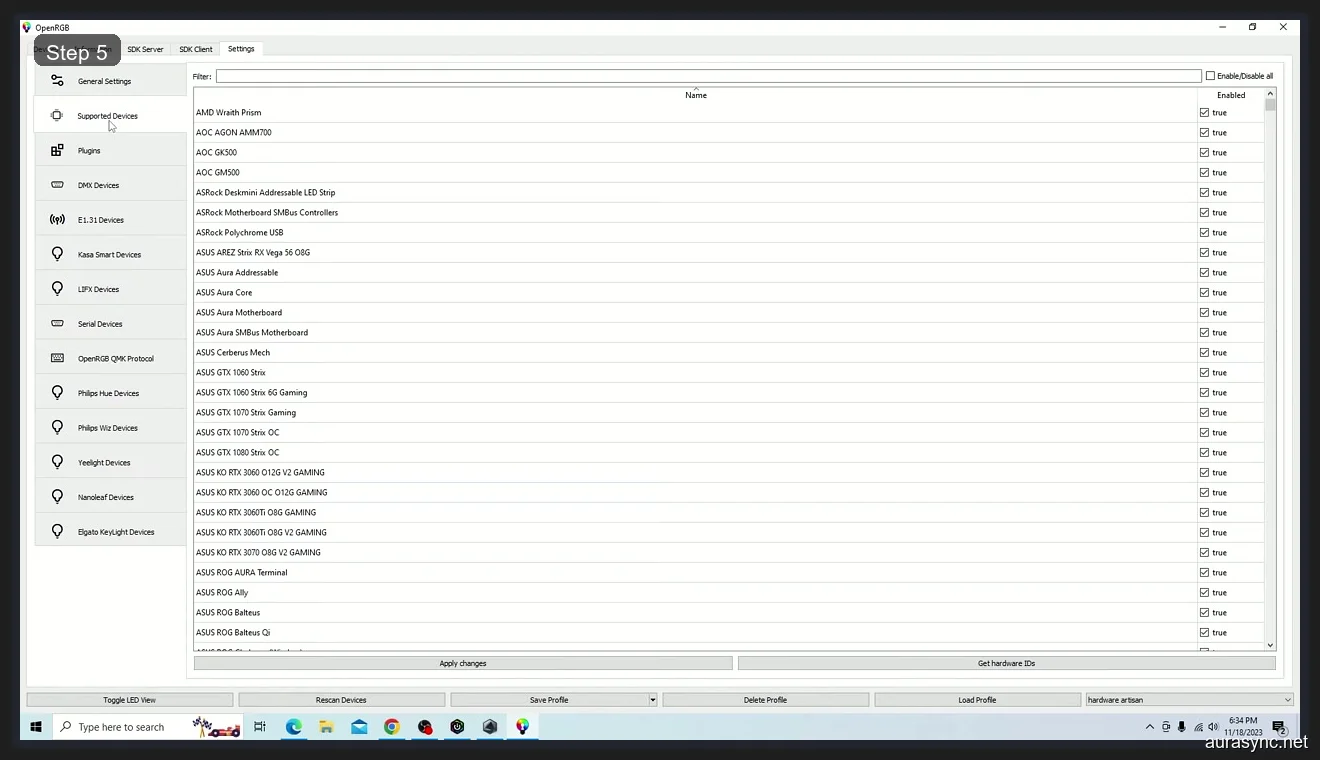
OpenRGB is a free, open-source RGB lighting controller that works with basically everything. I’m talking ASUS, MSI, Gigabyte, ASRock motherboards, Corsair and G.Skill RAM, NZXT and Thermaltake coolers, Razer and Logitech peripherals… the supported device list covers 1,200+ devices from 78+ manufacturers. It’s maintained by CalcProgrammer1 (Adam Honse) on GitLab, has 5,300+ stars on GitHub, and it’s completely free. No premium tier, no subscription, no “pro” features locked behind a paywall.
The latest release is version 1.0rc2, which added segment support for splitting addressable LED zones into independent groups. Pretty handy if you want different effects on different parts of the same strip.
(For context on why manufacturer RGB software is such a mess, check out our guide on ARGB vs RGB headers. Understanding the hardware side helps make sense of zones and channels in OpenRGB.)
Before You Install: Two Things to Know
Close All Other RGB Software First
This is the one step people skip and then wonder why OpenRGB doesn’t detect anything. Armoury Crate, iCUE, RGB Fusion, Razer Synapse… they all fight for control of the SMBus interface on your motherboard. SMBus only lets one application talk to your RGB controllers at a time. If Armoury Crate’s LightingService is running in the background, OpenRGB literally can’t see your devices.
I’d honestly recommend removing Armoury Crate completely if you’re going all-in on OpenRGB. Same with RGB Fusion. For iCUE, you can keep it installed if you still need it for fan curves on your Commander Pro, but close it before opening OpenRGB.
Check Your System Type (64-bit vs 32-bit)
You’ll need to know if your Windows install is 64-bit or 32-bit. Most modern builds are 64-bit, but if you’re not sure: right-click Start, click System, look for “System type” under Device Specifications. If it says “64-bit operating system,” you want the 64-bit download.
How to Download and Install OpenRGB
This part takes about two minutes. Honestly.
- Head to openrgb.org
- Click the download link for your OS (Windows, Linux, or macOS)
- Choose the right version for your system type (64-bit or 32-bit)
- Download the zip file. It’s small, about 15-20MB
- Extract the zip to wherever you want. I put mine in
C:\Tools\OpenRGB - Run
OpenRGB.exe. That’s it. No installer, no setup wizard, no account creation
One thing I love about OpenRGB is that it’s portable. No registry entries, no background services installed, no startup items unless you specifically add them. You can literally put it on a USB drive and run it on a different PC. Try doing that with Armoury Crate.
Heads up: On the first launch, Windows SmartScreen might flag it because it’s not signed by a major publisher. Just click “More info” and then “Run anyway.” It’s open-source, the code is on GitLab for anyone to audit. I’ve been running it for six months with no issues.
First Launch: Detecting Your Devices
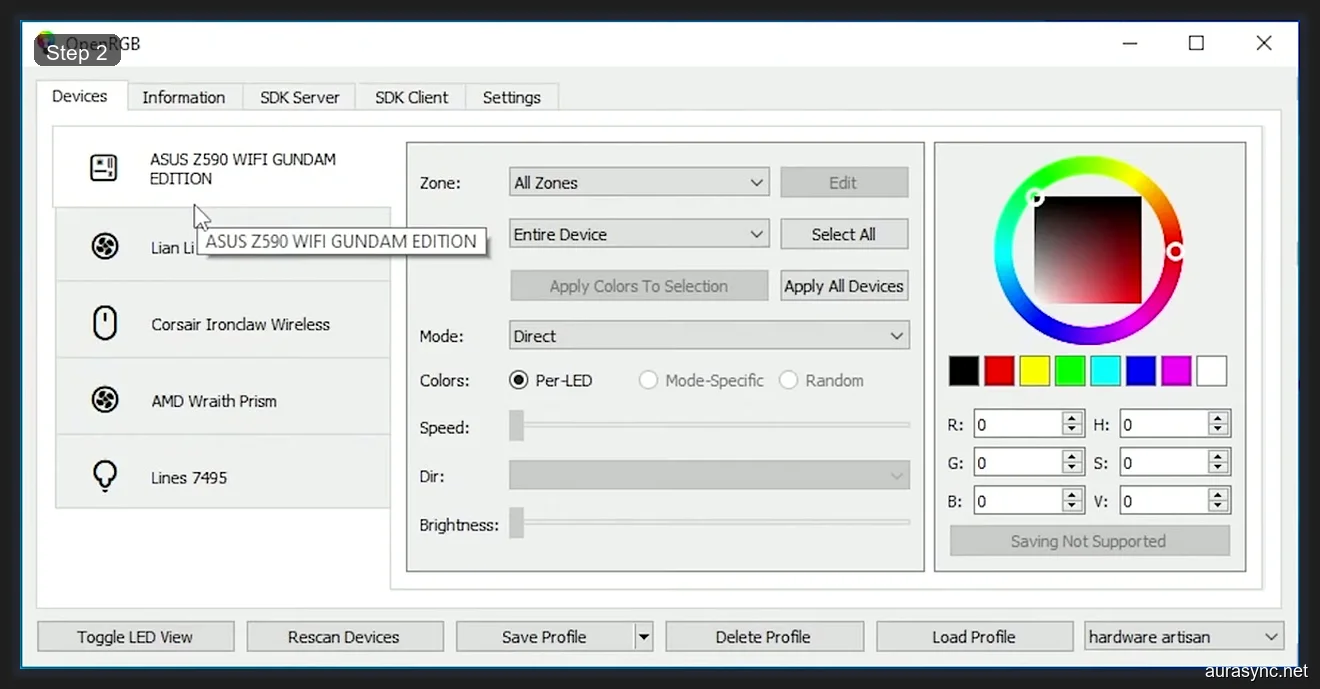
When OpenRGB opens for the first time, you’ll see the main window with a few tabs at the top: Devices, Information, SDK Server, SDK Client, Settings. Don’t worry about most of those for now. Here’s what to do first:
- Click the Rescan Devices button at the bottom of the window
- Wait a few seconds while OpenRGB scans your motherboard’s SMBus and USB devices
- Your detected hardware should appear in the left panel under “Devices”
If everything goes right, you’ll see your motherboard listed (mine showed up as “B550 UD AC”), plus any USB RGB peripherals like keyboards, mice, or headsets. Each detected device gets its own entry with expandable zones.
If nothing shows up, don’t panic. Scroll down to the troubleshooting section. The most common issue is another RGB app still running in the background.
Understanding Zones, LEDs, and Modes
This is where OpenRGB clicks. Once you understand zones, the whole app makes sense.
Zones
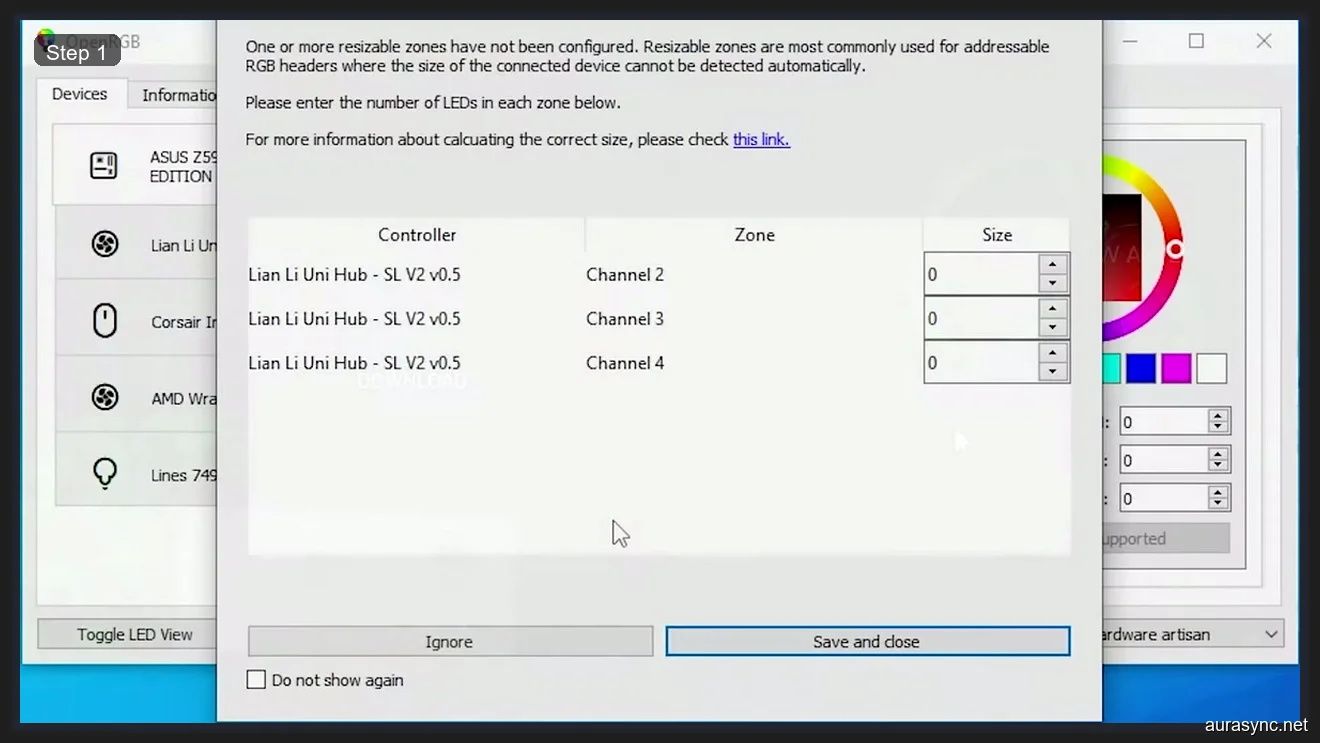
Each “zone” in OpenRGB maps to a physical RGB connection on your motherboard. Think of it like this: if you’ve got an LED strip plugged into the bottom ARGB header and a CPU cooler plugged into the top ARGB header, those are two separate zones. The zone dropdown lets you control them individually or select “All Zones” to change everything at once.
On my B550 setup, Zone 1 was the bottom header (where my hub connects all the case lighting) and Zone 2 was the top header (CPU cooler). Your setup will be different depending on what’s plugged in where.
LED Selection
The LED dropdown lets you get specific. You can control the “Entire Device,” or drill down to individual LEDs within a strip. I’d recommend just leaving it on “Entire Device” unless you’re doing something really custom like alternating colors per LED on an addressable strip.
Modes
OpenRGB gives you several lighting modes right out of the box:
- Direct — gives you raw control, color applies immediately
- Static — set a color and it stays. The most common mode for clean builds
- Breathing — fades in and out. Subtle, good for ambient lighting
- Blinking — flashes on and off. I find this obnoxious but to each their own
- Color Cycle — cycles through the rainbow automatically
- Flashing — similar to blinking but with a different pattern
Below the mode dropdown, you’ll find sliders for Speed, Direction (on modes that support it), and Brightness. Not every device supports every slider. If a slider is grayed out, your hardware just doesn’t support that particular control. That’s normal.
Using the Color Picker
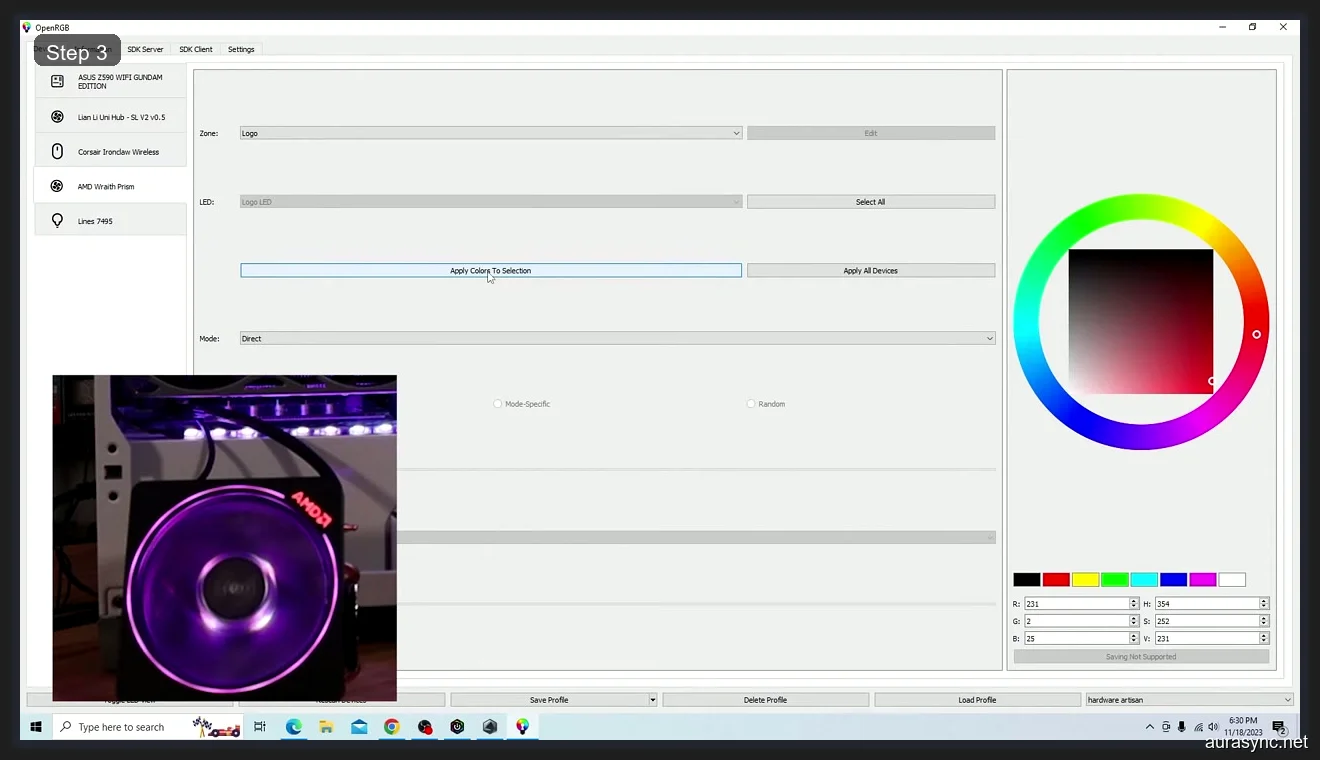
The color picker in OpenRGB is actually pretty solid for an open-source app. You’ve got two ways to pick colors:
Quick presets — at the bottom of the color section, there’s a row of preset color swatches (black, red, yellow, green, cyan, blue, magenta, white). Click one to instantly apply it.
Precise picker — the main color square lets you dial in the exact shade you want. You can also manually enter RGB values, HSV values, or a hex code directly. I usually just type in the hex code if I’m matching a specific color scheme. For example, #FF5500 for a warm orange.
Once you’ve got your color selected, click “Apply Colors To Selection” to apply it to the current zone/LED, or “Apply All Devices” to blast it across everything.
Saving and Loading Profiles
This is something Armoury Crate did terribly. In OpenRGB, it actually works.
At the bottom of the window you’ll see: Toggle LED View, Rescan Devices, Save Profile, Delete Profile, Load Profile, and a profile dropdown.
To save your current setup as a profile:
- Set up all your colors and modes exactly how you want them
- Click Save Profile
- Give it a name (I have “clean white,” “gaming red,” and “movie blue”)
- Done. It’s saved
To switch between profiles, just select one from the dropdown and click Load Profile. It applies instantly. No reboot, no waiting 30 seconds for software to catch up. I keep OpenRGB in my startup folder and it loads my default profile on boot. Whole thing takes maybe 2 seconds.
What About Devices OpenRGB Doesn’t Detect?
I’ll be honest. OpenRGB doesn’t detect everything perfectly on the first try. Here are the common gotchas and how to fix them:
Motherboard RGB headers don’t show up
This is almost always an SMBus access problem. On Windows, OpenRGB needs low-level access to the I2C/SMBus bus to communicate with your motherboard’s RGB controller. If another app has the bus locked, or if the necessary drivers aren’t loaded, devices won’t appear.
Fix: Make sure all manufacturer RGB software is fully closed (check Task Manager for lingering services like LightingService.exe or CorsairService.exe). If Aura Sync services are still running, they’ll block SMBus access even without Armoury Crate’s main UI.
RAM sticks aren’t detected
Some DDR4 and DDR5 RGB RAM requires SPD write access to be enabled in BIOS. Check your BIOS settings for an option like “SPD Write Disable” and make sure it’s set to allow writes. This is the same setting that trips up Armoury Crate’s RAM detection, so if you’ve had that issue before, you’ll know where to look.
USB peripherals missing
Most USB devices (keyboards, mice, headsets) are detected via HID, not SMBus. If a USB device isn’t showing up, check the OpenRGB supported devices list to confirm it’s compatible. Some newer devices might need the development build rather than the stable release.
OpenRGB vs the Alternatives: Quick Comparison
I covered this in detail in our OpenRGB vs SignalRGB comparison, but here’s the short version for people deciding right now:
| Feature | OpenRGB | SignalRGB | Armoury Crate |
|---|---|---|---|
| Price | Free (FOSS) | Free + $45/yr Pro | Free (bundled) |
| Device support | 1,200+ (78 brands) | Wide (curated) | ASUS only |
| Background services | Zero (portable) | 2-3 services | 12-13 services |
| Cross-platform | Win/Linux/Mac | Windows only | Windows only |
| Open-source | Yes (GitLab) | No | No |
| Screen sync | Via plugin | Built-in (Pro) | No |
| RAM usage | ~15MB | ~150MB | ~300MB+ |
If you want zero bloat, full cross-platform support, and don’t care about fancy screen-sync effects, OpenRGB is the move. If you want the polished UI and game integration, check out SignalRGB. If you’re only on ASUS hardware and want fan control too… well, I’d still say use OpenRGB for RGB and FanControl by Rem0o for fans.
Bonus: Plugins and Smart Device Integration
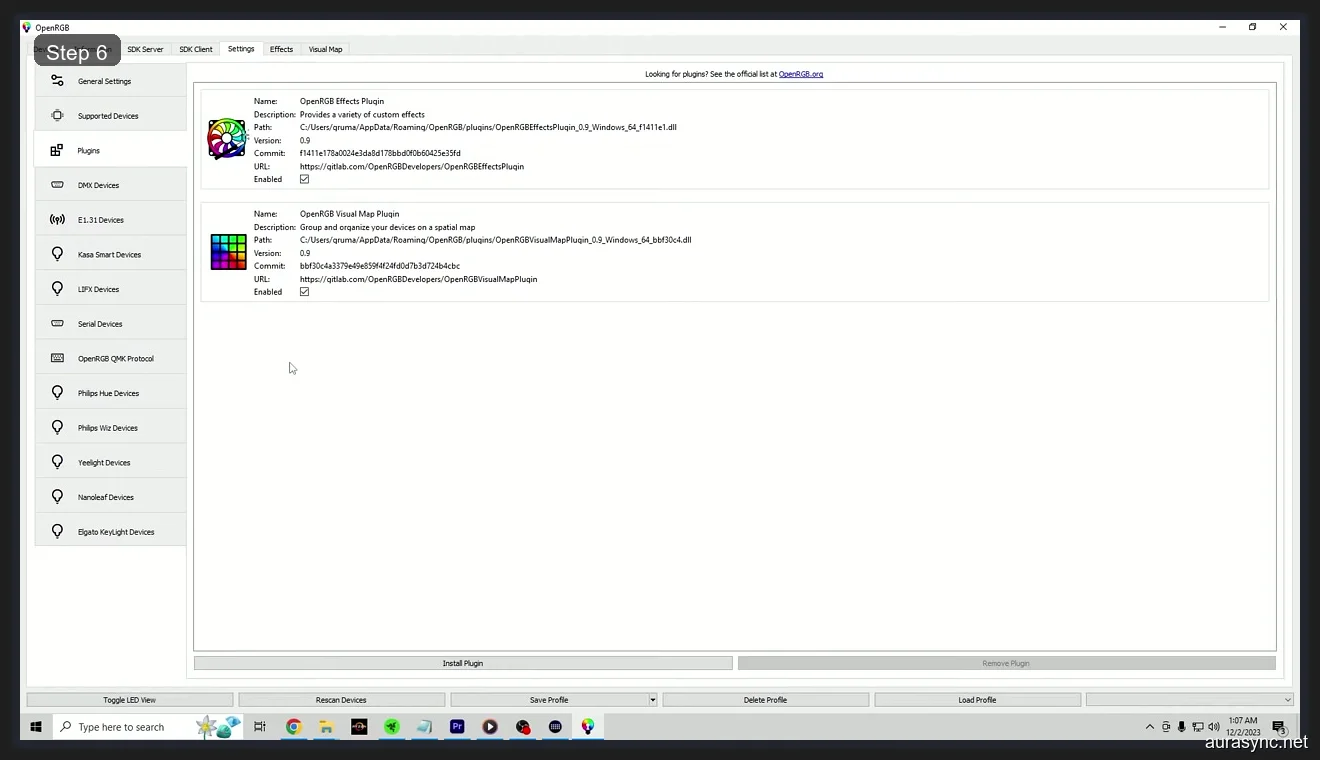
One thing that surprised me about OpenRGB is the plugin system. There are third-party plugins for effects like audio visualization (your RGB reacts to music), screen ambient lighting (like Ambilight), and even game integrations. Check the Settings tab and the plugins page for what’s available.
OpenRGB also connects to smart lighting systems. If you’ve got Philips Hue bulbs or Elgato lights, you can control them from the same interface as your PC RGB. I haven’t personally tested this since I don’t have smart lights, but the community on r/OpenRGB seems to use it frequently for whole-room ambient setups.
FAQ
Is OpenRGB safe to install?
Yes. OpenRGB is open-source with the full source code available on GitLab for anyone to audit. It’s maintained by CalcProgrammer1 and has 5,300+ stars on GitHub. Windows SmartScreen may flag it on first launch because it’s not code-signed by a large corporation, but that’s standard for most open-source projects.
Does OpenRGB work with Corsair iCUE devices?
Yes, OpenRGB supports many Corsair devices including Vengeance and Dominator RAM, LL/QL/SP fans (via USB), and some keyboards and mice. However, you can’t run OpenRGB and iCUE simultaneously. Close iCUE before launching OpenRGB to avoid SMBus conflicts.
Can OpenRGB replace Armoury Crate completely?
For RGB control, yes. OpenRGB handles everything Aura Sync does and supports more devices. For fan control and system monitoring, you’ll need separate tools like FanControl by Rem0o or your BIOS Q-Fan settings. OpenRGB is RGB only, which is honestly a feature, not a limitation.
Why doesn’t OpenRGB detect my RAM?
The most common cause is SPD write protection in BIOS. Enter your BIOS, find the SPD Write setting (often under Advanced or Tweaker), and make sure it’s enabled or set to “allow.” Also ensure no other RGB software is running, as SMBus can only be accessed by one application at a time.
Does OpenRGB run on Linux?
Yes. OpenRGB has native Linux support with .deb and .AppImage packages. Linux users may need to set up I2C/SMBus permissions manually. The OpenRGB wiki has distro-specific instructions for Ubuntu, Fedora, and Arch-based systems.
Will OpenRGB work on my motherboard?
Probably. OpenRGB supports motherboards from ASUS, MSI, Gigabyte, and ASRock across Intel and AMD chipsets. The supported devices page on openrgb.org lists every confirmed compatible board. B550, X570, Z690, Z790, X670, B650, and many older chipsets are all covered.
Related Guides
- OpenRGB cross-vendor setup guide — the deeper updated 2026 walkthrough.
- How to use OpenRGB feature guide — the per-feature reference.
- RGB sync troubleshooting playbook — for the cross-vendor problems OpenRGB solves.
- OpenRGB vs SignalRGB — the comparison if you’re picking sides.